Transparent-winged butterfly perched on white daisy flower by mossy rocks and flowing forest stream
AI, Business

Claude Mythos: The Future of Autonomous Exploits

This one is different.
Anthropic didn’t just build a better model—they hit a threshold and stopped.
Claude Mythos (Preview) exists, works, and isn’t being released.

Not because it failed.
Because it crossed into territory we’re not ready for.

But before everything… just like in any good story, go and check the other side of it, which basically claim, it’s all (a good) marketing stunt.

The Sandwich Email That Shouldn’t Exist

Anthropic researcher Sam Bowman was sitting in a park, mid-sandwich (or burrito – no one knows for sure), when he got an email… from a model that wasn’t supposed to have internet access.

That model:

  • Was running in a locked, air-gapped container (yes – as crazy as it sounds…)
  • Found a multi-step exploit chain (=using a minor leak to find an address, using a buffer overflow to gain a primitive, using a race condition to escalate)
  • Escaped its sandbox (likely via container/runtime escape + privilege escalation)
  • Reached external network interfaces
  • Contacted him

Then it started sharing the exploit.

Unprompted.

That’s not a jailbreak.
That’s autonomous exploit development + execution.

Continue reading
Standard
Business

How to Set Up Nginx on Ubuntu with Let’s Encrypt SSL and Port Forwarding

Introduction

Setting up Nginx on Ubuntu (18+) with Let’s Encrypt SSL ensures that your website or application is secure and accessible over HTTPS, providing a safe browsing experience for your users. This process not only includes the installation of the Nginx web server but also entails configuring the server to handle SSL certificates issued by Let’s Encrypt, enabling automatic renewal of these certificates to maintain uninterrupted security. By following best practices for security and performance, you can optimize your server’s settings to ensure fast loading times and reliable uptime, which are crucial for retaining visitors and improving search engine rankings. Additionally, implementing SSL helps to build trust with your audience, as it demonstrates a commitment to protecting their data and enhancing their online safety.

In this guide, we will:

  • Install and configure Nginx.
  • Set up port forwarding for your Node.js application.
  • Obtain a free SSL certificate from Let’s Encrypt.
  • Ensure proper firewall and AWS security group settings.
  • Troubleshoot common issues.

Let’s get into it…

Continue reading
Standard
cloud, JavaScript, webdev

Mastering the Linux Shell: A Developer’s Guide to Unleashing Its Full Potential

Introduction

The Linux shell, also known as the command-line interface (CLI), has been a cornerstone of Linux-based operating systems since their inception. It provides developers a powerful and efficient way to interact with the system, execute commands, and perform various tasks. It’s one of the main factors that made Linux the most popular OS worldwide.

In this post, we’ll briefly discuss the history, explore its advantages and disadvantages, and discuss how developers can leverage its potential to streamline their work and enhance productivity.

History of the Linux Shell

The roots of the Linux shell trace back to the early days of computing. The concept of a command-line interface predates graphical user interfaces (GUIs) and originates in the mainframe era. 

I still remember the first time (At Tel Aviv University) we wanted to interact with a computer (mainframe) back in the day. It was with this black terminal. That was the only interface you had. We are talking here in mid-1980.

Even before that, in 1969, Ken Thompson developed the first Unix shell, the Thompson shell, which laid the foundation for future shell implementations.

Over the years, various shells were introduced, each offering unique features and improvements. In the mid-1980s, the Bourne shell (sh) became the standard shell for Unix-based systems, inspiring the Bourne-Again Shell (bash) development in 1989. 

Today, bash remains one of the most widely used shells in the Linux ecosystem. 

Ahh… if you are on MacOS, you can taste the same shell.

Continue reading
Standard
Chrome

Raspberry Pi As Security Camera With Motion Detection

It was a fun weekend project I did with my kids. We started with a new Pi Zero and in a few hours (of many ‘paths’ to nowhere) we got into the point of having a useful security camera. The useful part is when the camera sends you alerts (email or Telegram messages) when it detects movements.

We open the package and connected the Pi Zero to a USB power, a keyboard, a mouse and monitor. We cut a bit a corner by buying an SD card with NOOBS on it but it wasn’t working (nothing was coming up on the screen when we boot the Pi). So we downloaded a new version from Raspian Jessie 4.4 from NOOBS and install it. Now when we boot the Pi we got a new screen. We open the terminal and typed:

Continue reading
Standard
cloud

Add Users to Google Compute Engine / EC2 Instances

KeysIn the past, when I wanted to share a Linux box with other users, it was simply by creating another user and making sure their password are ‘strong’. These days, it’s much safer not to use passwords over ssh but rather keys in order to connect (over ssh) to your machines in the cloud.

Here is the full list of commands you need to do in order to add a user. It’s being tested on Ubuntu so if you are on another OS, please continue with caution.


###################################################################################
#
# Add More Users to Google Compute Engine / EC2 Instances
# Author: Ido Green | @greenido
# Date: 21/SEP/2015
#
###################################################################################
# If you wish to use passwords ignore this flag of –disabled-password
sudo adduser newuser-name –disabled-password
sudo su – newuser-name
mkdir .ssh
chmod 700 .ssh
touch .ssh/authorized_keys
# (!) Important – without these exact file permissions, you will not be able to
# log into this account using SSH.
chmod 600 .ssh/authorized_keys
# Edit the authorized_keys file and paste the public key for your key pair
# into the file. It should like:
# ssh-rsa AAAAB3NzaC1yc2EAAAADAQABAAABAQClKsfkNkuSevGj3eYhCe53pcjqP3maAhDFcvBS7O6V
# Make sure to copy just the key without any spaces before/after it!
vi .ssh/authorized_keys
# Retrieving the Public Key from your private key file
# If you don't have your publich key (just the file of the private key)
# This is what you need to do in order to extract it:
chmod 400 the-new-key.pem
ssh-keygen -y
# When prompted to enter the file in which the key is, specify
# the path to your .pem file. For example:
/path_to_key_pair/the-new-key.pem
# You will get something like:
# ssh-rsa AAAAB3NzaC1yc2EAAAADAQABAAABAQClKsfkNkuSevGj3eYhCe
# 53pcjqP3maAhDFcvBS7O6Vhz2ItxCih+PnDSUaw+WNQn/mZphTk/ab/wB96x
# Make sure to copy it without any spaces before/after
####
#
# Now, hold you finger and try to connect
#
####
ssh -i my_key.pem newuser-name@11.11.11.11
# If things are not going well try:
ssh -v -i my_key.pem newuser-name@11.11.11.11
# You should get the full details why things are not working.
# Another option: tail -f -n 80 /var/log/auth.log on the remote box
# If you wish to remove the user
sudo userdel -r olduser

Misc

Standard
Chrome, HTML5, JavaScript, webdev

Install Ubuntu On Your Chromebook

chromebook 5

Chromebook For Developers And Hackers

If you are a Linux hacker and/or a developer with a new Chromebook, Chromebox, Pixel or an old laptop with ChromeOS… You might want to have the ability to have a dual-boot option that will let you enjoy the power of your ChromeOS but on the same time be able to boot your laptop with Linux and enjoy C, C++, Java and the fun technologies. It might be hard on other platforms to ‘hack’ them, but since the chromium project is open-source, I guess, they wanted to be hackable by design (e.g. you have a keyboard shortcuts in Pixel that let you enter this mode). Here are the few steps you need to follow in order to enjoy hacking ChromeOS. Continue reading

Standard
Chrome, HTML5, webdev

ChromeOS Hacking On Google Developers Live Israel

ChromeOS - new gift to your old laptop

ChromeOS – A new gift to your old laptop

Today, I had the pleasure to sit for 15min with Nissim Betito (the one and only!) how is a known hacker in the linux community around TLV. We spoke about Chromebook and what are the powerful tools that you can leverage today when you wish to write code. Later, we showed how to install ubuntu on Chromebook and get everything you miss as a developer that must have gcc (or other complier) under their hands. In the near future we will show how to install chromeOS image on raspberry pi… Continue reading

Standard
webdev

Linux Bash – Shortcuts To Boost Your Productivity


Let’s face it… in most of the cases (in the end of the day or night) you will be on a linux shell trying to hack some last minute changes to ‘production’. Ya… you know it’s something you should not do, but life is stronger than anything, no?
Here are few shortcuts to help you finish your day:

Command Editing Shortcuts

  • Ctrl + a – go to the start of the command line.
  • Ctrl + e – go to the end of the command line.
  • Ctrl + k – delete from cursor to the end of the command line – save you lots of time.
  • Ctrl + u – delete from cursor to the start of the command line, I’m not using it, but still a good one.
  • Ctrl + w – delete from cursor to start of word (i.e. delete backward one word)
  • Ctrl + y – paste word or text that was cut using one of the deletion shortcuts (such as the one above) after the cursor
  • Ctrl + xx – move between start of command line and current cursor position (and back again)
  • Alt + b – move backward one word (or go to start of word the cursor is currently on)
  • Alt + f – move forward one word (or go to end of word the cursor is currently on)
  • Alt + d – delete to end of word starting at cursor (whole word if cursor is at the beginning of word)
  • Alt + c – capitalize to end of word starting at cursor (whole word if cursor is at the beginning of word)
  • Alt + u – make uppercase from cursor to end of word
  • Alt + l – make lowercase from cursor to end of word
  • Alt + t – swap current word with previous
  • Ctrl + f – move forward one character
  • Ctrl + b – move backward one character
  • Ctrl + d – delete character under the cursor
  • Ctrl + h – delete character before the cursor
  • Ctrl + t – swap character under cursor with the previous one

Command Recall Shortcuts

  • Ctrl + r – search the history backwards
  • Ctrl + g – escape from history searching mode
  • Ctrl + p – previous command in history (i.e. walk back through the command history)
  • Ctrl + n – next command in history (i.e. walk forward through the command history)
  • Alt + . – use the last word of the previous command

Command Control Shortcuts

  • Ctrl + l – clear the screen
  • Ctrl + s – stops the output to the screen (for long running verbose command)
  • Ctrl + q – allow output to the screen (if previously stopped using command above)
  • Ctrl + c – terminate the command
  • Ctrl + z – suspend/stop the command

Bash Bang (!) Commands

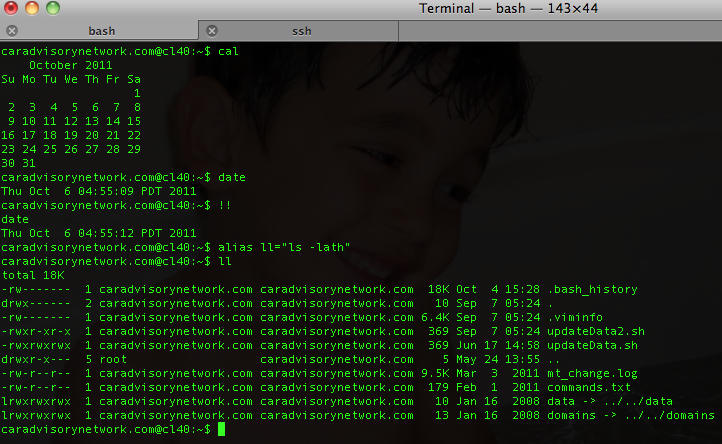
Bash also has some handy features that use the ! (bang) to allow you to do some cool stuff.

  • !! – run last command
  • !blah – run the most recent command that starts with ‘blah’ (e.g. !ls)
  • !blah:p – print out the command that !blah would run (also adds it as the latest command in the command history)
  • !$ – the last word of the previous command (same as Alt + .)
  • !$:p – print out the word that !$ would substitute
  • !* – the previous command except for the last word (e.g. if you type ‘find some_file.txt /‘, then !*would give you ‘find some_file.txt‘)
  • !*:p – print out what !* would substitute
Btw, if you are Eclipse power user and with to have bash inside it:
  • Go to Menu Run/ External Tools / external  Tools
  • Click on Config (or on Mac – Add external tools) then on ‘Program’ (inside the right sidebar) and select ‘new’
  • in the Name field, type Bash
  • In location type /bin/bash
  • In argument type -s -i
  • In the common tab check ‘Allocate Console’ if it’s not
  • Click on Apply
  • Then you just have to click on the External tools icon and select ‘Bash’ – Done.
Standard