Business, Chrome, HTML5, JavaScript, webdev

HTML5 Training Day (Tel Aviv)

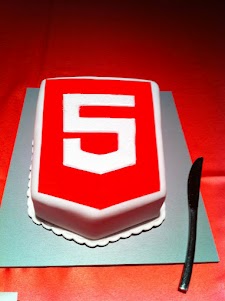
Lets start from the end… It was a great experiance to meet wonerful, smart (web) developers both in London and Tel Aviv. We had 80+ developers in the London event and 130+ developers in Tel Aviv. Like any good event – we started with a good cup of HTML5 coffee and some special HTML5 cake.

After the coffee and some food we got to the ‘talking’ part which went very well. In London we had the pleasure to have Alex Russell who spoke about Chrome Frame (link to his great presentation is in the bottom of this post). In Tel Aviv day we had two external experts: Nimrod Luria and Ron Reiter. Nimrod gave a talk about HTML5 security issues and how to use the best parctices in order to avoid them. Few examples where:

  •  Hacking Facebook with HTML5 using Cross-Origin Resource Sharing.
  • Web sockets (open ports that listen to in bound connections)
  • Good old ‘data cleaning’ and data validation.
  • Client side injections to local databases.
  • XSS by using encoding and new formats that are supported.

Ron gave a talk about backbone.js and how to leverage some frameworks and tools in order to build moden mobile web apps.

Here are the talks (with their slides) from both days:

Time Session Title Description
10:00-11:00 HTML5 and new breed of web application Web developers have nearly perfected their skill at building great web sites, but everything is shifting towards building apps.  We’ll take a look at what defines a great Web App and show you how you can use HTML5 to create a new breed of web application that will delight and amaze your users. Ido Green
11:00-11:55 Platform, Storage, Prediction, Translation and more Google Cloud Platform latest and greatest Barak Regev
13:00-14:00 mobile web app HTML5 stack A -For modern mobile browsers Learn what it takes to build modern mobile web apps. We will start with the ideas of “adaptive apps” and “offline first”. Next, we’ll dive into some of the technologies, including MVC frameworks, templating engines, CSS frameworks, laying out views and multi-touch input. Finally, we’ll close off with mobile-specific tips and sweet demos Ido Green
14:00-14:50 HTML5 threats and attack vectors + some attacks demo +
Countermeasures
Security for business web apps – best practices and tips for the real world. Nimrod Luria
Q.rity – Quality Security Solutions Ltd.
A short coffee break to make sure everybody is awake…
15:10-15:35  Chrome Dev Tools Tips and best practices to work with Chrome Dev Tools. Ido Green
15:35-16:30 HTML5 mobile web apps Backbone.js and other tools with real world examples Ron Reiter

More sources from the talks and questions:

and for the ones that wish to try ChromeOS: https://greenido.wordpress.com/2012/01/09/install-chromiumos-on-your-old-laptop/ and https://greenido.wordpress.com/chrome/
Or the Ubuntu guys that want to have Canary.

Standard
Chrome

Install ChromiumOS On Your (Old) Laptop

ChromeOS - new gift to your old laptop

ChromeOS – A new gift to your old laptop

In this post we will see how easy it is to take ChromiumOS (or ChromeOS as some call it by mistake) to a test drive on your old hardware and see if it’s working for your needs. I did it on some old laptops that I have forgot all about them and 3 out of 4 are working great with this powerful OS. I was surprise to see that even with old hardware (More tthan 3 years) the laptop is working nicely and much faster. All the builds here are thanks to Chromium.org and this powerful open-source project and Mr. hexxeh that hack the builds and allow to download them (thank you!).

What is ChromeOS/ChromiumOS?

Chromium OS is an open-source project that aims to build an operating system that provides a fast, simple, and more secure computing experience for people who spend most of their time on the web. It gives you the familiar environment of Chrome with HTML5 & Flash support.

Install ChromiumOS on Linux

  1. Extract the IMG file from the downloaded archive.
  2. At the shell, run the following (where sdX is your USB stick and ChromeOS-Lime.img is the path to the IMG file you extracted):
    dd if=ChromeOS-Lime.img of=/dev/sdX bs=4M
  3. Boot from the newly created Chromium OS USB stick!

Install ChromiumOS on Mac

  • Like almost anything on Mac it’s very easy, with just one step. You will need to download this ChromeOS mac builder and you are good to go.

Install ChromiumOS On Windows

  1. Begin downloading Chrome Image
  2. Download and extract the Windows Image Writer.
  3. Copy the Windows Image Writer directory to the ROOT of your C: drive.  (failure to copy this directory, and the .img file for Chrome to the ROOT of the C: drive can cause the dreaded and annoying “Error 8:”)
  4. Right-Click on the tar.gz image file, and use 7-zip to “extract here”.
  5. After that completes, again, right-click on the .tar image file and use 7-zip to “extract here”.
  6. This should leave you with a .img file.  Copy this file to the ROOT of your C: drive.  (failure to copy this file, and the directory for the Windows Image Writer, to the ROOT of the C: drive can cause the dreaded and annoying “Error 8:”)
  7. Insert your USB flash drive or SD Card.
  8. Enter the Windows Image Writer directory and execute the Win32DiskImageer.exe programme.
  9. Select the .img file in the “Image File” window, and ensure that the proper drive letter is selected in the “Device” window.
  10. Click on “Write”.
  11. Once complete, remove your flash drive or SD Card, and insert them into your powered-off laptop.
  12. Power on your laptop and TAP THE ESC KEY to select the boot order.  Don’t try to change the boot order in the CMOS/BIOS settings – it doesn’t seem to be able to detect a proper USB boot from there.
  13. Boot from the USB device, rather than the internal SSD.
  14. Enter “facepunch” as your username and “facepunch” as your password.
  15. Once Chrome OS is booted and appears, press Ctrl-Alt-T to go the terminal.
  16. Enter “sudo dd if=/dev/sdb of=/dev/sda bs=4m“.  Don’t bother with the “/usr/sbin/chromeos-install” advice that you see in places – it won’t work on a 2GB SSD.
  17. Remove your USB device, and reboot.

In case you wish to ‘test the water’ without all this you can also test this powerful OS in VirtualBox.
Here are the details to install ChromeOS in Virtual Box.

Btw, for more fresh built, checkout http://chromeos.hexxeh.net/

Enjoy and please let me know how it’s working for you and how we can make it better.

Standard
Chrome

Chromebook keyboard shortcuts

If you wish to work like a pro with any new software or tool you need to invest a bit of time to learn the ‘tricks’ and shortcuts that are making you more productive. Here is a nice short list you can memorize in 12-14min… Lots of shortcuts are ‘traivial’ (e.g. Ctrl-C and Ctrl-v) but It might be worth the time to have a look at see some of the ‘tricky’ one that you might not aware they are there. It will save you time (which is the most expensive resource you have, no?) I’ve put some of the ‘nice’ ones in bold. If you have other suggestions please feel free to let me know.

PAGE SHORTCUTS

  • Ctrl and +  –> Zoom in on the page
  • Ctrl and –  –> Zoom out on the page
  • Ctrl+0 –> Reset zoom level
  • Press Alt and up arrow – Page up
  • Press Alt and down arrow – Page down
  • Space bar – Scroll down the web page
  • Press Ctrl+Alt and up arrow – Home
  • Press Ctrl+Alt and down arrow – End
  • Ctrl+P – Print your current page
  • Ctrl+S – Save your current page
  • Ctrl+R – Reload your current page
  • Ctrl+Shift+R – Reload your current page without using cached content
  • Esc – Stop the loading of your current page
  • Press Alt and click a link – Open the link in a new tab in the background
  • Ctrl+D – Save your current webpage as a bookmark
  • Ctrl+Shift+D – Save all open pages in your current window as bookmarks in a new folder
  • Drag a link to bookmarks bar – Save the link as a bookmark
  • Ctrl+F – Open the find bar to search your current page
  • Ctrl+G or Enter – Go to the next match for your input in the find bar
  • Ctrl+Shift+G or Shift+Enter – Go to the previous match for your input in the find bar
  • Ctrl+K or Ctrl+E – Perform a search. Type a search term after the question mark in the address bar and press Enter.
  • Ctrl+Enter – Add www. and .com to your input in the address bar and open the resulting URL
  • Ctrl+ Take a screenshot of your current page
  • Ctrl+U – View page source
  • Ctrl+Shift+I – Toggle the display of the Developer Tools panel
  • Ctrl+Shift+J – Toggle the display of the DOM Inspector

TAB AND WINDOW NAVIGATION

  • Ctrl+N – Open a new window – But I find myself using the open tab shortcut much more (it’s the next one).
  • Ctrl+T – Open a new tab
  • Ctrl+Shift+N – Open a new window in incognito mode
  • Ctrl+O – Open a file in the browser
  • Ctrl+Shift+Q – Sign out of your Google Account on Chrome OS
  • Ctrl+W – Close the current tab
  • Ctrl+Shift+W – Close the current window
  • Ctrl+Shift+T – Reopen the last tab you’ve closed. Google Chrome remembers the last 10 tabs you’ve closed.
  • Ctrl+1 through Ctrl+8 – Go to the tab at the specified position in the window
  • Ctrl+9 – Go to the last tab in the window
  • Alt+1 through Alt+9 – Go to the window at the specified position
  • Alt+9 – Go to the last window open
  • Ctrl+Tab – Go to the next tab in the window
  • Ctrl+Shift+Tab- Go to the previous tab in the window
  • Alt+Tab – Go to the next window you have open
  • Alt+Shift+Tab – Go to the previous window you have open
  • Click and hold the Back or Forward arrow in the browser toolbar – See your browsing history for the tab
  • Go to previous page in your browsing history – Backspace, or press Alt and the left arrow.
  • Go to the next page in your browsing history – Shift+Backspace, or press Alt and the right arrow.
  • Press Ctrl and click a link – Open the link in a new tab in the background
  • Press Ctrl+Shift and click a link – Open the link in a new tab and switch to the newly opened tab
  • Press Shift and click a link – Open the link in a new window
  • Drag a link to a tab – Open the link in the tab
  • Drag a link to a blank area on the tab strip – Open the link in a new tab
  • Type a URL in the address bar, then press Alt+Enter – Open the URL in a new tab
  • Press Esc while dragging a tab – Return the tab to its original position

BROWSER SETTINGS AND NAVIGATION

  • Ctrl+Shift+B -Toggle the display of the bookmarks bar. Bookmarks appear on the New Tab page if the bar is hidden.
  • Ctrl+M – Open the file manager
  • Ctrl+H – Open the History page
  • Ctrl+J – Open the Downloads page
  • Shift+Esc – Open the Task Manager
  • Ctrl+Alt+/ – Open the list of available keyboard shortcuts
  • Ctrl+? – Go to the Help Center
  • Ctrl+ – Configure monitor display
  • Shift+Alt+S – Place focus on the status area in the top-right corner of the screen. Use the actions listed for Shift+Alt+T to move the focus.
  • Shift+Alt+T –
  • Place focus on the browser toolbar
    • – Press Tab or the right arrow to focus on the next item in the toolbar
    • – Press Shift+Tab or the left arrow to focus on the previous item in the toolbar
    • – Press Ctrl+Alt and the up arrow to focus on the first item in the toolbar
    • – Press Ctrl+Alt and the down arrow to focus on the last item in the toolbar
    • – Press Space or Enter to activate buttons, including page actions and browser
    • actions
    • – Press Shift + to open the context menu for the button (if available).
    • – Press Esc to return focus to the page
  • Alt+Shift+B -Place focus on the bookmarks bar. Use the actions listed for
  • Shift+Alt+T – to move the focus.
  • Alt+E or Alt+F – Open the wrench menu on the browser toolbar

TEXT EDITING SHORTCUTS

  • Ctrl+A Select everything on the page
  • Ctrl+L or Alt+D Select the content in the address bar
  • Press Ctrl+Shift and right arrow Select next word or letter
  • Press Ctrl+Shift and left arrow Select previous word or letter
  • Press Ctrl and right arrow – Move to the start of the next word
  • Press Ctrl and left arrow – Move to the start of the previous word
  • Press Alt and up arrow – Page up
  • Press Alt and down arrow – Page down
  • Press Ctrl+Alt and up arrow – Home
  • Press Ctrl+Alt and down arrow – End
  • Ctrl+C – Copy selected content to the clipboard
  • Ctrl+V – Paste content from the clipboard
  • Ctrl+Shift+V – Paste content from the clipboard as plain text
  • Ctrl+X – Cut
  • Ctrl+Backspace – Delete the previous word
  • Alt+Backspace – Delete the next letter (forward delete)
  • Ctrl+Z – Undo your last action
Here is the one for fix your Dad’s computer – The quick and easy way


For the full updated list of shortcuts try the official ChromeOS site

Standard
Chrome, HTML5

Google Developers Days (Tel Aviv & Berlin) And One CloudCon

It was a busy week. Busy but with lots of fun. It’s so great to meet wonderful developers that push the web forward and know (and love) their profession. Last sunday, we had Google Developers Day in Tel Aviv (or Airport city if you want to be accurate) – it was well organized event with more then 1400 developers. In the keynote we had three demos:

  • Android – Ice cream sandwich new capabilities (maps, nfc, HD and other features. To dive deeper, go check Romain Guy’s blog).
  • Chrome/HTML5 amazing new features – I did the demos and I hope to post a list next week.
  • G+ – the new hangout APIs with a robot that eat falafel and drink beers.
Here you can check some coverage:
 The CloudCon was also impressive in terms of the audience (mainly, CIO/CTO dudes) – they liked the story of HTML5 and ChromeOS. I got some good questions on new features: offline, notifications, threads and even on web audio. It could be great to have the new Chromebooks in Israel, it seems that the market really want them. The one argument (or selling point if you want to push here) that conviense IT people is that the TCO (=Total cost of ownership) is 60%-70% cheaper. Yes – these are the numbers… so if your organization can work with web apps (and Citrix for the apps that you don’t want to move to the web) it might be a perfect solution for you.

I hope to get some photos soon (from our dear wonderful photographer) – so I’ll update this post with fresh photos of some great looking people.

Tomorrow we are going to rock Berlin – so keep up with us using G+ with #GDD11 tag  or this blog next week. Btw, for Berlin GDD you might want to search after #GDDDE

Be strong.

This slideshow requires JavaScript.

In case you want to follow the slides from my Talk in CloudCon – The ‘love’ story of HTML5 & ChromeOS.

From Google Developers Day in Berlin here are the talks:

Standard
Chrome

A New Release Of Chrome 15 For Chromebooks

A new release of Chrome 15 (on the Stable Channel) is out there for Chromebooks: Acer AC700, Samsung Series 5 and Cr-48.

Release highlights:

  • New Chrome 15 functionality including the new tab page (which you can see a short introduction video in the bottom of this post).
  • New Web UI Login – IMHO, much simpler and nicer.
  • Support playback of key media codecs
  • Improve video decode performance
  • Add concept of preferred networks
  • New ‘Games’ and ‘Music’ apps by default
  • NTFS support
  • Add localized text for recovery
  • Networking improvements
  • Crash fixes & Security updates – because you must have them both in any good product today.
The current version is 15.0.874.117 (Platform version: 1011.118)
Standard
Chrome

How To Make Your Chromebook (Even) Faster?

Here are few tips to get your Chromebook to run (even) faster:

  • First, check if you don’t have too many tabs open – after all, if you open 217 tabs it might be ‘a bit’ too much for the memory. It’s like in any other computer, the memory got its limitations.
  • Go to: chrome://flags/ and disable all experimental flags – just to be on the safe side. Lots of them are not taking any ‘extra’ CPU cycles, but I like to keep things as trim and simple as possible.
  • Make sure you remove (or at least disable) unused extensions. You can go to chrome://extensions/ in order to remove them or just right click on their buttons.
    Of course, that some extensions like: LastPass and others here (on your browser) to stay. After all, there are some extensions that give certain users a lot of power that ‘worth’ the tiny bit of power they are consuming from the device.
  • Sometimes click on Shift-Esc to open the processes list. There you can remove/kill processes that are consuming too much CPU/memory.
If you got some other tips – please let me know with the comments here or on @greenido
chromebook 5
Standard
Chrome, HTML5, webdev

ChromeOS In 5min Video


In this short screencast I’ve touched on:

  • What is ChromeOS?
  • Why it’s great for users, business and developers.
  • How a good web apps look like.
Until next time, please be strong and happy.
Standard
Chrome, webdev

Want To Test Drive Chrome OS On Your Laptop?

Here is a place with nightly builds for VMWare, VirtualBox and your USB. If you wish to see the magic on your netbook… why don’t you start with a USB build and see how it’s working for you?

Good luck & be strong.

P.S
(!) Important tip… go to the virtual box setting pane and under CPU make sure the ‘PAE’ is checked. This will save you a lot of white hair.

Standard
Chrome

Activate Your Chromebook (While You Are On The Road)

  1. Plug in your Chromebook to a power outlet. Some Chromebooks come with a detached battery or with a battery that need some juice so insert the battery and plug it in.
  2. Start your Chromebook. Power up your Chromebook by pressing the power button on the top-right corner of the keyboard.
  3. Select your language settings. On the “Let’s get started” screen that appears, select the interface language you’d like to use by default. If prompted, select a keyboard input method, too.
  4. Connect to a network. Select a Wi-Fi network from the network menu.
    (!) Please make sure you’re not connected to a network that requires web-based authentication or security certificates, in other words, no ‘term & condition’ page you need to sign on before you get connection. If you are having trouble connecting? check out this Internet connection troubleshooter to diagnose your issue.
  5. Accept terms of service. Your Chromebook will then download any available system updates so you automatically get the latest features.
  6. Sign in with your Google Account. In the sign-in box that appears, enter your Google Account username and password and click Sign in. Make sure you sign in with your primary Google Account, because this account will be set as the owner account.

In case you wish to activate Verizon, first make sure you’re in an area that is covered by the Verizon Wireless Network before beginning the activation. To check if your location is supported, visit this site. Once you’ve verified that your location is supported, follow these steps to check your signal strength:

  1. Press Ctrl+Alt+T on your Chromebook to open a terminal window.
  2. Type the following command and press Enter to see information about your modem: modem status
  3. In the information that appears, check whether the signal_strength_dbm value is greater than -86 dbm.
    If it’s not, try moving to another location with better signal strength before continuing with the activation process.

==

Enjoy you new Chromebook and check out these powerful web apps to get you going. Here are some Tricks and Tips as well.
Standard
Chrome, HTML5

New Video Channel on Chrome OS And HTML5

After speaking in seven different events (during the past two months), I’ve decided to start a YouTube channel that will focus on ChromeOS, Chromebook and (of course) HTML5.
The channel will get its own page on this blog.
and as first step, I’ll put there a series of videos (5min each) that will cover subjects around the eco system of Chrome. The first three videos are:

Other videos like This Week In Google on ChromeOS will also be there.

There are some very interesting conversations going on G+ http://plus.ly/greenido feel free to put your voice there.

Standard