Chrome, HTML5, JavaScript, webdev

HTML5 Lastest Features

This slideshow requires JavaScript.

Here are some updates and new features you can use today…

  • Page Visibility API – know when your web app’s page is not visible and save CPU (and Al gore will love you! for helping us saving earth)
  • Web Audio API – Since < audio > had its limitations. Now you can have scheduling of your playback, real-time processing and analysis of the stream and even low-level audio manipulation. Go Have Fun… It’s all in Chrome 14 stable & ready.
  • Prerendering API – speed is the need and this API comes to help.
  • Offline support is going mainstream so first you wish to know when you are online (or not) and then use IndexedDB and other options to save time and data for your clients (on the client).
  • Web graphics enhancements: Beautiful image transitions and A 3D CSS shooter
  • Native Client launched in Chrome 14 – Now you can play some classics games on your Chromebook.
    • Secure cross-platform C/C++ environment for apps/extensions
    • Close to native performance in web applications
    • Extra security, with The Sandboxed inside NaCl and Chrome sandboxes (very far from ActiveX!)
Here are some short code snippts of what you can do today on morden browsers. If you wish to check the specific feature I’ll recommend canIuse.com

Page Visibility API

document.addEventListener('visibilitychange', function(e) {
  console.log('hidden:' + document.hidden, 'state:' + document.visibilityState)
}, false);

Prerendering API

< link rel="prerender" href="http://example.org/index.html" >

Online status

if (navigator.onLine) {
  console.log('ONLINE!');
}
else {
  console.log('Connection is not *good*');
}

Now it’s your turn… start leveraging them.
Standard
Business, Chrome

Chrome Remote Desktop – Work Like A Pro

What is it?

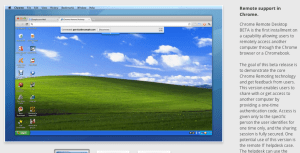
Chrome Remote Desktop BETA is the first installment on a capability allowing users to remotely access another computer through the Chrome browser or a Chromebook.
Yes! If you have install Chrome to your presents you can give them an extra support these days.

The goal of this release is to demonstrate the core Chrome Remoting technology. This version enables users to share with or get access to another computer by providing a one-time authentication code. Access is given only to the specific person the user identifies for one time only, and the sharing session is fully secured.

Chrome Remote Desktop BETA is fully cross-platform, so you can connect any two computers that have a Chrome browser, including Windows, Linux, Mac and Chromebooks.

How to share you computer? (please use with caution)

  1. Open a new tab in Google Chrome by clicking the open a new tab icon at the top of your browser window.
  2. Click the Chrome Remote Desktop icon in the Apps section to open the Chrome Remote Desktop app.

  3. Click Share this computer. The app will have permission to take the following actions:
    • See your email address
    • See your Chrome Remote Desktop computers
    • Receive and send chat messages
  4. A unique access code will be generated for each sharing session. Send this code to the person you’d like to share your computer with. For security reasons, we recommend reading this code aloud to him or her.

Once your friend enters the access code, the sharing session will begin and he or she will be able to see your computer screen.
You can click Stop sharing or press Ctrl+Alt+Esc (Mac: Shift-Esc) at anytime to end the session.

Access a macine that was shared with you

  1. Open a new tab in Google Chrome by clicking the open a new tab icon at the top of your browser window.
  2. Click the Chrome Remote Desktop icon in the Apps section to open the Chrome Remote Desktop app.
  3. Click Access a shared computer.
  4. Enter the access code provided by your friend.
  5. Click Connect.

When things are not working

I would check first the internet connection and then:
  1. Your firewall settings – Your computer’s firewall may be configured in a way that doesn’t allow Chrome Remote Desktop to work properly. Verify that your firewall permits outbound UDP traffic, permits inbound UDP responses, and allows traffic on TCP ports 443 (HTTPS) and 5222 (XMPP).
  2. Your network’s NAT Traversal policy – If your computer is on a corporate network, check whether your company’s network security policies prevent access to outside services that rely on peer-to-peer (P2P) connections (“NAT Traversal” policies). If so, you won’t be able to use the Chrome Remote Desktop app. This restriction applies when you and the other computer are not on the same corporate network.
For the ones that love to read code – This is the code that does this magic.
Standard
Business, Chrome

Re-Thinking Corporate IT Or How Chromebook Can Help

Few points on companies and their IT department in 2011.

  • In todays world, any CIO/CTO that want to ‘Avoid Getting In the Way’ must think on how to remove her department tag of ‘cost center’ and start pushing to be a business that save money and even produce incomes to the organization. In most of the cases the answer is ‘cloud’. But lets take a closer look what that buzzword means.
  • It’s easy to say and hard to do… However, where there are so many great clouds solutions (SAAS and PAAS) if you are still running you mail servers, your wiki or intranet site on some old hardware, something is not being done right.
  • I was lucky to be the CTO and co-founder of a great startup in the past four years (HighGearMedia) and from day one all the IT infrastructure was in the cloud. It can be Google, Rackspace, Amazon or any other provider you like and trust. The main point is saving money, time and most importantly – focus. You want to keep doing what you excel at and not spending time in supporting people with ’email’ issues or some ‘rare problems with the most important presentation. The money you save in startups is ‘nothing’ compare to the millions (or more) the large company will save.
  • One thing that the new Chromebook is doing great to the CIO and all the IT department is to allow them to mange all the organization Chromebooks from one central point. You can install apps (few clicks and ALL your users got a new chart app), remove apps and put some policy in place (e.g. no Angry birds in the middle of the day). In other words, Administrators can configure and manage Chromebooks and user accounts centrally through the web. Seamless updates directly from Google keep the operating system and software fresh (every 6 weeks you are getting a new version of chrome), eliminating the need to manually patch systems. And since only minimal data is stored on the device, you don’t need to do tedious backups or migrate data when changing hardware.
  • Last May, I’ve listened to Google CIO (Ben Fried) and his team of engineers describe how Google builds on App Engine. If you’re interested in building corp apps that run on Google’s cloud, this team has been doing exactly that. How these teams have been able to respond more quickly to business needs while reducing operational burden? Here are some answers
    If you are in NY later this month you might want to hear what Ben got to say about “Re-thinking IT: Supporting the Business Without Getting In the Way” for the upcoming Web 2.0 conference.
Standard
Chrome, webdev

ChromeBook – Tips And Tricks

Customize It

  • First enable the sync option so you will get your passwords, bookmarks (and in the future) themes everywhere. You can do it from chrome://settings/personal and click on Sync.
  • Enable Tap to click – Go to: chrome://settings/system. Then click on the checkbox to set ‘tab as click’ – done.
  • Extension that give you shortcuts to all the ‘flags’ and settings – I’ve wrote it because I wanted to have all the shortcuts in one place… it’s very productive to have them in one click.
  • SSH client – Ctrl+Alt+t
  • Open an ssh connection to the given host Y as user X.
  • The parameter is optional and defaults to 22.
  • Log out – Ctrl+Shift+q
  • Lock screen – Ctrl+Alt+l (=L)
  • Shortcut keys
  • Press F8, then press Ctrl, Shift, Alt (once a key), press F8 again to exit

Better Browsing

  • Create a tab – Ctrl+T or click the ‘+’ on top of the window.
  • Create a new window – Ctrl+n
  • Create a new incognito window – Ctrl+Shift+n
  • Refresh current tab – Ctrl+r
  • The (one and only) File Manager – Ctrl+m  (On chromebook you got almost 16G of SSD).
  • Switch between different windows – Alt+Tab or press F12 and then use arrow key
  • Change Channel To Beta or Dev Version – Only if you are geeky enough to live on the bleeding edge, visit chrome://settings/about and click on “more info” to change channel.

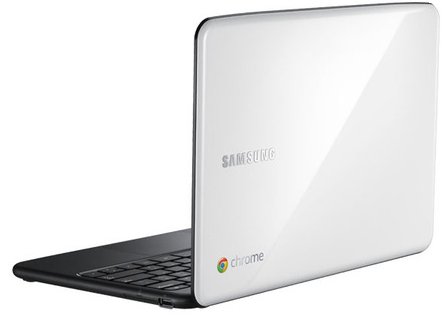
For the ones that don’t know what is chromebook

Standard