Business, Chrome

CloudCon – Summary

First you might ask, what is CloudCon?
Well, this is what the organizers are saying: “…At the convention we will focus on the new possibilities opening before IT managers with the move to cloud computing services, listen to the new offers made by leading software providers and learn the ways of the cloud as presented by analysts, experienced infrastructure managers, developers, IT managers and other cloud experts.”
My main objective was to expose CIO/CTOs to ChromeOS, CWS and to educate them about the new capabilities that HTML5 is harnessing their IT departments. I also wanted to show IT Admins how easy and cost effective is to deploy Chromebooks in their organizations. Overall, there were 400+ attendees and among the invitees: IT managers, R&D Managers of Israeli ISV’s, Security Managers, infrastructure managers, storage managers and other IT pros.
This was my session “HTML5 & ChromeOS” and in case you miss the presentation.

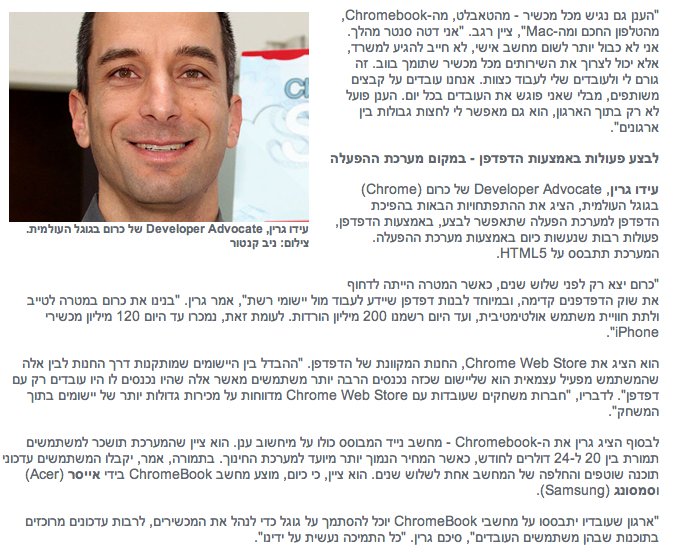
This is a short summary from the organizers: pc.co.il/CloudCon
and for the ones that can read hebrew… here is another one:

Standard
Chrome, JavaScript

Chromebook and window.open()

I got few questions last week on #GDDDE (=Google Developers Day 2011 and #GDD11 which is the popular hash tag both in G+ and Twitter for these events) about window.open() in Chromebook. Here is a summary of the answers.

Few things you might didn’t know about window.open() in ChromeOS:

  • window.open() will open a new tab if the window size > 50% of the width or 60% of the height of the window. So it will be a bit different in Samsung and Acer due to the different screen sizes.
  • An app / extension can use the chrome.window API to call chrome.windows.create() which takes a “type” parameter which will always be obeyed. (Panel windows will be constrained to 80% of the screen width and height). Let’s have a look on how to use it.

First, let the browser ‘know’ what type of window you wish to have use this:

 chrome.windows.create(object createData, function callback) 

Creates (opens) a new browser with any optional sizing, position or default URL provided. You should use ‘type’ as part of the ‘createData’.

 type - ["normal", "popup", "panel"]  
This is the source of true about the window object API. Be strong.
Standard
Business, Chrome

If You Care About Security (And Privacy) – Chromebook Is Your Guardian

In today’s world, any website (even well-known ones), may be infected with malware. the problem is that when you go and visiting an infected web page, ordinary computers can get infected as well. This is not the case with Chromebooks. This new OS is changing a lot of things in the game and one of them is security. Let’s see what are the main features that harness your Chromebook with capabilities that other OS do not have (unless you invest in expensive software…).

Here are the main points to remember when you going to shop for a new ‘secure’ laptop:

All your data will be Encrypted

There are so many cases when you lost your laptop and then all your data is in the ‘wild’. On the Chromebook you are safe. When you use web apps on your Chromebook, all your documents are stored safely in the cloud. But certain kinds of files, like downloads, cookies, and browser cache files, may still be present on your computer. Your Chromebook encrypts all this data using tamper-resistant hardware, making it very difficult for anyone to access those files.

Verified boot – You can look at it as ‘self cure’ capability 

Even if malware manages to escape the sandbox, your Chromebook is still protected. Every time you boot the computer, it does a self check called Verified Boot. If it detects that your system has been tampered with, or corrupted in any way, typically it will repair itself without you lifting a finger. You will always be able to get back to an operating system that’s as good as new.

Automatic Updates – Most effective way to stay healthy

The most effective way to protect yourself from malware is to make sure all of the software on your computer is up to date and has the latest security fixes. Chromebooks manage updates for you automatically so you are always running the latest and most secure version. Ya, it’s like Chrome, where you get every 6 weeks a new update version with more features, speed improvements and security fixes.

Sandboxing – Sperate in order to gain control

On your Chromebook, each web page and application you visit runs in a restricted environment called a “sandbox.” So if you visit an infected page, it can’t affect the other tabs or apps on your computer, or anything else on your machine. The threat is contained.

These are the main features. Sounds good, no?

Standard
Chrome

How To Get Things Done With Chromebook

Some short videos to put you up and running with the new Chromebook you got (or gave) for the holidays… In this short tutorials we will see how lots of complicated tasks can be done quickly. We will start with some easy tasks like: fixing your dad’s computer (and you can take it to other places like: helping mom with her 2 years old desktop etc’), how to set it up and even how to backup!

At the end, we will see how Chromebook helping both students and business be more productive and getting A+

Continue reading →

Standard
Chrome, HTML5

Google Developers Days (Tel Aviv & Berlin) And One CloudCon

It was a busy week. Busy but with lots of fun. It’s so great to meet wonderful developers that push the web forward and know (and love) their profession. Last sunday, we had Google Developers Day in Tel Aviv (or Airport city if you want to be accurate) – it was well organized event with more then 1400 developers. In the keynote we had three demos:

  • Android – Ice cream sandwich new capabilities (maps, nfc, HD and other features. To dive deeper, go check Romain Guy’s blog).
  • Chrome/HTML5 amazing new features – I did the demos and I hope to post a list next week.
  • G+ – the new hangout APIs with a robot that eat falafel and drink beers.
Here you can check some coverage:
 The CloudCon was also impressive in terms of the audience (mainly, CIO/CTO dudes) – they liked the story of HTML5 and ChromeOS. I got some good questions on new features: offline, notifications, threads and even on web audio. It could be great to have the new Chromebooks in Israel, it seems that the market really want them. The one argument (or selling point if you want to push here) that conviense IT people is that the TCO (=Total cost of ownership) is 60%-70% cheaper. Yes – these are the numbers… so if your organization can work with web apps (and Citrix for the apps that you don’t want to move to the web) it might be a perfect solution for you.

I hope to get some photos soon (from our dear wonderful photographer) – so I’ll update this post with fresh photos of some great looking people.

Tomorrow we are going to rock Berlin – so keep up with us using G+ with #GDD11 tag  or this blog next week. Btw, for Berlin GDD you might want to search after #GDDDE

Be strong.

This slideshow requires JavaScript.

In case you want to follow the slides from my Talk in CloudCon – The ‘love’ story of HTML5 & ChromeOS.

From Google Developers Day in Berlin here are the talks:

Standard
Chrome

ChromeOS In VirtualBox – Test Drive It

In a lot of cases you wish to develop to the new Chromebook but don’t have the hardware or just want to be more productive while working on your 8-core linux box… In these cases, there is a good option to run the latest ChromeOS inside Virtualbox (or VMware if you have it). A quick reminder, Chromium OS (which is the open source version of ChromeOS) is a project that aims to build an operating system that provides a fast, simple and more secure computing experience for people who spend most of their time on the web. In our tutorial here we will use Chromium OS images.


The steps to follow

  1. Download VirtualBox.
  2. You can build your own OS if you wish, just go to: chromium-os and read the details.
    However, there is an easy way – just download an image of Chromium OS – I have one for you here or just type http://bit.ly/crOS-16.
    And this guy is creating lots of fresh images of Chromium OS every day. So if you want the real ‘development’ (=alpha) version of it – check it out.
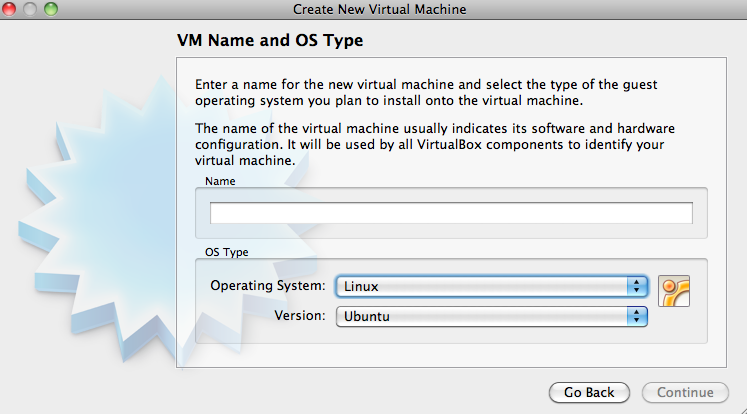
  3. Open the VirtualBox and click on ‘New’ button (upper left corner) – You will get this:

Choose Linux and Ubuntu and click ‘Continue’.

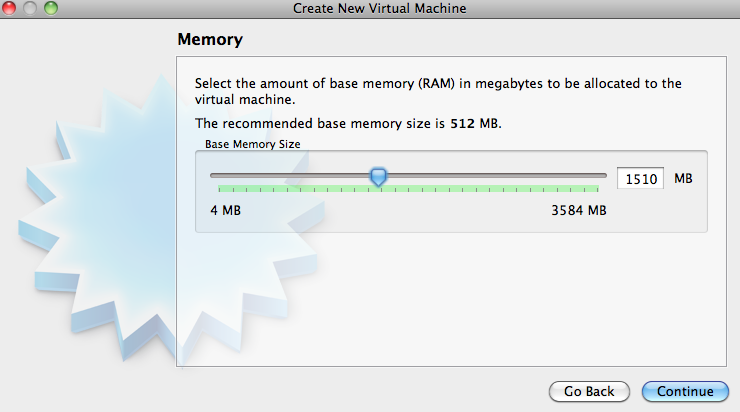
Next you need to set the memory – make sure to set an amount that you can devote to VirtualBox without killing your machine. Something around 1500MB should work. If you have more, even better.

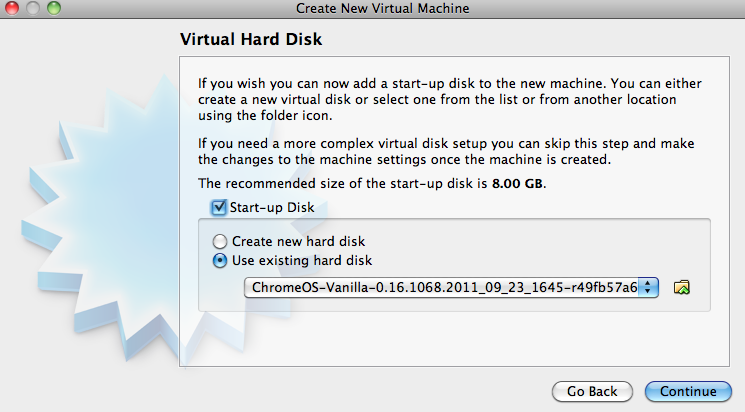
The last part of this wizard is to choose the image file. Click on the radiobox and point to the place you save the image file of ChromeOS.

Next dialog will show you a summary of all the details and after you will click ‘Create’ you are good to go!

Tips

  • Make sure to open ‘Setting’ of your new virtual machine and under ‘Processor’ click the PAE checkbox. If you won’t do that, you will get the ‘black screen of death’ and the machine won’t start.
  • If you getting errors while loading – sometimes it’s due to lack of memory. Try to close some applications and start the virtual box again.
  • Make sure you have something like 100mb of memory to the ‘video memory’ under the display section in the settings.


3 Minutes Video Tutorial

Standard
Chrome

A New Release Of Chrome 15 For Chromebooks

A new release of Chrome 15 (on the Stable Channel) is out there for Chromebooks: Acer AC700, Samsung Series 5 and Cr-48.

Release highlights:

  • New Chrome 15 functionality including the new tab page (which you can see a short introduction video in the bottom of this post).
  • New Web UI Login – IMHO, much simpler and nicer.
  • Support playback of key media codecs
  • Improve video decode performance
  • Add concept of preferred networks
  • New ‘Games’ and ‘Music’ apps by default
  • NTFS support
  • Add localized text for recovery
  • Networking improvements
  • Crash fixes & Security updates – because you must have them both in any good product today.
The current version is 15.0.874.117 (Platform version: 1011.118)

Standard
Chrome, life

Great Apps For Your Chromebook

Web-based applications are programs that are designed to be used entirely within the browser. Using apps, you can do anything (well, almost!).

These days, web apps are capable of dynamic functionality that you expect from desktop applications on your computer. If you use services like Gmail or Google Maps, you’re already using apps! Apps have the following advantages over desktop applications:

  • Apps install in seconds, with one click of a button. When you install a web app from the Chrome web store you get some nice new features like: unlimited offline storage, geo information, notifications etc’. So as a web developer, you might want to use this channel to make your users happy (or happier).
  • Apps are always up-to-date. Because apps are hosted on the web where they can be instantly updated, you can be sure you’re always using the latest version of the app that’s available.
  • Apps won’t crash your computer. If one app misbehaves, just close its tab in the browser. Your browser and computer won’t be affected.
Here are three lists with good (to great) web apps to make you (even more) productive.
If you have other suggestions, please let me know.

Apps For Everyday

If you want to… On a Chromebook, you could use…
Save a file Google Docs (which are working great in offline mode since June 2012) or Box or the Generic solution CrOS Save that will give you Dropbox and many other cloud solutions.
Read my email Gmail or other webmail services like: yahoo, hotmail etc’.
You can also try Offline Gmail to be productive on the times you don’t have an internet connection.
Organize my events on a calendar Google Calendar (which work offline!) or 1Calendar
Write a document Google Docs (which work offline!), Scratchpad or Quick Note
Chat with friends and family Google Talk or IMO
Watch a movie, clip, or tv show Netflix or YouTube
Edit a video or movie Stupeflix or YouTube Video Editor
Listen to music Pandora or MOG
Organize and save my music Google Music or mSpot
Edit or create music Aviary Audio Editor or Beatlab
Play a game Angry Birds, WGT Golf Challenge, or explore more games
Edit, organize, and store photos Picasa Uploader, Aviary or Picnik
Draw a picture Sketchpad or Sumo Paint

Apps At School

If you want to… On a Chromebook you could use…
Take notes or write a document Google Docs, Scratchpad or Quick Note
Create a presentation Google Docs, SlideRocket, or 280 Slides
Create a spreadsheet Google Docs or Zoho Sheet
Keep track of things to do Google Tasks or Springpad
Do research for my project Google Books or Academic Earth
Plan for a project Zoho Projects or SmartSheet
Do some calculations Calculator app or Scientific Calculator
Look up word definitions Google Dictionary
Keep track of time Alarm clock app

Apps At Work

If you want to… On a Chromebook you could use…
If your company uses Citrix to host applications and you wish to work on them in remote. Citrix Receiver
Do your tax (hopefully before April) Turbo Tax
Work on your mail while you don’t have connection (e.g. flight, train etc’) Offline Gmail
If you hungry and want to cook something tasty. Gojee
Write a document Google Docs or Zoho Writer
Create a presentation Google Docs, SlideRocket, or 280 Slides
Create a spreadsheet Google Docs or Zoho Sheet
Manage accounts and taxes Wave Accounting or Zoho Books
Organize personal finances Mint or CashBase
Develop or debug code Cloud9 or Koding
or just go deep with my post on the subject
Here is a good intro to ‘what is a web app’?
Standard
Chrome, HTML5, webdev

Web Workers (Part 3 Out Of 3) – Shared Wrokers

Shared Worker Example

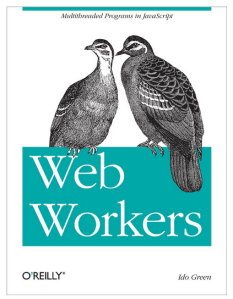
Web Workers - The bookA web worker is a single JavaScript file loaded and executed on a separate thread (=background and not the UI thread). Dedicated web workers are linked to their owner/creator which is the script that called and loaded them. Shared web workers allow any number of scripts to communicate with a single worker.
Btw, if you missed Part1 and/or Part2 of this series, you might want to read them first.
Shared web workers are identified in two ways: either by the URL of the script used to create it or by explicit name. In the code below we will see how it can be done.

<!DOCTYPE HTML>
<html>
<head>
<meta charset="utf-8" />
<title>Shared Web Workers: Show And Tale</title>
</head>
<body>
<h1>Shared Web Workers: Show And Tale</h1>
<article>
To create a shared web worker, you pass a JavaScript file name to a
new instance of the SharedWorker object:
<br/>var worker = new SharedWorker("jsworker.js");
<br/>
<output id="result"></output>
</article>
<script>
var worker = new SharedWorker('sharedWorker1.js');
worker.port.addEventListener("message", function(e) {
document.getElementById('result').textContent += " | " + e.data;
}, false);
worker.port.start();
// post a message to the shared web worker
console.log("Calling the worker from script 1");
worker.port.postMessage("script-1");
</script>
<script>
console.log("Calling the worker from script 2");
worker.port.postMessage("script-2");
</script>
</body>
</html>
// This is the code for: 'sharedWorker1.js' file
// Shared workers that handle the connections and Welcome each new script
//
var connections = 0; // count active connections
self.addEventListener("connect", function (e) {
var port = e.ports[0];
connections++;
port.addEventListener("message", function (e) {
port.postMessage("Welcome to " + e.data +
" (On port #" + connections + ")");
}, false);
port.start();
}, false);

Shared web workers can:

  • load further scripts with importScripts()
  • attach error handlers, and
  • run the port.close() method to prevent further communication on a specific port.

Continue reading →

Standard
life, Sport

Nike Night Run – Tel Aviv 2011

What a great event…

It’s very cool to run with so many others in the streets of Tel Aviv in a perfect weather.

For more photos and information you can check out Shvoong

and the results


Standard