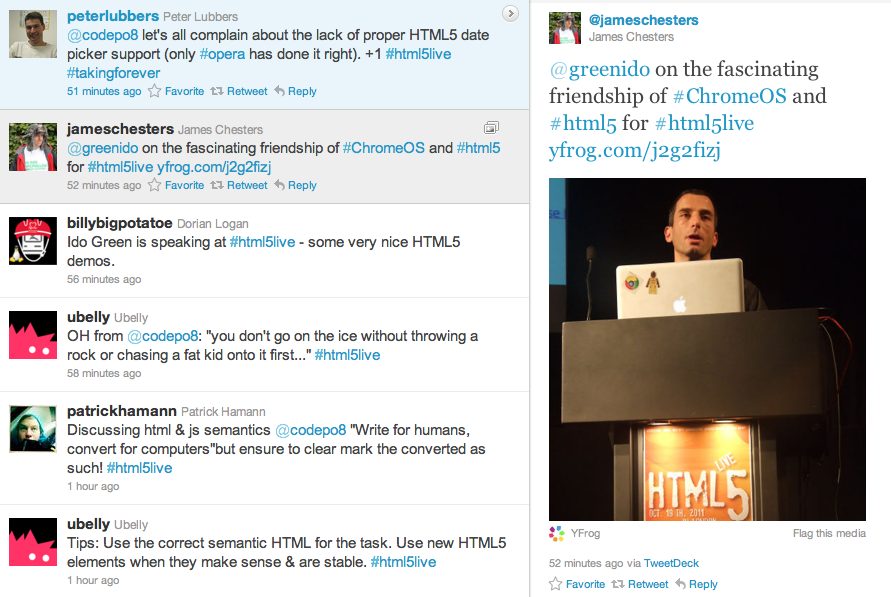
The conference took place on Oct, 19 2011 in the Barbican Conference Centre London. My two goals where to expose enterprise web developer to the new features that HTML5 provide today and to show them how they can leverage these features when they are building enterprises web apps. The other part was to talk with CIO/CTOs about Chrome OS and to ‘bind the dots’ on: how chrome OS harnessing business and developers with more power. Overall, it was a great event in terms of the quality of the audience. Lots of enterprise web developers from financial institution, health care and other big organizations. Some of them are still struggling with IE and the Chrome Frame was a big exciting news for them. Other points I’ve took with me:
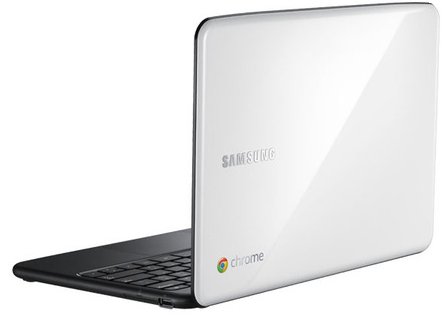
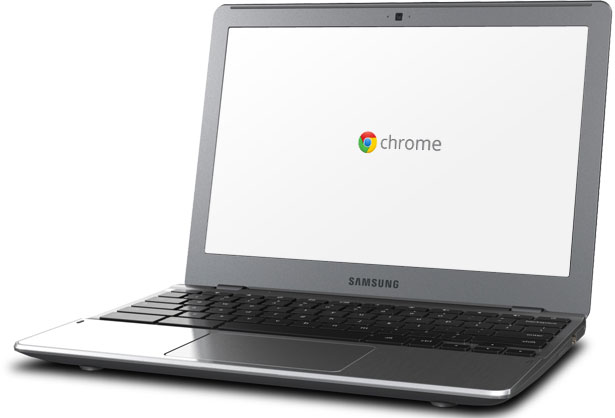
The Chromebooks were a big hit – everyone love them! I got lots of questions and the major points where around:
Security
Total cost of ownership (70% reduction)
Battery life (8.5h)
In the future, I should bring few Chromebook and have a table in the main show so people could ‘play’ with them between sessions.
Here are some of the presentations from the event:
Simple and short code to drop a stack trace to your console and/or page.
var e = new Error('dummy');

var stack = e.stack.replace(/^[^\(]+?[\n$]/gm, '')

  .replace(/^\s+at\s+/gm, '')

  .replace(/^Object.\s*\(/gm, '{anonymous}()@')

  .split('\n');

console.log(stack);
If you wish to read the first part of this series please go to Web Workers Part 1.
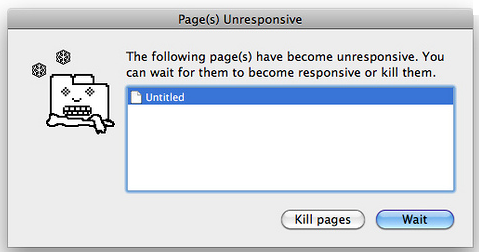
The Web Workers specification defines an API for spawning background scripts in your web application. Web Workers allow you to do things like fire up long-running scripts to handle computationally intensive tasks, but without blocking the UI or other scripts to handle user interactions. They’re going to help put and end to that nasty ‘unresponsive script’ dialog that we’ve all come to love:
or if you are (still) on windows:
you will get this common unresponsive script dialog.
Workers utilize thread-like message passing to achieve parallelism. They’re perfect for keeping your UI refresh, performant, and responsive for users.
Types of Web Workers And Some Code
It’s worth noting that the specification discusses two kinds of Web Workers:
Shared Workers – This will be covered in Part 3 of this series.
Restrictions with Local Access
Due to Google Chrome’s security restrictions, workers will not run locally (e.g. from file://) in the latest versions of the browser. Instead, they fail silently! To run your app from the file:// scheme, run Chrome with the --allow-file-access-from-files flag set. It is not recommended to run your primary browser with this flag set. It should only be used for testing purposes and not regular browsing.
(!) Debug: The other good thing to know is that you can debug works in the Chrome Developer Tools by clicking on the Scripts tab, and scrolling down in the column on the right to Workers and clicking on the debug checkbox.
Other browsers do not impose the same restriction.
Same Origin Considerations
Worker scripts must be external files with the same scheme as their calling page. Thus, you cannot load a script from a data: URL or javascript: URL, and an https: page cannot start worker scripts that begin with http: URLs.
The Code
<!DOCTYPE HTML>
<html>
  <head>
    <title>Web Worker: The highest prime number</title>
    <script src="http://ajax.googleapis.com/ajax/libs/jquery/1/jquery.min.js"></script>
    <meta charset=utf-8 />
  </head>
  <style>
    #actions {
      position: fixed;
      top: 10px;
      background: lightBlue;
      padding:8px;
    }
    h1 {
      position: relative;
      bottom: 10px;
      left: 280px;
    }
    #status {
      position: relative;
      font-size: 120%;
      background: lightyellow;
      margin:8px;
    }
    article {
      position: relative;
      color:red;
    }
    input {
      width: 80px;
      height: 35px;
      font-size: 120%;
    }
  </style>
  <body>
    <script>
      var myWorker;

      function start() {
        console.log("WebWorker: Starting");
        myWorker = new Worker("highPrime2.js");
        myWorker.addEventListener("message", primeHandler, false);
        var maxNum = $('#upto').val();
        myWorker.postMessage({'cmd': 'start', 'upto': maxNum});
      }

      function stop() {
        if (myWorker != undefined) {
          var msg = "<br/>WebWorker: Terminating " + new Date();
          console.log(msg);
          $('#status').append(msg);
          myWorker.terminate();
          myWorker = null;
        }
      }
      function primeHandler(event) {
        console.log ('got e:'+event.data);
        if (is_numeric(event.data)) {
          $('#result').append(event.data);
        }
        else {
          $('#status').append(JSON.stringify(event.data) );
        }
      }

      function is_numeric(input){
        return typeof(input)=='number';
      }
    </script>

    <h1>Web Worker: The highest prime number</h1>
    <article>The prime numbers:
      <output id="result"></output>
      <div id="status"></div>
    </article>
    <div id="actions">
      <input type="text" name="upto" id='upto'/>
      <button onclick="start()" title="Start the work">Start</button>
      <button onclick="stop()" title="Stop the work and go have a drink">Stop</button>
    </div>
  </body>
</html>

// And here is the worker code:
<script>
  //
  // A simple way to find prime numbers
  //
  self.addEventListener('message', function(e) {
    var data = e.data;
    var shouldRun = true;

    switch (data.cmd) {
      case 'stop':
        postMessage('Worker stopped the prime calculation (Al Gore is happy now) ' +
          data.msg );
        shouldRun = false;
        self.close(); // Terminates the worker.
        break;
      case 'start':
        postMessage("Worker start working upto: " + data.upto + " (" + new Date()+ ")<br/>");
        var numbers = isPrime(data.upto);
        postMessage("Got back these numbers: "+ numbers + "<br/>");
        break;
      default:
        postMessage('Dude, unknown cmd: ' + data.msg);
    };
  }, false);

  // simple calculation of primes (not the most efficiate - but works)
  function isPrime(number) {
    var numArray = "";
    var this_number,divisor,not_prime;
    var this_number = 3;
    while(this_number < number) {
      var divisor = parseInt( this_number / 2);
      var not_prime = 0;
      while(divisor > 1) {
        if(this_number % divisor == 0) {
          not_prime = 1;
          divisor = 0;
        }
        else {
          divisor = divisor - 1;
        }
      }
      if(not_prime == 0) {
        numArray += (this_number + " ");
      }
      this_number = this_number + 1;
    }
    return numArray;
  }
</script>
HTML5 features appcaching, a way to make your web sites and apps work offline, and to increase their performance as well.
I’m sure you know, browsers cache HTML, CSS, JavaScript files, images and other resources of the sites you visit, to speed up the subsequent loading of pages. However, you never know when the browser might discard cached files, and so this is not a reliable way for sites to work offline. But what if we could tell the browser what to cache? Well, with HTML5 application caches (also known as ‘appcache’) we can do just that.
An appcache manifest contain several lines in that order:
In the first line we declare “CACHE MANIFEST” (required)
Second line: “CACHE:” – which specifies the URLs of resources.
We can also optionally specify which resources should not be cached, in a section of the manifest file introduced by the string “NETWORK:”. These resources aren’t just not cached, but further, won’t be used when the user is offline, even if the browser has cached them in its own caches.
We can also optionally specify fallback resources to be used when the user is not connected, in a section of the file called “FALLBACK:”
You can add comments to the file with, simply by beginning a line with “#” – that’s an important feature to make the version readable for you as a developer. It’s also a nice way to let the browser ‘know’ that something changed in our app and it’s needed to fetch a new version of the app from the network.
Here is a simple example:
CACHE MANIFEST

#version 1.0
CACHE:
#images
/images/logo.png
/images/ido-header.png
#pages
/pages/index.html
/pages/main.html
#CSS
/style/main-style.css
#scripts
/js/main-logic.js
FALLBACK:
/ /offline.html
NETWORK:
sign-new-user.html
Creating a HTML5 cache manifest file the easy way:
manifested – cool tool to save you time and from what I’ve tried it works.
http://westciv.com/tools/manifestR/ – It is a bookmarklet, which you drag to your bookmarks bar. Then, when you visit any page, you can click the manifestR button, and it will create an HTML5 appcache manifest file for that page.
Here are few tips to get your Chromebook to run (even) faster:
First, check if you don’t have too many tabs open – after all, if you open 217 tabs it might be ‘a bit’ too much for the memory. It’s like in any other computer, the memory got its limitations.
Go to: chrome://flags/ and disable all experimental flags – just to be on the safe side. Lots of them are not taking any ‘extra’ CPU cycles, but I like to keep things as trim and simple as possible.
Make sure you remove (or at least disable) unused extensions. You can go to chrome://extensions/ in order to remove them or just right click on their buttons.
Of course, that some extensions like: LastPass and others here (on your browser) to stay. After all, there are some extensions that give certain users a lot of power that ‘worth’ the tiny bit of power they are consuming from the device.
Sometimes click on Shift-Esc to open the processes list. There you can remove/kill processes that are consuming too much CPU/memory.
If you got some other tips – please let me know with the comments here or on @greenido
For teachers, you might want to check the section of ‘Education’ tools in the chrome web store. It’s full of powerful apps.
For students, Chromebooks are fast, simple, and secure, and these benefits can be quite powerful in the classroom. Chromebooks increase time spent learning with a super-fast bootup, protect against viruses with built-in security features, and provide seamless access to all the great educational apps on the web. Plus, regular updates from Google mean that Chromebooks actually get better over time, saving thousands of dollars on maintenance and software upgrades.
Here is a place with nightly builds for VMWare, VirtualBox and your USB. If you wish to see the magic on your netbook… why don’t you start with a USB build and see how it’s working for you?
Good luck & be strong.
P.S
(!) Important tip… go to the virtual box setting pane and under CPU make sure the ‘PAE’ is checked. This will save you a lot of white hair.
In modern web applications there are lots of cases when we need to do some stuff in the background. The only way to do it today in most of the modern browsers is by using Web Workers. Web Workers provide a standard way for browsers to run JavaScript in the background. It let you spawn multiple “threads” that all run at the same time. For more about multithreading this is a good place to start your reading.
Web Workers can do lots of things:
Complex mathematical calculations
Make network requests
Access local storage
all while the main web page responds to the user actions (e.g. scrolling, typing some text or clicking around your app).
What is a Worker?
A ‘worker’ is a script that will be loaded and executed in the background. Web Workers provide a way to do this seamlessly, for example: new Worker(“worker.js”);
The above will load the script, located at ‘worker.js’, and execute it in the background.
There are some big (very big) limitations (but please don’t worry, we will see how to solve them in the next post):
Workers don’t have access to the DOM: No document, getElementById, etc. However, you can use setTimeout, setInterval, and XMLHttpRequest.
Workers don’t have direct access to the ‘parent’ page.
Can We Use Web Workers?
In order to find out if we can use web workers we need to check if there is a Worker property on the global window object. If our browser doesn’t support the Web Worker API, the Worker property will be undefined.
isWorkersAvailable() {
  return !!window.Worker;
 }
Instead of writing this function yourself, you can use Modernizr to detect support for web workers (Pss… Modernizr is an open-source JavaScript library that helps you build the next generation of HTML5 and CSS3-powered websites by doing lots of work for you and saving you from reinventing the wheel again and again – Thank you @KuraFire @paul_irish and @SlexAxton )
if (Modernizr.webworkers) {
  // window.Worker is available!
} else {
  // no native support for web workers
}
Short Example
//
// A simple way to find prime numbers
//
var n = 1;
search: while (true) {
  n += 1;
  for (var i = 2; i <= Math.sqrt(n); i += 1)
    if (n % i == 0)
     continue search;
  // found a prime!
  postMessage(n);
}

<!DOCTYPE HTML>
<html>
 <head>
  <title>Web Worker: The highest prime number</title>
 </head>
 <body>

  <h1>Web Worker: The highest prime number</h1>
  <article>The highest prime number discovered so far is:
	  <output id="result"></output>
  </article>

   var worker = new Worker('highPrime.js');
   worker.onmessage = function (event) {
     document.getElementById('result').textContent = event.data;
   };

 </body>
</html>
In the next post I’ll dive deeper on more interesting stuff you can do with workers. We will see how to communicate with one dedicated worker and how we can share workers (just for fun).
Here you can continue reading the second part of this series.

 The conference took place on Oct, 19 2011 in the Barbican Conference Centre London. My two goals where to expose enterprise web developer to the new features that HTML5 provide today and to show them how they can leverage these features when they are building enterprises web apps. The other part was to talk with CIO/CTOs about Chrome OS and to ‘bind the dots’ on: how chrome OS harnessing business and developers with more power. Overall, it was a great event in terms of the quality of the audience. Lots of enterprise web developers from financial institution, health care and other big organizations. Some of them are still struggling with IE and the Chrome Frame was a big exciting news for them. Other points I’ve took with me:
 I hope to see you there next year…