Chrome, HTML5, webdev

HTML5 Training Day (Mountain View) – Summary

Well, in the past month I was busy organizing this HTML5 Training Day for business web developers. You may want to stop and ask:
What Is HTML5 Training Day? So, our main goal is to have an open conversation with business web developers and to provide them with tools and knowledge to implement HTML5 features into their web apps. In this one day event, world-class experts talk about tools, tips and best practices in web development with focus on business.

It was a lot of fun and last week, we had in Google more then 24 companies that came to learn about the latest and greatest in the open web technologies.

We started the day with a short presentation that I gave on ‘The State of ChromeOS’. It’s amazing to see how fast is the pace and I suspect we are going to have a great 2012. After that (and two more cups of coffee) we got Pete LaPege (an excellent speaker, if I may) talking about: “HTML5 and new breed of web application” which aim to cover what defines a great Web App and show you how you can use HTML5 to create a new breed of web application that will delight and amaze your users.

Another cup of java and another web ninja: Mr. Eric Bidelman gave great talk with lots of demo on the ‘bleeding edge features in Chrome and the open web platform“.
and some HTML5 offline features. 

For the developers who wish to do ‘mobile first’ – we had a surprise from the snow country. Mr. Boris Smus (that build web stuff that make you – wow! for real) talking about A mobile web app technology stack. Here in his own words: “…Learn what it takes to build modern mobile web apps. We will start with the ideas of “adaptive apps” and “offline first”. Next, we’ll dive into some of the technologies, including MVC frameworks, templating engines, CSS frameworks, laying out views and multi-touch input. Finally, we’ll close off with mobile-specific tips and sweet demos.”

After Boris we had the pleasure to host David Kaneda (for the few that don’t know, David Kaneda is a creative web technologist. He created jQTouch, a jQuery plugin for mobile web development, and Outpost, the original iPhone app for Basecamp.) David gave another great talk on “Abstracting CSS for Complex Theming Systems.”

In the afternoon, Mr. Seth Ladd (The Michael Jordan of Dart) spoke about Dart and how it is a comprehensive effort to help app developers build complex, full featured, high fidelity apps for the modern web. He gave some nice short demos that showed the language, libraries, and editor of Dart.

Last but not least, Mr. Christos Apartoglou (The Chrome Web Store Chief) spoke about  Success stories in CWS. He talked about some bold success stories and showed what makes apps in the Chrome Web Store successful.

You can see the format of the day with the full descriptions of the talks over the public schedule that we kept for that day. It was a good tool to have a back channel (using the chat feature on the document) and to allow everyone to keep updated with the last minute changes. I hope to have some videos from that day public… I will post them here and on my G+ page.

See you all in our next Training day.
Standard
Chrome

Install ChromiumOS On Your (Old) Laptop

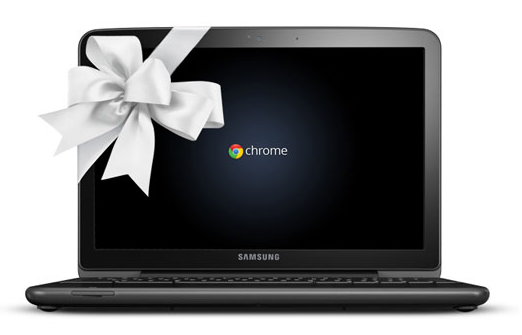
ChromeOS - new gift to your old laptop

ChromeOS – A new gift to your old laptop

In this post we will see how easy it is to take ChromiumOS (or ChromeOS as some call it by mistake) to a test drive on your old hardware and see if it’s working for your needs. I did it on some old laptops that I have forgot all about them and 3 out of 4 are working great with this powerful OS. I was surprise to see that even with old hardware (More tthan 3 years) the laptop is working nicely and much faster. All the builds here are thanks to Chromium.org and this powerful open-source project and Mr. hexxeh that hack the builds and allow to download them (thank you!).

What is ChromeOS/ChromiumOS?

Chromium OS is an open-source project that aims to build an operating system that provides a fast, simple, and more secure computing experience for people who spend most of their time on the web. It gives you the familiar environment of Chrome with HTML5 & Flash support.

Install ChromiumOS on Linux

  1. Extract the IMG file from the downloaded archive.
  2. At the shell, run the following (where sdX is your USB stick and ChromeOS-Lime.img is the path to the IMG file you extracted):
    dd if=ChromeOS-Lime.img of=/dev/sdX bs=4M
  3. Boot from the newly created Chromium OS USB stick!

Install ChromiumOS on Mac

  • Like almost anything on Mac it’s very easy, with just one step. You will need to download this ChromeOS mac builder and you are good to go.

Install ChromiumOS On Windows

  1. Begin downloading Chrome Image
  2. Download and extract the Windows Image Writer.
  3. Copy the Windows Image Writer directory to the ROOT of your C: drive.  (failure to copy this directory, and the .img file for Chrome to the ROOT of the C: drive can cause the dreaded and annoying “Error 8:”)
  4. Right-Click on the tar.gz image file, and use 7-zip to “extract here”.
  5. After that completes, again, right-click on the .tar image file and use 7-zip to “extract here”.
  6. This should leave you with a .img file.  Copy this file to the ROOT of your C: drive.  (failure to copy this file, and the directory for the Windows Image Writer, to the ROOT of the C: drive can cause the dreaded and annoying “Error 8:”)
  7. Insert your USB flash drive or SD Card.
  8. Enter the Windows Image Writer directory and execute the Win32DiskImageer.exe programme.
  9. Select the .img file in the “Image File” window, and ensure that the proper drive letter is selected in the “Device” window.
  10. Click on “Write”.
  11. Once complete, remove your flash drive or SD Card, and insert them into your powered-off laptop.
  12. Power on your laptop and TAP THE ESC KEY to select the boot order.  Don’t try to change the boot order in the CMOS/BIOS settings – it doesn’t seem to be able to detect a proper USB boot from there.
  13. Boot from the USB device, rather than the internal SSD.
  14. Enter “facepunch” as your username and “facepunch” as your password.
  15. Once Chrome OS is booted and appears, press Ctrl-Alt-T to go the terminal.
  16. Enter “sudo dd if=/dev/sdb of=/dev/sda bs=4m“.  Don’t bother with the “/usr/sbin/chromeos-install” advice that you see in places – it won’t work on a 2GB SSD.
  17. Remove your USB device, and reboot.

In case you wish to ‘test the water’ without all this you can also test this powerful OS in VirtualBox.
Here are the details to install ChromeOS in Virtual Box.

Btw, for more fresh built, checkout http://chromeos.hexxeh.net/

Enjoy and please let me know how it’s working for you and how we can make it better.

Standard
Chrome, HTML5, webdev

Mobile Web Performance

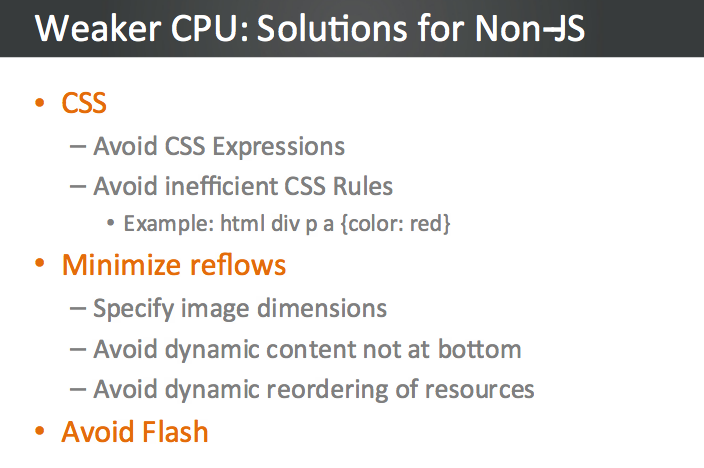
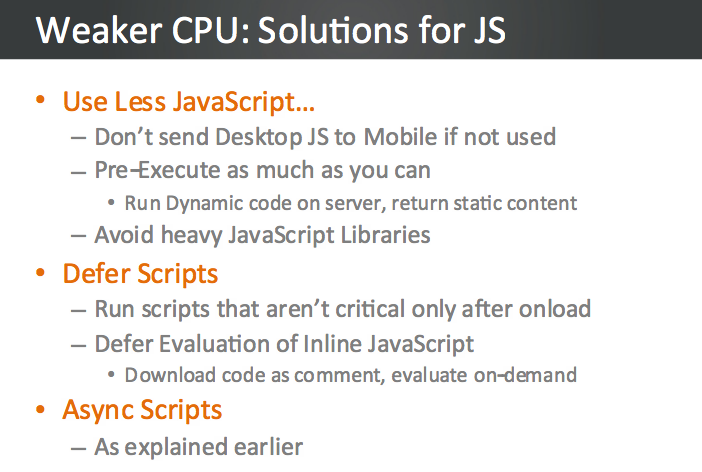
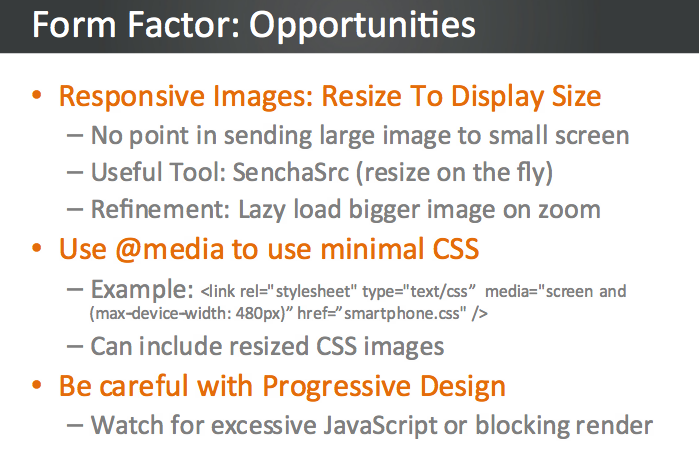
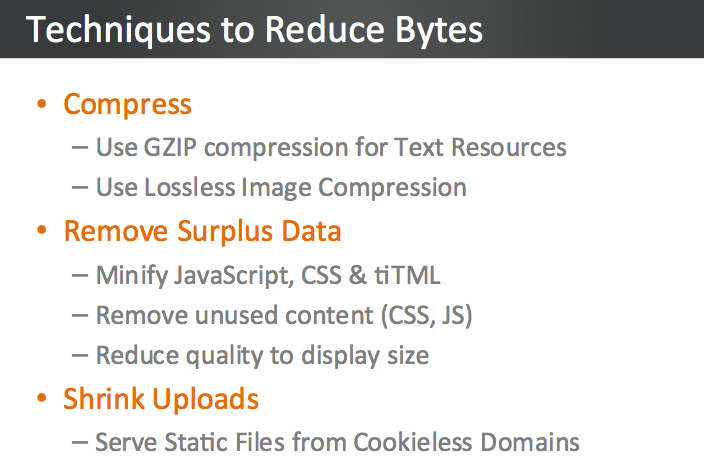
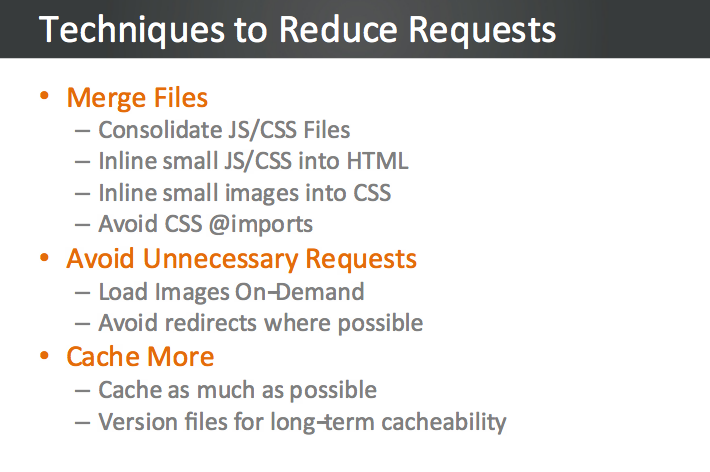
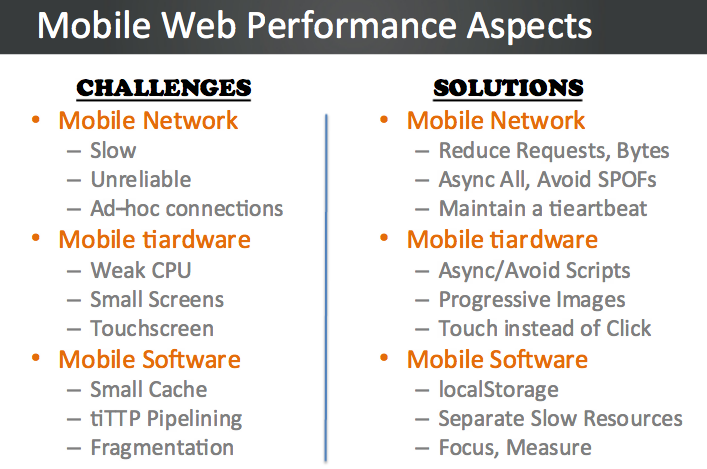
“You can’t manage what you can’t mesure” And it’s not easy to manage or get a clear picture on mobile web browsers. Since this is a very important subject to any web developer and specially those who focus on their ‘mobile first’ plan. I’ve saw this good presentation on this subject and wanted to share with you my main takes. Studies show that Mobile users expect equal or better performance than desktop, where they demand 2s load times. This is a hard requirement to fulfill, give the limitations mobile imposes. Guy Podjarny (the CTO of blaze.io) go over the different aspects of mobile: network, hardware & software. We’ll review the challenges each presents, understand how they affect web performance, and show ways to overcome those challenges. We’ll also show the impact of these optimizations on real world sites, gleaned from manipulating and measuring websites using Blaze technology. We’ll summarize with updates on the recent mobile OS releases, followed by Q&A.

The video of this talk

My notes from the talk

  • You will lose 13% of your users after 2sec! and 25% of your users after 4sec of load time.
  • HTML5 is supported on mobile so use HTML5 localStorage for caching: It’s available on all major mobile platforms. It doesn’t expire and it will survives power cycle. Its size limit is around 5MB so it’s most useful for caching javascript and CSS files (like Bing and google search pages are doing on mobile browsers).
  • Scriptable access enables other optimizations.
  • Use far-future expiry dates
  • You got more then ‘2 connections’ on modern mobile browsers (e.g. Galaxy S got a max of 12 connections) – so use them in parallel as you can.

 Other good tips

The presentation

Happy new year!

Standard
Chrome, Design, life

3D Art, Mobile And A New Tutorial On Web Databases

Why mobile native apps must die

This is a very interesting talk by Scott Jenson. He speaking about the ‘anti phone’ and why  a phone that is based on a browser will be very useful (to say the least). From his talk description: “…Mobile apps are on a clear trajectory for failure. It’s just not possible to have an app for every device in my house, every product I own and every store I enter. Much like Yahoos original hierarchy gave way to Google’s search, applications have to give away to a “just in time” approach to applications. This talk will explain how applications must give way to a more universal approach to application distribution, one based on the mobile web and cloud services. The problem of course, is that the mobile web has both hands tied behind its back. Any mobile app today is locked away behind a browser ghetto: in effect, a sub OS inside a larger mobile OS. This isn’t just an arbitrary technology debate, a just-in-time approach to application functionality can unleash entirely new sets of application, ones which are impossible with native apps. This talk will layout how this problem can be fixed, and what changes need to take place, outside of just HTML5, for it to happen.”

Migrating your WebSQL DB to IndexedDB

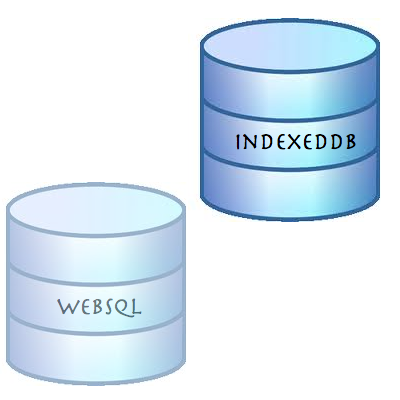
Lastly for this post, as WebSQL is deprecated, I recommend web developers to stop using the technology in new projects, as, effectively, the spec will receive no new updates and browser vendors aren’t encouraged to support this technology. The replacement is IndexedDB. As a ‘NoSQL’ database, IndexedDB is very different from relational databases, and it give us lots of power. IndexedDB let us create an Object Store for a type of data and simply persist Javascript Objects to that store. Each Object Store can have a collection of Indexes that make it efficient to query and iterate across. In this tutorial I’ve showed how you can convert the current usage of WebSQL and start leverage IndexedDB.

And let’s finish with some art…

3D Art + Com

Standard
Chrome

Chromebook keyboard shortcuts

If you wish to work like a pro with any new software or tool you need to invest a bit of time to learn the ‘tricks’ and shortcuts that are making you more productive. Here is a nice short list you can memorize in 12-14min… Lots of shortcuts are ‘traivial’ (e.g. Ctrl-C and Ctrl-v) but It might be worth the time to have a look at see some of the ‘tricky’ one that you might not aware they are there. It will save you time (which is the most expensive resource you have, no?) I’ve put some of the ‘nice’ ones in bold. If you have other suggestions please feel free to let me know.

PAGE SHORTCUTS

  • Ctrl and +  –> Zoom in on the page
  • Ctrl and –  –> Zoom out on the page
  • Ctrl+0 –> Reset zoom level
  • Press Alt and up arrow – Page up
  • Press Alt and down arrow – Page down
  • Space bar – Scroll down the web page
  • Press Ctrl+Alt and up arrow – Home
  • Press Ctrl+Alt and down arrow – End
  • Ctrl+P – Print your current page
  • Ctrl+S – Save your current page
  • Ctrl+R – Reload your current page
  • Ctrl+Shift+R – Reload your current page without using cached content
  • Esc – Stop the loading of your current page
  • Press Alt and click a link – Open the link in a new tab in the background
  • Ctrl+D – Save your current webpage as a bookmark
  • Ctrl+Shift+D – Save all open pages in your current window as bookmarks in a new folder
  • Drag a link to bookmarks bar – Save the link as a bookmark
  • Ctrl+F – Open the find bar to search your current page
  • Ctrl+G or Enter – Go to the next match for your input in the find bar
  • Ctrl+Shift+G or Shift+Enter – Go to the previous match for your input in the find bar
  • Ctrl+K or Ctrl+E – Perform a search. Type a search term after the question mark in the address bar and press Enter.
  • Ctrl+Enter – Add www. and .com to your input in the address bar and open the resulting URL
  • Ctrl+ Take a screenshot of your current page
  • Ctrl+U – View page source
  • Ctrl+Shift+I – Toggle the display of the Developer Tools panel
  • Ctrl+Shift+J – Toggle the display of the DOM Inspector

TAB AND WINDOW NAVIGATION

  • Ctrl+N – Open a new window – But I find myself using the open tab shortcut much more (it’s the next one).
  • Ctrl+T – Open a new tab
  • Ctrl+Shift+N – Open a new window in incognito mode
  • Ctrl+O – Open a file in the browser
  • Ctrl+Shift+Q – Sign out of your Google Account on Chrome OS
  • Ctrl+W – Close the current tab
  • Ctrl+Shift+W – Close the current window
  • Ctrl+Shift+T – Reopen the last tab you’ve closed. Google Chrome remembers the last 10 tabs you’ve closed.
  • Ctrl+1 through Ctrl+8 – Go to the tab at the specified position in the window
  • Ctrl+9 – Go to the last tab in the window
  • Alt+1 through Alt+9 – Go to the window at the specified position
  • Alt+9 – Go to the last window open
  • Ctrl+Tab – Go to the next tab in the window
  • Ctrl+Shift+Tab- Go to the previous tab in the window
  • Alt+Tab – Go to the next window you have open
  • Alt+Shift+Tab – Go to the previous window you have open
  • Click and hold the Back or Forward arrow in the browser toolbar – See your browsing history for the tab
  • Go to previous page in your browsing history – Backspace, or press Alt and the left arrow.
  • Go to the next page in your browsing history – Shift+Backspace, or press Alt and the right arrow.
  • Press Ctrl and click a link – Open the link in a new tab in the background
  • Press Ctrl+Shift and click a link – Open the link in a new tab and switch to the newly opened tab
  • Press Shift and click a link – Open the link in a new window
  • Drag a link to a tab – Open the link in the tab
  • Drag a link to a blank area on the tab strip – Open the link in a new tab
  • Type a URL in the address bar, then press Alt+Enter – Open the URL in a new tab
  • Press Esc while dragging a tab – Return the tab to its original position

BROWSER SETTINGS AND NAVIGATION

  • Ctrl+Shift+B -Toggle the display of the bookmarks bar. Bookmarks appear on the New Tab page if the bar is hidden.
  • Ctrl+M – Open the file manager
  • Ctrl+H – Open the History page
  • Ctrl+J – Open the Downloads page
  • Shift+Esc – Open the Task Manager
  • Ctrl+Alt+/ – Open the list of available keyboard shortcuts
  • Ctrl+? – Go to the Help Center
  • Ctrl+ – Configure monitor display
  • Shift+Alt+S – Place focus on the status area in the top-right corner of the screen. Use the actions listed for Shift+Alt+T to move the focus.
  • Shift+Alt+T –
  • Place focus on the browser toolbar
    • – Press Tab or the right arrow to focus on the next item in the toolbar
    • – Press Shift+Tab or the left arrow to focus on the previous item in the toolbar
    • – Press Ctrl+Alt and the up arrow to focus on the first item in the toolbar
    • – Press Ctrl+Alt and the down arrow to focus on the last item in the toolbar
    • – Press Space or Enter to activate buttons, including page actions and browser
    • actions
    • – Press Shift + to open the context menu for the button (if available).
    • – Press Esc to return focus to the page
  • Alt+Shift+B -Place focus on the bookmarks bar. Use the actions listed for
  • Shift+Alt+T – to move the focus.
  • Alt+E or Alt+F – Open the wrench menu on the browser toolbar

TEXT EDITING SHORTCUTS

  • Ctrl+A Select everything on the page
  • Ctrl+L or Alt+D Select the content in the address bar
  • Press Ctrl+Shift and right arrow Select next word or letter
  • Press Ctrl+Shift and left arrow Select previous word or letter
  • Press Ctrl and right arrow – Move to the start of the next word
  • Press Ctrl and left arrow – Move to the start of the previous word
  • Press Alt and up arrow – Page up
  • Press Alt and down arrow – Page down
  • Press Ctrl+Alt and up arrow – Home
  • Press Ctrl+Alt and down arrow – End
  • Ctrl+C – Copy selected content to the clipboard
  • Ctrl+V – Paste content from the clipboard
  • Ctrl+Shift+V – Paste content from the clipboard as plain text
  • Ctrl+X – Cut
  • Ctrl+Backspace – Delete the previous word
  • Alt+Backspace – Delete the next letter (forward delete)
  • Ctrl+Z – Undo your last action
Here is the one for fix your Dad’s computer – The quick and easy way


For the full updated list of shortcuts try the official ChromeOS site

Standard
Chrome, HTML5

HTML5, ChromeOS And Chrome Web Store (Video)


Here is a talk I gave in Tel Aviv GTUG. The title of the talk was “Html 5, Chrome OS & Chrome Web Store” and it’s all in Hebrew this time. The event was very cool with two other talks that were very interesting. If you work with Google technologies I would recommend you check out the GTUG (=Google technology user group) near your home town. It’s a great way to meet other strong developers, product managers and anyone that love the open-web.

and our HTML5 dude:

Standard
Chrome, HTML5

HTML5 And Offline – Videos From Google Developer Day 2011

Demos in the keynote


The Chrome HTML5 demos are starting around 40:34…

Bleeding Edge HTML5

The GDD TLV Clip

I hope to get others as well… I’ll update this post with them.

If you wish, the full list of videos from this event is here on youtube.

Standard
Chrome, HTML5, webdev

HTML5 On Mobile Devices (iOS, Android & Windows)

More and more we see mobile devices with stronger browsers that implement a lot of HTML5 APIs. This is other factors are the root cause that mobile development has taken off. Many developers are choosing to go the mobile web route instead of writing the same application repeatedly for each different mobile platform. However, one of the things that you give up by “going web” is the application frameworks that make life easier for developers of native mobile applications. As a result, several web application frameworks are emerging. In this post I will look at some of the best frameworks: jQueryMobile and Sencha Touch. There are some other very good MVC frameworks that are worth look into: SproutCore, Cappuccino and backbone.js but that will be in another story (=post).

Let’s start with one of the most popular JavaScript library – jQueryMobile It’s now in version 1.0 and it’s a powerful HTML5-based user interface system for all popular mobile device platforms. They have a set of UI components that give the developers a lot of power. Its lightweight code is built with progressive enhancement, and has a flexible, easily themeable design. If you are developing apps for business (think components like grids) you might want to take a closer look at Sencha ExtJS and other products. They have a good integration with GWT (if you use it) and overall, they give the developer a lot of power: clean component model, powerful UI widgets etc’. There are some new capabilities that give more native look and feel to your web apps. The first is the Fixed position – Psss… its great for your menu at the top of the screen. I hope will see its adoption on other mobile browsers (and not just the safari 5+). Another cool aspect is the new ‘Path‘ button dynamics all in pure CSS and scroller live demo.

The wave of HTML5

The wave of HTML5 apps is here

Deployment

One of the ‘easy’ parts it the deployment. Once users added your web app as shortcut to their home screen it will be there and updated each time they starting it. You can also, use the Android, iOS stores with a webUI wrapper and tools like AppsGeyser or AppCelerator that will do the work of wrapping for you. I hope that in the future the webUI that we get in iOS/Android will be as good as the webkit we have in the browser on the same platform. Currently, it’s got some limitations. Lastly, in case you wish to check what HTML5 features will work on each device you are targeting: This is a good source: http://mobilehtml5.org/ and for more stats and development tips checkout my last post on html5 on mobile.

Be strong.

Standard
HTML5, JavaScript, webdev

Convert WebSQL To IndexedDB Tutorial

Exactly a year ago on November 18, 2010, the W3C announced that Web SQL database is a deprecated specification. Many major browsers including Chrome, Safari, Opera and nearly all Webkit based mobile devices support WebSQL, however, if you are going to start a new project and/or you wish to have your code running with the new version of client side database (that will receive updates and improvements) you should implement indexedDB as your client side database. In this short post we will see what are the main steps to refractor your WebSQL code to IndexedDB.

First lets create the databases


// WebSQL 
database = openDatabase('todos1', '1.0', 'todo list example db', 2*1024*1024);

// InxededDB
var todoDB = {};
var indexedDB = window.indexedDB || window.webkitIndexedDB || window.mozIndexedDB;
todoDB.indexedDB = {};
todoDB.indexedDB.db = null;


Create Table/ObjectStore

In both cases we need some ‘space’ to save our information


// WebSQL - creating a new table
 database.transaction(function(tx) {
     tx.executeSql("CREATE TABLE IF NOT EXISTS tasks (id REAL UNIQUE, text TEXT)", []);
   });

// IndexedDB - creating a new object store that will hold our data
todoDB.indexedDB.open = function() {
        var request = indexedDB.open("todos");

        request.onsuccess = function(e) {
          var v = "2.0 beta"; // yes! you can put strings in the version not just numbers
          todoDB.indexedDB.db = e.target.result;
          var db = todoDB.indexedDB.db;
          // We can only create Object stores in a setVersion transaction;
          if (v!= db.version) {
            var setVrequest = db.setVersion(v);

            // onsuccess is the only place we can create Object Stores
            setVrequest.onsuccess = function(e) {
              if(db.objectStoreNames.contains("todo")) {
                db.deleteObjectStore("todo");
              }
              var store = db.createObjectStore("todo",
              {keyPath: "timeStamp"});
              todoDB.indexedDB.getAllTodoItems();
            };
          }
          else {
            todoDB.indexedDB.getAllTodoItems();
          }
        };
        request.onfailure = todoDB.indexedDB.onerror;
      }

Add Item

Now it’s time to add some data to our database, no?


// WebSQL
function addTodo() {
        var todo = document.getElementById("todo");
        var task = {
          "id": new Date().getTime(),
          "text": todo.value };
        
        database.transaction(function(tx) {
          tx.executeSql('INSERT INTO tasks (id, text) values (?, ?)', [task.id, task.text]);
        });
        // now let clean it to the next todo
        todo.value = "";
        showAll();
      }
      
// IndexedDB
todoDB.indexedDB.addTodo = function(todoText) {
        var db = todoDB.indexedDB.db;
        var trans = db.transaction(['todo'], IDBTransaction.READ_WRITE);
        var store = trans.objectStore("todo");

        var data = {
          "text": todoText,
          "timeStamp": new Date().getTime()
        };

        var request = store.put(data);

        request.onsuccess = function(e) {
          todoDB.indexedDB.getAllTodoItems();
        };

        request.onerror = function(e) {
          console.log("Error Adding: ", e);
        };
      };

Fetch Items

After you have data it’s only make sense to show it to the world (and your dear friends)


// WebSQL
function showAll() {
        document.getElementById("ourList").innerHTML = "" ; 
        database.transaction(function(tx) {
          tx.executeSql('SELECT * FROM tasks', [], function (tx, results) {
            var len = results.rows.length, i;
            for (i = 0; i  Todo text: " + results.rows.item(i).text);
              
              var a = document.createElement("a");
              a.textContent = " [Delete]";
              a.setAttribute('data-key', results.rows.item(i).id);
              a.setAttribute('data-val', results.rows.item(i).text);
              a.addEventListener("click", function() {
                deleteTodo(this.getAttribute("data-key"),this.getAttribute("data-val") );
              }, false);
              li.appendChild(t);
              li.appendChild(a);
              document.getElementById("ourList").appendChild(li);
            }
          });        
        });
      }

// IndexedDB
function showAll() {
        document.getElementById("ourList").innerHTML = "" ;   
        var request = window.indexedDB.open("todos");
        request.onsuccess = function(event) {
          // Enumerate the entire object store.
          var db = todoDB.indexedDB.db;
          var trans = db.transaction(["todo"], IDBTransaction.READ_ONLY);
          var request = trans.objectStore("todo").openCursor();
  
          request.onsuccess = function(event) {
            var cursor = request.result || event.result;
            // If cursor is null then we've completed the enumeration.
            if (!cursor) {
              return;
            }
            var element = document.createElement("div");
            element.textContent = "key: " + cursor.key + " => Todo text: " + cursor.value.text;
            document.getElementById("ourList").appendChild(element);
            cursor.continue();
          }
        }                    
      }


Delete Item

In rare cases we wish to delete stuff… It’s easy.


// WebSQL
function deleteTodo(id, text) {
        if (confirm("Are you sure you want to Delete "+ text +"?")) {
          database.transaction(function(tx) {
            tx.executeSql('DELETE FROM tasks WHERE id=?', [id]); 
          });
          showAll();
        } 
      }

// IndexedDB
todoDB.indexedDB.deleteTodo = function(id) {
        var db = todoDB.indexedDB.db;
        var trans = db.transaction(["todo"], IDBTransaction.READ_WRITE);
        var store = trans.objectStore("todo");

        var request = store.delete(id);

        request.onsuccess = function(e) {
          todoDB.indexedDB.getAllTodoItems();
        };

        request.onerror = function(e) {
          console.log("Error Adding: ", e);
        };
      };


As Oscar Wilde said: “…Consistency is the last refuge of the unimaginative…” – so in our case, let’s save data locally and have more performance in our web apps (with some consistency).

Live Example

All the code is on github – https://github.com/greenido/WebSQL-to-IndexedDB-example

and you can play with a live example.

Standard
Chrome

How To Share Files/Photos From Chromebook

There are cases where you need to upload some photos from your Chromebook. Let’s take the classic case of a disk-on-key a friend just gave you and ask you to upload it to your Dropbox so you, him and all your friends can share this mountain bike trip photos (= true story). In other cases, it might be that you are on vacation and after 1275 photos you finally came to the conclusion, it make sense, to update your family and friends at home. You take the SD and insert it to the Chromebook (yes – we do have a slot for that). But how can you upload it? What are the best tool to share it?

Here are few good solutions:

  1. Flickr, Picasa and other photo sharing sites just got their web version of uploading photos – so that is the easy case.
  2. Google Docs – you can upload files and then share them with friends… It’s also works great with directories.
  3. We have some good extensions that works great on Chromebook.
    1. Cloud Save – add some right click functionality that will let you upload any image/file you click on,  to your favorite cloud storage: Dropbox, flickr, Box.net, Google Docs, Picasa, Facebook and more). It also got another extension that bind it with a nice integration to the file manager that we have on Chromebook – CrOS Save. This will let you choose files from the file manager and then to have a new button on the right side-bar that let you upload these files with one click.
    2. SMEStorage Cloud Dashboard – if you are using something from their services.
    3. Large Document – If you need to share BIG files. This is a secure file transfer and sharing service that does not require any login information. You can transfer files as large as 2 gigabytes in size and can store up to 15 gigabytes of data for up to 180 days for free.
  4. If you are ‘old school’ and you wish to use FTP – http://www.net2ftp.com just be careful when inserting user/password to ANY 3rd party site.

Know any other good tool I’m missing here? Please let me know…

Standard