
Good points in this Dan Buettner’s talk from TED 2009
Some pointers on how to make systemic change to cities and food choices to enhance health.
How To Make Your Chromebook (Even) Faster?
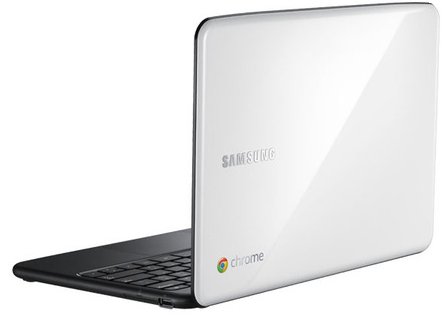 Here are few tips to get your Chromebook to run (even) faster:
- First, check if you don’t have too many tabs open – after all, if you open 217 tabs it might be ‘a bit’ too much for the memory. It’s like in any other computer, the memory got its limitations.
- Go to: chrome://flags/ and disable all experimental flags – just to be on the safe side. Lots of them are not taking any ‘extra’ CPU cycles, but I like to keep things as trim and simple as possible.
- Make sure you remove (or at least disable) unused extensions. You can go to chrome://extensions/ in order to remove them or just right click on their buttons.
Of course, that some extensions like: LastPass and others here (on your browser) to stay. After all, there are some extensions that give certain users a lot of power that ‘worth’ the tiny bit of power they are consuming from the device. - Sometimes click on Shift-Esc to open the processes list. There you can remove/kill processes that are consuming too much CPU/memory.
If you got some other tips – please let me know with the comments here or on @greenido
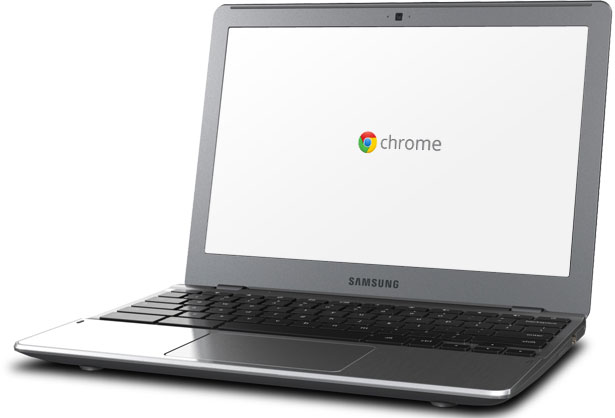
Why Chromebook Is Perfect For Schools?
All the main reasons in less then 133 seconds.
For teachers, you might want to check the section of ‘Education’ tools in the chrome web store. It’s full of powerful apps.
For students, Chromebooks are fast, simple, and secure, and these benefits can be quite powerful in the classroom. Chromebooks increase time spent learning with a super-fast bootup, protect against viruses with built-in security features, and provide seamless access to all the great educational apps on the web. Plus, regular updates from Google mean that Chromebooks actually get better over time, saving thousands of dollars on maintenance and software upgrades.
ChromeOS In 5min Video
In this short screencast I’ve touched on:
- What is ChromeOS?
- Why it’s great for users, business and developers.
- How a good web apps look like.
Until next time, please be strong and happy.
Want To Test Drive Chrome OS On Your Laptop?
Here is a place with nightly builds for VMWare, VirtualBox and your USB. If you wish to see the magic on your netbook… why don’t you start with a USB build and see how it’s working for you?
Good luck & be strong.
P.S
(!) Important tip… go to the virtual box setting pane and under CPU make sure the ‘PAE’ is checked. This will save you a lot of white hair.
Web Workers (Part 1 Out Of 3)
 Short History

In modern web applications there are lots of cases when we need to do some stuff in the background. The only way to do it today in most of the modern browsers is by using Web Workers. Web Workers provide a standard way for browsers to run JavaScript in the background. It let you spawn multiple “threads” that all run at the same time. For more about multithreading this is a good place to start your reading.
Web Workers can do lots of things:
- Complex mathematical calculations
- Make network requests
- Access local storage
all while the main web page responds to the user actions (e.g. scrolling, typing some text or clicking around your app).
What is a Worker?
A ‘worker’ is a script that will be loaded and executed in the background. Web Workers provide a way to do this seamlessly, for example:
new Worker(“worker.js”);
The above will load the script, located at ‘worker.js’, and execute it in the background.
There are some big (very big) limitations (but please don’t worry, we will see how to solve them in the next post):
- Workers don’t have access to the DOM: No document, getElementById, etc. However, you can use setTimeout, setInterval, and XMLHttpRequest.
- Workers don’t have direct access to the ‘parent’ page.
Can We Use Web Workers?
In order to find out if we can use web workers we need to check if there is a Worker property on the global window object. If our browser doesn’t support the Web Worker API, the Worker property will be undefined.
isWorkersAvailable() {
  return !!window.Worker;
 }
Instead of writing this function yourself, you can use Modernizr to detect support for web workers (Pss… Modernizr is an open-source JavaScript library that helps you build the next generation of HTML5 and CSS3-powered websites by doing lots of work for you and saving you from reinventing the wheel again and again – Thank you @KuraFire @paul_irish and @SlexAxton )
if (Modernizr.webworkers) {
  // window.Worker is available!
} else {
  // no native support for web workers
}
Short Example
//
// A simple way to find prime numbers
//
var n = 1;
search: while (true) {
  n += 1;
  for (var i = 2; i <= Math.sqrt(n); i += 1)
    if (n % i == 0)
     continue search;
  // found a prime!
  postMessage(n);
}

<!DOCTYPE HTML>
<html>
 <head>
  <title>Web Worker: The highest prime number</title>
 </head>
 <body>

  <h1>Web Worker: The highest prime number</h1>
  <article>The highest prime number discovered so far is:
	  <output id="result"></output>
  </article>

   var worker = new Worker('highPrime.js');
   worker.onmessage = function (event) {
     document.getElementById('result').textContent = event.data;
   };

 </body>
</html>
In the next post I’ll dive deeper on more interesting stuff you can do with workers. We will see how to communicate with one dedicated worker and how we can share workers (just for fun).
Here you can continue reading the second part of this series.
More (good) sources
How Easy Is To Use A Chromebook?
Very easy and if you are a (happy) user of gmail your life will get better from the first minute you are logged in. If you have other email service it’s also cool. I’m using both yahoo and gmail on it and it’s working great with both of them.
The ability to run gmail in offline mode is also a doable on a Chromebook. It’s very useful, specially, to people the travel a lot and can’t count that their favorite airline will have wi-fi. I’m writing this post from a Chromebook… but since wordpress don’t have a good webapp with some offline capabilities – I’m using ‘Write Space’. Write Space is a customizable full-screen text-editor that lives in your web-browser. It is designed to minimize the distractions that come between you and your writing and the offline capabilities are really working.
If you are a new to Chromebook – check this one and a half minute demo:
HTML5 Fields – What Can You Do With It?
HTML5 is the newest specification for HTML, the language that web browsers read to display web pages. HTML5 has many new features intended to make creating websites easier and people’s experience in using those websites better. Among those features are many enhancements to web forms. Here is a list of the major browsers that support these days the new features:
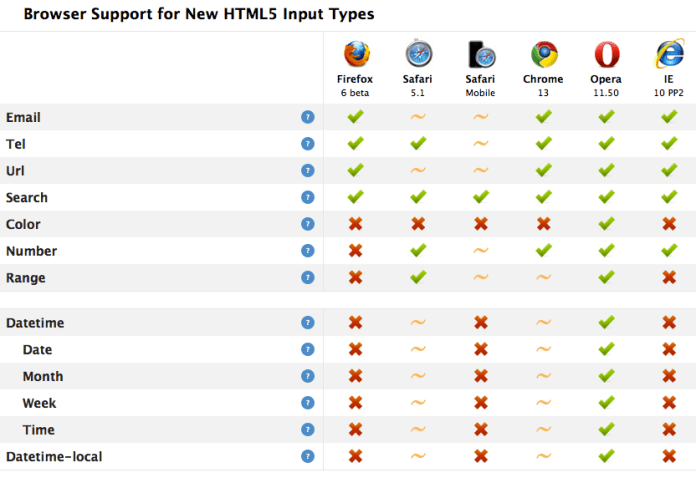 Another place to see which browser support what type of field is http://caniuse.com/#search=input
As a web developer these improvementscan save you lots of time and effort (psss… no java script is needed to validate your fields) in order to see them live I’ve created this ‘playground for HTML5 fields’ so it will be easy to ‘play’ and see what each field is giving you. Here is a basic set to kick things:
<form>
  <fieldset>
    <label>Required</label>
    <input type="text" required />

    <label>Email</label>
    <input type="email" value="some@email.com" />

    <label>Date</label>
    <input type="date"
     min="2010-08-14"
     max="2011-08-14"
     value="2010-08-14"/>

    <label>Range</label>
    <input type="range" min="0" max="50" value="10" />

    <label>Search</label>
    <input type="search" results="10" placeholder="Search..." />

    <label>Tel</label>
    <input type="tel" placeholder="(555) 555-5555"
     pattern="^\(?\d{3}\)?[-\s]\d{3}[-\s]\d{4}.*?$" />

    <label>Color</label>
    <input type="color" placeholder="e.g. #bbbbbb" />

    <label>Number Range</label>
    <input type="number" step="1" min="-5" max="10" value="0" />
  </fieldset>
<button value="Go">Go</button>
</form>
Good luck and try the JSFiddle link if you wish to fork it and see what are the fields are doing in each case.
Activate Your Chromebook (While You Are On The Road)
- Plug in your Chromebook to a power outlet. Some Chromebooks come with a detached battery or with a battery that need some juice so insert the battery and plug it in.
- Start your Chromebook. Power up your Chromebook by pressing the power button on the top-right corner of the keyboard.
- Select your language settings. On the “Let’s get started” screen that appears, select the interface language you’d like to use by default. If prompted, select a keyboard input method, too.
- Connect to a network. Select a Wi-Fi network from the network menu.
(!) Please make sure you’re not connected to a network that requires web-based authentication or security certificates, in other words, no ‘term & condition’ page you need to sign on before you get connection. If you are having trouble connecting? check out this Internet connection troubleshooter to diagnose your issue. - Accept terms of service. Your Chromebook will then download any available system updates so you automatically get the latest features.
- Sign in with your Google Account. In the sign-in box that appears, enter your Google Account username and password and click Sign in. Make sure you sign in with your primary Google Account, because this account will be set as the owner account.
In case you wish to activate Verizon, first make sure you’re in an area that is covered by the Verizon Wireless Network before beginning the activation. To check if your location is supported, visit this site. Once you’ve verified that your location is supported, follow these steps to check your signal strength:
- Press Ctrl+Alt+T on your Chromebook to open a terminal window.
- Type the following command and press Enter to see information about your modem:
modem status - In the information that appears, check whether the
signal_strength_dbmvalue is greater than -86 dbm.
If it’s not, try moving to another location with better signal strength before continuing with the activation process.
==
Enjoy you new Chromebook and check out these powerful web apps to get you going. Here are some Tricks and Tips as well.
New Video Channel on Chrome OS And HTML5
After speaking in seven different events (during the past two months), I’ve decided to start a YouTube channel that will focus on ChromeOS, Chromebook and (of course) HTML5.
The channel will get its own page on this blog.
and as first step, I’ll put there a series of videos (5min each) that will cover subjects around the eco system of Chrome. The first three videos are:
- The current state of Chrome and HTML5
- Chrome Web Store
- ChromeOS and Chromebook
Other videos like This Week In Google on ChromeOS will also be there.
There are some very interesting conversations going on G+ http://plus.ly/greenido feel free to put your voice there.
 Ido Green