Chrome, HTML5

Google Developers Days (Tel Aviv & Berlin) And One CloudCon

It was a busy week. Busy but with lots of fun. It’s so great to meet wonderful developers that push the web forward and know (and love) their profession. Last sunday, we had Google Developers Day in Tel Aviv (or Airport city if you want to be accurate) – it was well organized event with more then 1400 developers. In the keynote we had three demos:

  • Android – Ice cream sandwich new capabilities (maps, nfc, HD and other features. To dive deeper, go check Romain Guy’s blog).
  • Chrome/HTML5 amazing new features – I did the demos and I hope to post a list next week.
  • G+ – the new hangout APIs with a robot that eat falafel and drink beers.
Here you can check some coverage:
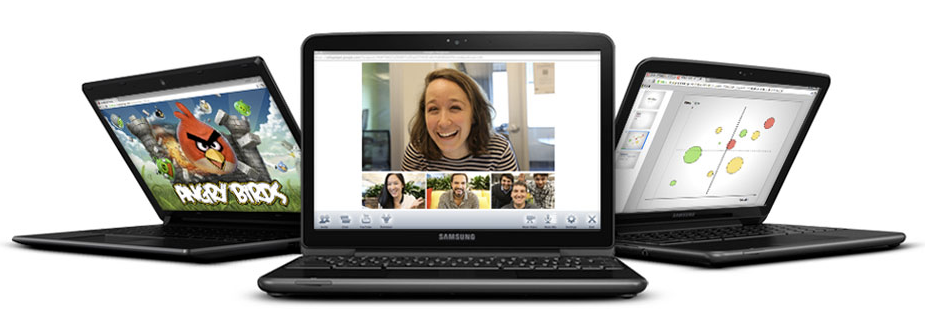
 The CloudCon was also impressive in terms of the audience (mainly, CIO/CTO dudes) – they liked the story of HTML5 and ChromeOS. I got some good questions on new features: offline, notifications, threads and even on web audio. It could be great to have the new Chromebooks in Israel, it seems that the market really want them. The one argument (or selling point if you want to push here) that conviense IT people is that the TCO (=Total cost of ownership) is 60%-70% cheaper. Yes – these are the numbers… so if your organization can work with web apps (and Citrix for the apps that you don’t want to move to the web) it might be a perfect solution for you.

I hope to get some photos soon (from our dear wonderful photographer) – so I’ll update this post with fresh photos of some great looking people.

Tomorrow we are going to rock Berlin – so keep up with us using G+ with #GDD11 tag  or this blog next week. Btw, for Berlin GDD you might want to search after #GDDDE

Be strong.

This slideshow requires JavaScript.

In case you want to follow the slides from my Talk in CloudCon – The ‘love’ story of HTML5 & ChromeOS.

From Google Developers Day in Berlin here are the talks:

Standard
Chrome

ChromeOS In VirtualBox – Test Drive It

In a lot of cases you wish to develop to the new Chromebook but don’t have the hardware or just want to be more productive while working on your 8-core linux box… In these cases, there is a good option to run the latest ChromeOS inside Virtualbox (or VMware if you have it). A quick reminder, Chromium OS (which is the open source version of ChromeOS) is a project that aims to build an operating system that provides a fast, simple and more secure computing experience for people who spend most of their time on the web. In our tutorial here we will use Chromium OS images.


The steps to follow

  1. Download VirtualBox.
  2. You can build your own OS if you wish, just go to: chromium-os and read the details.
    However, there is an easy way – just download an image of Chromium OS – I have one for you here or just type http://bit.ly/crOS-16.
    And this guy is creating lots of fresh images of Chromium OS every day. So if you want the real ‘development’ (=alpha) version of it – check it out.
  3. Open the VirtualBox and click on ‘New’ button (upper left corner) – You will get this:

Choose Linux and Ubuntu and click ‘Continue’.

Next you need to set the memory – make sure to set an amount that you can devote to VirtualBox without killing your machine. Something around 1500MB should work. If you have more, even better.

The last part of this wizard is to choose the image file. Click on the radiobox and point to the place you save the image file of ChromeOS.

Next dialog will show you a summary of all the details and after you will click ‘Create’ you are good to go!

Tips

  • Make sure to open ‘Setting’ of your new virtual machine and under ‘Processor’ click the PAE checkbox. If you won’t do that, you will get the ‘black screen of death’ and the machine won’t start.
  • If you getting errors while loading – sometimes it’s due to lack of memory. Try to close some applications and start the virtual box again.
  • Make sure you have something like 100mb of memory to the ‘video memory’ under the display section in the settings.


3 Minutes Video Tutorial

Standard
Chrome

A New Release Of Chrome 15 For Chromebooks

A new release of Chrome 15 (on the Stable Channel) is out there for Chromebooks: Acer AC700, Samsung Series 5 and Cr-48.

Release highlights:

  • New Chrome 15 functionality including the new tab page (which you can see a short introduction video in the bottom of this post).
  • New Web UI Login – IMHO, much simpler and nicer.
  • Support playback of key media codecs
  • Improve video decode performance
  • Add concept of preferred networks
  • New ‘Games’ and ‘Music’ apps by default
  • NTFS support
  • Add localized text for recovery
  • Networking improvements
  • Crash fixes & Security updates – because you must have them both in any good product today.
The current version is 15.0.874.117 (Platform version: 1011.118)

Standard
Chrome, life

Great Apps For Your Chromebook

Web-based applications are programs that are designed to be used entirely within the browser. Using apps, you can do anything (well, almost!).

These days, web apps are capable of dynamic functionality that you expect from desktop applications on your computer. If you use services like Gmail or Google Maps, you’re already using apps! Apps have the following advantages over desktop applications:

  • Apps install in seconds, with one click of a button. When you install a web app from the Chrome web store you get some nice new features like: unlimited offline storage, geo information, notifications etc’. So as a web developer, you might want to use this channel to make your users happy (or happier).
  • Apps are always up-to-date. Because apps are hosted on the web where they can be instantly updated, you can be sure you’re always using the latest version of the app that’s available.
  • Apps won’t crash your computer. If one app misbehaves, just close its tab in the browser. Your browser and computer won’t be affected.
Here are three lists with good (to great) web apps to make you (even more) productive.
If you have other suggestions, please let me know.

Apps For Everyday

If you want to… On a Chromebook, you could use…
Save a file Google Docs (which are working great in offline mode since June 2012) or Box or the Generic solution CrOS Save that will give you Dropbox and many other cloud solutions.
Read my email Gmail or other webmail services like: yahoo, hotmail etc’.
You can also try Offline Gmail to be productive on the times you don’t have an internet connection.
Organize my events on a calendar Google Calendar (which work offline!) or 1Calendar
Write a document Google Docs (which work offline!), Scratchpad or Quick Note
Chat with friends and family Google Talk or IMO
Watch a movie, clip, or tv show Netflix or YouTube
Edit a video or movie Stupeflix or YouTube Video Editor
Listen to music Pandora or MOG
Organize and save my music Google Music or mSpot
Edit or create music Aviary Audio Editor or Beatlab
Play a game Angry Birds, WGT Golf Challenge, or explore more games
Edit, organize, and store photos Picasa Uploader, Aviary or Picnik
Draw a picture Sketchpad or Sumo Paint

Apps At School

If you want to… On a Chromebook you could use…
Take notes or write a document Google Docs, Scratchpad or Quick Note
Create a presentation Google Docs, SlideRocket, or 280 Slides
Create a spreadsheet Google Docs or Zoho Sheet
Keep track of things to do Google Tasks or Springpad
Do research for my project Google Books or Academic Earth
Plan for a project Zoho Projects or SmartSheet
Do some calculations Calculator app or Scientific Calculator
Look up word definitions Google Dictionary
Keep track of time Alarm clock app

Apps At Work

If you want to… On a Chromebook you could use…
If your company uses Citrix to host applications and you wish to work on them in remote. Citrix Receiver
Do your tax (hopefully before April) Turbo Tax
Work on your mail while you don’t have connection (e.g. flight, train etc’) Offline Gmail
If you hungry and want to cook something tasty. Gojee
Write a document Google Docs or Zoho Writer
Create a presentation Google Docs, SlideRocket, or 280 Slides
Create a spreadsheet Google Docs or Zoho Sheet
Manage accounts and taxes Wave Accounting or Zoho Books
Organize personal finances Mint or CashBase
Develop or debug code Cloud9 or Koding
or just go deep with my post on the subject
Here is a good intro to ‘what is a web app’?
Standard
Chrome, HTML5, webdev

Web Workers (Part 3 Out Of 3) – Shared Wrokers

Shared Worker Example

Web Workers - The bookA web worker is a single JavaScript file loaded and executed on a separate thread (=background and not the UI thread). Dedicated web workers are linked to their owner/creator which is the script that called and loaded them. Shared web workers allow any number of scripts to communicate with a single worker.
Btw, if you missed Part1 and/or Part2 of this series, you might want to read them first.
Shared web workers are identified in two ways: either by the URL of the script used to create it or by explicit name. In the code below we will see how it can be done.

<!DOCTYPE HTML>
<html>
<head>
<meta charset="utf-8" />
<title>Shared Web Workers: Show And Tale</title>
</head>
<body>
<h1>Shared Web Workers: Show And Tale</h1>
<article>
To create a shared web worker, you pass a JavaScript file name to a
new instance of the SharedWorker object:
<br/>var worker = new SharedWorker("jsworker.js");
<br/>
<output id="result"></output>
</article>
<script>
var worker = new SharedWorker('sharedWorker1.js');
worker.port.addEventListener("message", function(e) {
document.getElementById('result').textContent += " | " + e.data;
}, false);
worker.port.start();
// post a message to the shared web worker
console.log("Calling the worker from script 1");
worker.port.postMessage("script-1");
</script>
<script>
console.log("Calling the worker from script 2");
worker.port.postMessage("script-2");
</script>
</body>
</html>
// This is the code for: 'sharedWorker1.js' file
// Shared workers that handle the connections and Welcome each new script
//
var connections = 0; // count active connections
self.addEventListener("connect", function (e) {
var port = e.ports[0];
connections++;
port.addEventListener("message", function (e) {
port.postMessage("Welcome to " + e.data +
" (On port #" + connections + ")");
}, false);
port.start();
}, false);

Shared web workers can:

  • load further scripts with importScripts()
  • attach error handlers, and
  • run the port.close() method to prevent further communication on a specific port.

Continue reading

Standard
life, Sport

Nike Night Run – Tel Aviv 2011

What a great event…

It’s very cool to run with so many others in the streets of Tel Aviv in a perfect weather.

For more photos and information you can check out Shvoong

and the results


Standard
Business, Chrome, HTML5, webdev

HTML5 Live London – Trip Report

The conference took place on Oct, 19 2011 in the Barbican Conference Centre London. My two goals where to expose enterprise web developer to the new features that HTML5 provide today and to show them how they can leverage these features when they are building enterprises web apps. The other part was to talk with CIO/CTOs about Chrome OS and to ‘bind the dots’ on: how chrome OS harnessing business and developers with more power. Overall, it was a great event in terms of the quality of the audience. Lots of enterprise web developers from financial institution, health care and other big organizations. Some of them are still struggling with IE and the Chrome Frame was a big exciting news for them. Other points I’ve took with me:

  • The Chromebooks were a big hit – everyone love them! I got lots of questions and the major points where around:

    • Security

    • Total cost of ownership (70% reduction)

    • Battery life (8.5h)

  • In the future, I should bring few Chromebook and have a table in the main show so people could ‘play’ with them between sessions.

Here are some of the presentations from the event:

Lastly, I would like to thank the amazing crew of Kaazing – They organized a great event with lots of interesting talks.

I hope to see you there next year…

Be strong.


Standard
JavaScript, webdev

Javascript – Print Stack Trace

Simple and short code to drop a stack trace to your console and/or page.

var e = new Error('dummy');
var stack = e.stack.replace(/^[^\(]+?[\n$]/gm, '')
  .replace(/^\s+at\s+/gm, '')
  .replace(/^Object.\s*\(/gm, '{anonymous}()@')
  .split('\n');
console.log(stack);

and here you can play with a working demo on JSbin

Standard
HTML5, webdev

Web Workers (Part 2 Out Of 3) – Control Your Threads In JavaScript

Quick Intro

If you wish to read the first part of this series please go to Web Workers Part 1.
The Web Workers specification defines an API for spawning background scripts in your web application. Web Workers allow you to do things like fire up long-running scripts to handle computationally intensive tasks, but without blocking the UI or other scripts to handle user interactions. They’re going to help put and end to that nasty ‘unresponsive script’ dialog that we’ve all come to love:

or if you are (still) on windows:


Unresponsive script dialog
you will get this common unresponsive script dialog.


Workers utilize thread-like message passing to achieve parallelism. They’re perfect for keeping your UI refresh, performant, and responsive for users.

Types of Web Workers And Some Code

It’s worth noting that the specification discusses two kinds of Web Workers:

Restrictions with Local Access

Due to Google Chrome’s security restrictions, workers will not run locally (e.g. from file://) in the latest versions of the browser. Instead, they fail silently! To run your app from the file:// scheme, run Chrome with the --allow-file-access-from-files flag set. It is not recommended to run your primary browser with this flag set. It should only be used for testing purposes and not regular browsing.

(!) Debug: The other good thing to know is that you can debug works in the Chrome Developer Tools by clicking on the Scripts tab, and scrolling down in the column on the right to Workers and clicking on the debug checkbox.

Other browsers do not impose the same restriction.

Same Origin Considerations

Worker scripts must be external files with the same scheme as their calling page. Thus, you cannot load a script from a data: URL or javascript: URL, and an https: page cannot start worker scripts that begin with http: URLs.

The Code


<!DOCTYPE HTML>
<html>
  <head>
    <title>Web Worker: The highest prime number</title>
    <script src="http://ajax.googleapis.com/ajax/libs/jquery/1/jquery.min.js"></script>
    <meta charset=utf-8 />
  </head>
  <style>
    #actions {
      position: fixed;
      top: 10px;
      background: lightBlue;
      padding:8px;
    }
    h1 {
      position: relative;
      bottom: 10px;
      left: 280px;
    }
    #status { 
      position: relative;
      font-size: 120%; 
      background: lightyellow;
      margin:8px; 
    }
    article { 
      position: relative;
      color:red; 
    }
    input {
      width: 80px;
      height: 35px;
      font-size: 120%;
    }
  </style>
  <body>
    <script>
      var myWorker;

      function start() {
        console.log("WebWorker: Starting");
        myWorker = new Worker("highPrime2.js");
        myWorker.addEventListener("message", primeHandler, false);
        var maxNum = $('#upto').val();
        myWorker.postMessage({'cmd': 'start', 'upto': maxNum});
      }

      function stop() {
        if (myWorker != undefined) {
          var msg = "<br/>WebWorker: Terminating " + new Date();
          console.log(msg);
          $('#status').append(msg);
          myWorker.terminate();
          myWorker = null;
        }
      }
      function primeHandler(event) {
        console.log ('got e:'+event.data);
        if (is_numeric(event.data)) {
          $('#result').append(event.data);
        }
        else {
          $('#status').append(JSON.stringify(event.data) );
        }
      }

      function is_numeric(input){
        return typeof(input)=='number';
      }
    </script>

    <h1>Web Worker: The highest prime number</h1>
    <article>The prime numbers: 
      <output id="result"></output>
      <div id="status"></div>
    </article>
    <div id="actions">
      <input type="text" name="upto" id='upto'/>
      <button onclick="start()" title="Start the work">Start</button>
      <button onclick="stop()" title="Stop the work and go have a drink">Stop</button>
    </div>
  </body>
</html>

// And here is the worker code:
<script>
  //
  // A simple way to find prime numbers
  //
  self.addEventListener('message', function(e) {
    var data = e.data;
    var shouldRun = true;

    switch (data.cmd) {
      case 'stop':
        postMessage('Worker stopped the prime calculation (Al Gore is happy now) ' + 
          data.msg );
        shouldRun = false;
        self.close(); // Terminates the worker.
        break;
      case 'start':
        postMessage("Worker start working upto: " + data.upto + " (" + new Date()+ ")<br/>");
        var numbers = isPrime(data.upto);
        postMessage("Got back these numbers: "+ numbers + "<br/>");
        break;
      default:
        postMessage('Dude, unknown cmd: ' + data.msg);
    };
  }, false);

  // simple calculation of primes (not the most efficiate - but works)
  function isPrime(number) {
    var numArray = "";
    var this_number,divisor,not_prime;
    var this_number = 3;
    while(this_number < number) {
      var divisor = parseInt( this_number / 2);
      var not_prime = 0;
      while(divisor > 1) {
        if(this_number % divisor == 0) {
          not_prime = 1;
          divisor = 0;
        }
        else {
          divisor = divisor - 1;
        }
      }
      if(not_prime == 0) {
        numArray += (this_number + " ");
      }
      this_number = this_number + 1;
    }
    return numArray;
  }
</script>


The last part of this series is about Shared Web Workers.

You can also find full set of example on github: Web Workers Examples.

Standard
HTML5

HTML5 App Caching – The Easy Way

HTML5 features appcaching, a way to make your web sites and apps work offline, and to increase their performance as well.

I’m sure you know, browsers cache HTML, CSS, JavaScript files, images and other resources of the sites you visit, to speed up the subsequent loading of pages. However, you never know when the browser might discard cached files, and so this is not a reliable way for sites to work offline. But what if we could tell the browser what to cache? Well, with HTML5 application caches (also known as ‘appcache’) we can do just that.

An appcache manifest contain several lines in that order:

  • In the first line we declare “CACHE MANIFEST” (required)
  • Second line: “CACHE:” – which specifies the URLs of resources.
  • We can also optionally specify which resources should not be cached, in a section of the manifest file introduced by the string “NETWORK:”. These resources aren’t just not cached, but further, won’t be used when the user is offline, even if the browser has cached them in its own caches.
  • We can also optionally specify fallback resources to be used when the user is not connected, in a section of the file called “FALLBACK:”
  • You can add comments to the file with, simply by beginning a line with “#” – that’s an important feature to make the version readable for you as a developer. It’s also a nice way to let the browser ‘know’ that something changed in our app and it’s needed to fetch a new version of the app from the network.

Here is a simple example:


CACHE MANIFEST
#version 1.0

CACHE:

#images
/images/logo.png
/images/ido-header.png

#pages
/pages/index.html
/pages/main.html

#CSS
/style/main-style.css

#scripts
/js/main-logic.js

FALLBACK:
/ /offline.html

NETWORK:
sign-new-user.html

Creating a HTML5 cache manifest file the easy way:

Other good reads:
Standard