Chrome, HTML5, JavaScript, webdev

A Hangout On HTML5 APIs And CSS3 (New) Layouts

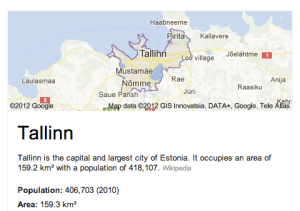
TALLINN Map

Last night, I gave this talk to Google Developer Group Tallinn about the new APIs that we have today in HTML5 and CSS3. It was (another) great hangout where you can ‘touch’ people that are quite far from your location and speak with them about mutual interest.

Some of the topics that I covered during the talk where: Continue reading

Standard
Chrome, HTML5, JavaScript, webdev

HTML5 New APIs In ILTechTalks (Hebrew)

Last week, I’ve went to live person HQ to give a talk in ILTechTalks on HTML5 and how you can use some of its new APIs in order to build you next web app. Today, web apps like: gmail, maps, google docs etc’ are consider to be modern web apps. They are rich, interactive applications that users spend long hours with them. There are few features that distinguish modern (or great) web apps from sites: Continue reading

Standard
Chrome, HTML5, JavaScript, webdev

GDL-IL on Chrome Extensions And Backbone.js In The Real World

Today I’ve spoke on GDL-IL (=Google Developer Live Israel) with Ron Reiter on his work at Any.Do and how he leverage backbone.js to create this useful chrome extension. The main points we covered during our talk:

  • Chrome Extensions– How you start developing them and why you will want to do it.
    • Extensions are small software programs that can modify and enhance Chrome. The best part is that you write them using web technologies such as HTML5, JavaScript, and CSS. Here is the code for the example extension I’ve wrote as ‘short cuts’ to Chrome internal pages.
  • Ron gave us a short description on backbone.js and what are the main components in this MV* framework. You can learn more at: http://documentcloud.github.com/backbone/
  • We talked about Any.do extension and Ron gave a nice overview of the code he used for the sync layer.
  • Few tips for extensions developers:
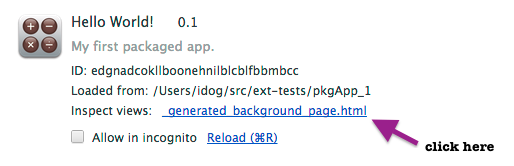
    • How to inspect an extension: open the popup and right click inside of it. It will give you the option to open chrome devtools (with the ‘inspect element menu item). In cases, where you don’t have a popup – you can always use chrome://extensions and click on ‘inspect background page’.
    • If you have some logic you wish to test without the extension (or not inside it) you can always run QUnit (or any other unit test framework) on a page that will be a proxy to your popup’s index.html file.

Enjoy and feel free to join us every week on WED 14:00 Israel time at https://developers.google.com/live/


Standard
Chrome, HTML5, JavaScript

IndexedDB Webcast In GDL-IL

Here is a short webcast that shows how to build “IndexedDB in a jQueryMobile app”. If you thought about building a modern web application with offline capabilities, it will be a good 101 session for you. For the full code you can read “How to use indexedDB” and here is a live demo of this mobile web app. It seems that with the JavaScript shim that I’m using this is a nice solution for developers that wish to target both Android and iOS as it should work in both Chrome for android and mobile safari. Moreover, soon when IE10 will be in the ‘wild’ web, indexedDB API will be available in Chrome, FF and IE, nice ahh?

Btw, one of the reader of the blog point me to another open source IndexedDB API wrapper library – From browsing it, it’s looking good!

Standard
Chrome, HTML5, JavaScript, php

Java Posse Podcast Episode On Great Web Apps

In the last Java Posse Roundup (=the best unconference you can attend) we had many very interesting meetings. In this one hour conversation we were talking about modern great web apps and what does it means to different developers. Some of the topics we spoke about where around new JavaScript MV* frameworks (ember, backbone, spine, angular etc’). What we used to do 35 years ago (main frames days!) and what is similar (or not) today. Thanks to @joelneely for correcting me with the title by making a great point on replacing the word ‘modern’ with ‘great’. Some of the topics that were discussed:

Since we had no-snow and free time, we did few ‘rolling’ hackathons in the afternoons. You can browse the coding projects on GitHub JavaPosseRoundup. Checkout, some cool Scala, Android, HTML5 apps that are there. Lastly, I also gave a talk about this topic before the conference at a Google developer meetup. Here are the “Modern Web Apps slides from my talk that contain more good information about the subject.

Standard
Chrome, HTML5, JavaScript, mobile, webdev

How To Use IndexedDB – Simple(st) Example

In the past few months, I’ve saw many developers that use  local storage for ‘big data’ on the client side. Local storage is a powerful API that let developer save key-value data on the browser. However, it’s got some limitation like: synchronize operation that make it less efficient when it’s heavily used. Moreover, it should replace simple cases (e.g. saving the user state) and not in scenarios where you wish to save lots of data and then have the ability to ‘slide and dice’ it base on your needs with effiency. For that, we used to have WebSQL (which as you know is deprecated from 2010) and the new cool kid in town – IndexedDB. Here I will try to give you a short example that will run nicly both on IE10, Firefox (that match the spec) and Chrome (which need to tune a bit the setVersion update to call onupgrade). IE10 will support IndexedDB as well – so it’s great news to web developers in terms of ‘wild’ support for this important API in browsers. I wish we will see soon Safari (specially, on the mobile) match Chrome for android and give us the ability to leverage indexedDB both on Android and iOS.

Ok, as Linus said: “talking is cheap, show me some code”… Let’s go over the example code. In this example we will save todos to keep things simple. Classic, no? In the end of the post, I will also give two other examples of a ‘todo app’ the use indexedDB, WebSQL and jQueryMobile.

Continue reading

Standard
Chrome, HTML5, JavaScript

GDL IL With The SubDroid Team

A short discussion with the team that built the first SubDroid that sink in Sedot Yam!
Some good topics on Android, Hackathons and design aspects for successful GeekCon project.

As always, if you have 20-25min on WED at 14:00 Israel time… mark your calendars and join us live on GDL-IL!

Standard
Chrome, HTML5, JavaScript, webdev

Modern Web Apps Utilizing HTML5 APIs – O’Reilly Webcast

Yesterday I had the pleasure to do another webcast with O’rielly. This time the subject was “Modern web apps & HTML5 New APIs“. The webcast  covered new (and old) techniques for building modern web apps and how to utilize the latest HTML5 APIs to create a new class of web apps that will delight and amaze your users. Some of the main topics were:

  • The latest and greatest application patterns and toolset: MV* frameworks, offline first and Chrome Frame.
  • Some cool tips on Chrome DevTools – On few slides I’ve open this powerful tool in order to show its power.
  • APIs for building cutting edge HTML5 applications: WebGL, Device APIs, CSS3 layouts and many more…

You could watch the recorded webcast

or check out the page on O’reilly website:
http://www.oreillynet.com/pub/e/2349 and if you wish to follow with the slides you can find all of them at ido-green.appspot.com

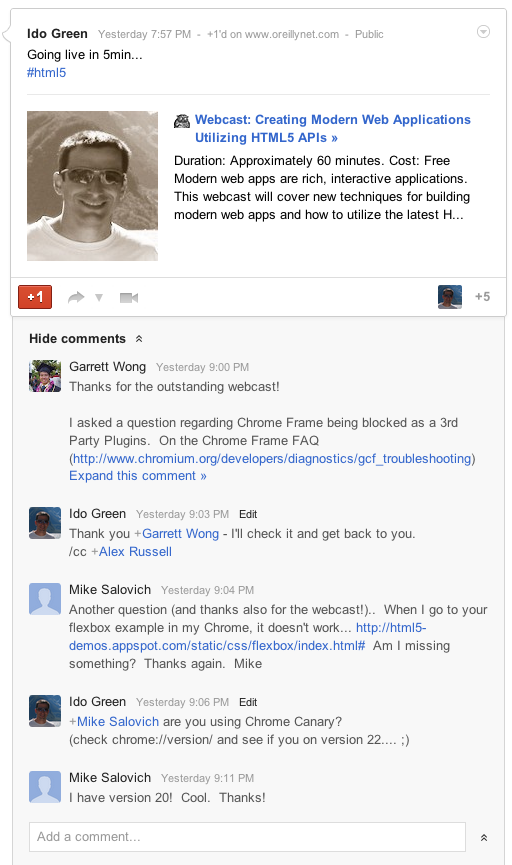
Here is some of the feedback I got on Google+

Be strong.

Standard
Chrome, HTML5, JavaScript, webdev

Chrome Extensions – The New Event Pages

Since the first days of Chrome extensions it was clear that they are very powerful way to extend your browser and make it do stuff you care about. However, while it was good, we knew that it can get better… and this is why we have in dev channel the ‘Event Pages’. Let’s start by defining what are those pages:

  • Background pages – give your extensions the ability to have a single long-running script to manage some task(s) in the background. This can be a certain state of your app or long pulling of information that you wish to show the user (e.g. amount of unread emails).
  • Event pages – are very similar to background pages, with one important difference: event pages are loaded only when they are needed. When the event page is not actively doing something, it is unloaded, freeing memory and other system resources. Please remember this feature is currently only in dev mode.

It seems that with Event Pages our Chrome will be able to  reduce the memory foot print that is used by some idle extensions. It’s an important evolution from the state of background pages that run all the time. An event page only runs when it is handling events. Once an event page becomes idle, it is unloaded, freeing memory until the next time it’s needed. To help event pages support some important use cases, we’re also have new APIs.

  • The alarms API allows an extension to wake itself up at set times, to support features like: cron jobs type of activity, periodically syncing, anything you wish to do over time in specific timing.
  • chrome.runtime new events let extensions know when they have been installed, or when their event page is being unloaded. It is also giving the developer an option to have a ‘last error’ handler.
  • chrome.declarativeWebRequest – A declarative version of the webRequest API lets extensions do network interception without the need for a background page at all. It also works much faster than the chrome.webRequest API because you can register rules that are evaluated in the browser rather than the JavaScript engine which reduces roundtrip latencies and allows for very high efficiency.

Final Notes

  • Learn more from the event page documentation.
  • There is a good source for more information on Chrome Extensions in Chromium blog
  • There are so many option to use the new event pages with the bluetooth API
  • Btw, @rem did it again with a new (amazing) version of JSbin – Go check it out and see how great logos ‘steal’ the show… Why I’ve added it here? because it’s a powerful online tool that let you test your app/extension and share your code before you upload it to Chrome web store. I’ve used both jsbin and jsfiddle in order to get feedback on some short code.
Standard
Chrome, HTML5, JavaScript, webdev

Tutorial: Getting Started With Google Chrome Extensions

Chrome extensions are very powerful way to make Chrome (even) better. They give you (=the developer) a lot of power to extend the functionality of the browser and gain more productivity and power in daily tasks. In this tutorial we will learn how to create a basic extension that give you the power to open all the special information pages that Chrome offers. For the ones that wish to see code of a more complicated extension that does some networking and notification – You might want to have a look at the work of my friend Mr. Smus on ‘Stackoverflow notifier‘. Ok, let’s start to role.

Getting started with your first extension

We will take for example the case of opening some Chrome internal pages. I’ve wrote this extension more then a year ago because I wanted ‘one-click’ from many interesting internal pages that chrome give developers that want to have a look at some internal parts. For example:

Browser Action or Page Action

We could choose that the user will see our extension all the time with a little button that will be place on the right side of the browser or to have our activation icon popup inside the address bar (the omni box) only when the user get to the page that our extension is working on. In our example we want the user to be able to activate the extension all the time so we will go with browser action.

The first thing we need to write is a short manifest file that describe our extension. You can see we declaring some trivial fields like: name, version, icon and more important ‘permissions’. This will give the user a warning dialog during the installation process to warn about the permissions that our extension will have. It’s good practice to use as little as possible since it will improve the confidence users will feel – thus, you will have more installations. Another good tip is to invest the time and effort to use great icons/graphics. It will also improve the user experience.

manifest.json
{
  "name": "Chrome Short Cuts",
  "version": "0.1",
  "description": "Show short cuts and tips on Chrome",
  "icons": { 
	"48": "app-icon-48.png"
   },
  "background_page": "background.html",
  "permissions": [
    "contextMenus"
  ],
  "browser_action": {
    "default_title": "Display short cuts and tips",
    "default_icon": "toolbar-icon20.png",
    "popup": "popup.html"
  }
}

After we have our manifest file we need to code (fun time) the logic/data/ui of our extension. Here is our simple code of popup.html:

<!doctype html>
<html>
<head>
<meta name="author" content="Ido Green">
<!-- move it to another file -->
<style>
html {
width: 350px;
height: 600px !important;
}
</style>
<link rel="stylesheet" href="http://code.jquery.com/mobile/1.0a4/jquery.mobile-1.0a4.min.css&quot; />
<script src="http://ajax.googleapis.com/ajax/libs/jquery/1.6.1/jquery.min.js"></script&gt;
<script src="http://code.jquery.com/mobile/1.0a4/jquery.mobile-1.0a4.min.js"></script&gt;
<script>
// start the party
$(document).ready(function() {
$("#ext").click(function() {
chrome.tabs.create({url: "chrome://extensions/"});
});
$("#down").click(function() {
chrome.tabs.create({url: "chrome://downloads/"});
});
$("#set").click(function() {
chrome.tabs.create({url: "chrome://settings/"});
});
});
</script>
</head>
<body>
<div data-role="page" id="home" data-theme="a">
<div data-role="header" data-theme="b" >
<h1>Chrome ShortCuts</h1>
</div>
<div data-role="content">
<ul data-role="listview" data-theme="d" data-filter="true">
<li>
<a href="#" id='ext' data-icon="gear">
<img src="ext.png" class="ui-li-icon"/>
Extensions
</a>
</li>
<li>
<a href="#" id='set'>
<img src="setting.png" class="ui-li-icon"/>
Settings
</a>
</li>
<li>
<a href="#" id='down'>
<img src="down.png" class="ui-li-icon"/>
Downloads
</a>
</li>
</ul>
</div>
</div>
</body>
</html>

After we wrote some code, it’s time to upload the extension to our chrome and test it. You can do it by going to: chrome://chrome/extensions/ and click on the button ‘load unpack extension’. You can see it below:

Once you click on the button you need to navigate to the directory that contain the manifest file and your html/js/css files. Once you click on ‘select’ the new extension will be added to the list of extensions and you should see its button on the toolbar (right side of it). You will continue to work and improve your functionality… and once you are happy with the results it’s time to publish your work to the Chrome Web Store. I’ve wrote about this process in the past here: How to get your web app and/or extension into the Chrome Web Store.

Is it simple or what?
Please let me know if you have any thoughts on the process and how we can improve it. Also, if you have good (to great) ideas to extensions – please share them…

Final notes

  • You can set an option page so your users will be able to set their preferences. In our simple case, there is no point.
  • Background pages –  answer a common need to have a single long-running script to manage some task or state in the background. For example: check the page for certain keywords, links, check status of some web service etc’.
  • How to OAuth2.0 from extensions
  • A great source for extension developers is this guide.
Standard