In this week we spoke about Google APIs and how you can work with them from the client (e.g JavaScript) and from the server (in this case, it was with PHP but there are many more options).
The main link that you will want to start with is: code.google.com/apis/console/ which give you the option to ‘activate’ which APIs you are going to use and later on each and every one of them you can click on the ‘question mark’ and jump to a starting guide. Another good tool is the API-Explorer which give you the option to test APIs quickly and see what each end-point will return. Continue reading →
Today I did a hangout on air with O’Reilly. It was a good opportunity to dive into some of the aspects of modern web application and check what are the main things we wish to think about when we design, build and ship our apps. Modern web apps are rich, interactive applications.
I tried to cover the following:
Defining the modern web app
Designing a modern web app
HTML5 Power tools/APIs
Tips & best practices on DevTools and Google Cloud Endpoints.
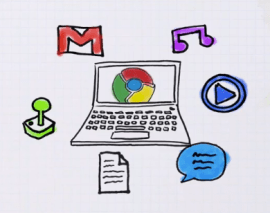
Today, I had the pleasure to sit for 15min with Nissim Betito (the one and only!) how is a known hacker in the linux community around TLV. We spoke about Chromebook and what are the powerful tools that you can leverage today when you wish to write code. Later, we showed how to install ubuntu on Chromebook and get everything you miss as a developer that must have gcc (or other complier) under their hands. In the near future we will show how to install chromeOS image on raspberry pi… Continue reading →
In our GDL-IL today, I’ve talked about a fun project I did in the past. It’s a single web page application that let you manage an event. We covered some of the basic components we used in order to built this site and then we jumped into the app script code and showed how to work with the online IDE that let you write, run and debug your server side code. The site gives you basic functions like: Continue reading →
At the beginning of the year, I’ve worked with a big organization that wanted to avoid the automatic suggestions Chrome is making in the omnibox (=the top field in Chrome, where you type searches and see the url).
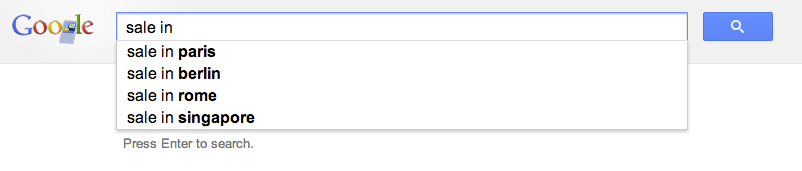
Their main requirement was the need to allow employees to type a word and get the internal site that they are use to see. For example, the user will type ‘sale’ and Chrome will redirect them to the internal portal of sales. If you won’t modify Chrome it will run a google search on ‘sale’ and the results will be something like:
The good news is that with this little extension you will be able to control the redirect of the users to the right internal location. Let’s jump into code.
This is the code of our manifest file that describe the extension
This file contains hidden or bidirectional Unicode text that may be interpreted or compiled differently than what appears below. To review, open the file in an editor that reveals hidden Unicode characters. Learn more about bidirectional Unicode characters
Important to notice is that we setting the keyword ‘get’ in order to activate this extension. You can choose something shorter if you like. Another aspect is the “manifest_version”: 2 which making sure we are compatible with the latest spec.
This is the code of our background page
This file contains hidden or bidirectional Unicode text that may be interpreted or compiled differently than what appears below. To review, open the file in an editor that reveals hidden Unicode characters. Learn more about bidirectional Unicode characters
Here we will listen to the events of omnibox.onInputChanged and omnibox.onInputEntered in order to execute our logic.
Another point you might want to consider is to go to:
chrome://settings/ -> Advanced -> and then to disable these options:
Use a web service to help resolve navigation errors
Use a prediction service to help complete searches and URLs typed in the address bar
Predict network actions to improve page load performance
It doesn’t matter if you are working in a startup of few people or a big organization with 2.2M employees (e.g. Walmart). In both cases, you probably have internal network and internal systems that your users will love to access with few keywords like: CRM, ERP, Sale, Marketing, QA etc’.
This is the talk I did in Google Developers Live Israel. It’s a weekly show that we have every WED at 14:00 (Israel time). You are most welcome to hangout with us in the future and ask questions or comments on anything that is related to startups, technology and (of course) Chrome/HTML5.
Today in Google Developers Live Israel I’ve spoke about Google Cloud Endpoints and new HTML5 APIs. Before we started I’ve mention that hot news from yesterday about G+ sing-in and I suggest you to check it out.
Today we published the second episode of GDL-IL Women Tech-makers with Yael Karov (Founder and CEO of Ginger Software). Gingre is a service built from Karov’s 20+ years of experience in the field of natural language processing and machine learning that helps users improve their online English language communication. Here the discussion was with Michal Segalov and Dana Gabel (Software Engineer in Google), about Yael’s experiance in commercial launch of innovative products to market.
There are some cases where you wish your chromeOS, Chromebook (or Chromebox) will not to enter into sleep mode. A quick example is when you wish to use it in a conference to present a cool web experiment and you don’t want it to vanish after few minutes. Here are two quick ways to achieve it. Both are a bit of a hack… but it’s not a complicated process.
The hacker way
Login with the admin user.
Open a terminal by hiting CTRL+ALT+T
Type the following
shell (to drop into a standard bash shell)
sudo stop powerm – to disable sleep when lid is closed. You could go with the longer version of: sudo initctl stop powerm but there is no reason to type more…
sudo stop powerd – to disable all other power management features.
Now logout from the menu – But do not restart! Why? because these settings won’t survive it.
The easy way
Install this Chrome extension – Caffeine after your clone/fork it from Github. It is an experimental extension for Google ChromeBooks that overrides the default power settings.
It is using this API:
chrome.experimental.power.requestKeepAwake()
which is still under experiment so you will need to enable it before the installation.
How to install:
Go to about:flags on your Chromebook, enable “Experimental Extension APIs” and then restart your Chromebook.
Go to extensions, toggle on Developer Mode, and click load unpacked extension.
Choose the folder containing this source.
Toggle / unToggle the menu icon to keep Chrome awake. Is it easy or what?
Happy new year!
[Update Sep 2014] – You can now have Keep Aware extension from the Chrome Web Store. This is the easiest way and it got two option: full system awake (sun is up) or display will go to sleep but network and the rest will continue to work (moon is up).

 In this week we spoke about Google APIs and how you can work with them from the client (e.g JavaScript) and from the server (in this case, it was with PHP but there are many more options).

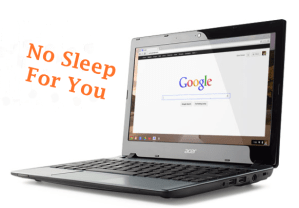 There are some cases where you wish your chromeOS, Chromebook (or Chromebox) will not to enter into sleep mode. A quick example is when you wish to use it in a conference to present a
  Ido Green