Chrome

SSH In Chrome and ChromeOS

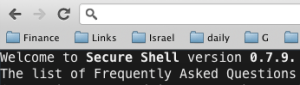
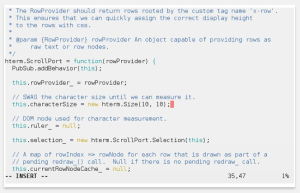
This is a very cool (new) extension that let you work with SSH inside your browser. It’s name is Secure Shell and it is an xterm-compatible terminal emulator and stand-alone ssh client for Chrome. It uses Native-Client to connect directly to ssh servers without the need for external proxies. I used it for few days and it’s working great. It’s useful on Chromebook (and ChromeOS) as a nice way to have access to a box that let you compile your C++/Java code. Also, as I’ve heard from few good people on stackoverflow, the need for Emcas (and/or) Vim on ChromeOS can be achieved via this nice extension.

ssh in Chrome

Standard
Chrome, HTML5, webdev

New USB API & Bluetooth API In Chrome/ChromeOS

It seems that we are going to have some powerful new APIs on ChromeOS and Chrome in the future. From looking at chromium site last month I’ve saw two new interesting proposal to new APIs that will make Chrome (even) better. The ability to ‘talk’ with hardware and external devices is very important and until today the way to do it (from a web app) was by using network. So there was no (real good) option to communicate with hardware and external accessories that do not support network (e.g Wi-Fi). These two new APIs are going to allow web developers with more power to build amazing apps that communicate with external devices. Think, smart watches, GPSs, robots, Lego cars (my kids will love it!) etc’.

USB API
The USB API aims to provide access to fundamental low-level USB operations from within the context of an extension. Some use cases that might come to mind: GPS, Watch, mobile phone or any other devices which require third-party drivers to work. One of the use cases for this API would be to provide the ability for a Chrome extension to function as a device driver and allow previously new devices to be used – is it cool or what? just think on the ‘old’ days where if you needed to talk with your specific hardware you were locked to write you native application for windows, mac and linux (and more if your users are there). In the new world, you will be able to write it once and run it everywhere… (where have we heard this sentence before? back in the 90s? Some technology that start with J?) One big question is if/when we could see this API being part of the web platform. I don’t really know. However, I do hope it will.

The APIs functions:

  • Locates an instance of the device specified by its vendor and product identifier - chrome.experimental.usb.findDevice(
    integer context,
    integer vendorId,
    integer productId,
    function callback)
  • Performs a USB bulk transfer to the specified device - chrome.experimental.usb.bulkTransfer(integer device,
    string direction,
    integer endpoint,
    string data,
    function callback) 
  • Close a USB device handle - chrome.experimental.usb.closeDevice(integer device,
    undefined callback)
  • Performs a USB control transfer to the specified device - chrome.experimental.usb.controlTransfer(integer device,
    string direction,
    string recipient,
    string type,
    integer request,
    integer value,
    integer index,
    string data,
    function callback)
  • Creates a USB context by which devices may be found - chrome.experimental.usb.createContext(function callback)
  • Disposes of a context that is no longer needed. It is not necessary that this call be made at all, unless you want to explicitly free the resources associated with a context - chrome.experimental.usb.destroyContext(integer context)
  • Performs a USB interrupt transfer to the specified device - chrome.experimental.usb.interruptTransfer(integer device,
    string direction,
    integer endpoint,
    string data,
    function callback)

* This API proposal was on March 7th, 2012. For more details check this proposal. After all we are dealing here with an open source project.

Bluetooth API

A bluetooth API that is on par with the Android and iOS APIs. Version 1 will support basic RFCOMM communication. Profile support will be left for a future version. As for the most common use cases we can think on anything that you are doing today on your mobile device (e.g. headset, stream video/audio etc’). One important aspects to pay attention (just like on mobile devices) will be to see how intensive the bluetooth API is in terms of making your battery drain.

The APIs functions:

  • Accept incoming bluetooth connections by advertising as a service - chrome.experimental.bluetooth.acceptConnections(string uuid,
    string service_name,
    string service_description,
    function callback)
  • Connect to a service on a bluetooth device - chrome.experimental.bluetooth.connect(BluetoothDevice device,
    string uuid,
    function callback)
  • Close the bluetooth connection specified by socket - chrome.experimental.bluetooth.disconnect(BluetoothSocket socket, function callback)
  • Get the bluetooth address of the system - chrome.experimental.bluetooth.getBluetoothAddress(function callback)
  • Request a list of bluetooth devices that support service - chrome.experimental.bluetooth.getDevicesWithService(string service_uuid,
    function callback)
  • Get the local Out of Band Pairing data - chrome.experimental.bluetooth.getOutOfBandPairingData(function callback)
  • Check if this extension has access to bluetooth - chrome.experimental.bluetooth.isBluetoothCapable(function callback)
  • Check if the bluetooth adapter has power - chrome.experimental.bluetooth.isBluetoothPowered(function callback)
  • Read data from a bluetooth connection - chrome.experimental.bluetooth.read(BluetoothSocket socket,
    function callback)
  • Set the Out of Band Pairing data for the bluetooth device at bluetooth_address - chrome.experimental.bluetooth.setOutOfBandPairingData(string bluetooth_address, array of ArrayBuffer data,function callback)
  • Write data to a bluetooth connection - chrome.experimental.bluetooth.write(BluetoothSocket socket, ArrayBuffer data, function callback)
  • Fired when the availability of bluetooth on the system changes - chrome.experimental.bluetooth.onBluetoothAvailabilityChange.addListener(function(boolean available) {...your code...});
  • Fired when the powered state of bluetooth on the system changes - chrome.experimental.bluetooth.onBluetoothPoweredChange.addListener(function(boolean powered) {...your code...});

* This API proposal was on March 7th, 2012. More details can be found in the original proposal.

I know few startups that are waiting for these APIs that they would love to built interesting apps to use them. It’s going to be very interesting to see what new smart-watches, GPSs, Mobile devices etc’ will do with these APIs. Be strong & happy.

Standard
Chrome, HTML5, webdev

What Is ChromeOS? In a 5 Minutes Lighting Talk

What is Chrome OS? Well, ChromeOS (and the new Chromebooks) are built and optimized for the web, where users are already spend most of their computing time. Here is a lighting talk I gave in the Java Posse roundup 2012. If you know nothing about Chromebook, ChromeOS and the Chromium Projects – It might be worth your five minutes.  This presentation is built on top of impress.js and you can checkout the code on github.com/greenido/chromeOS-5min

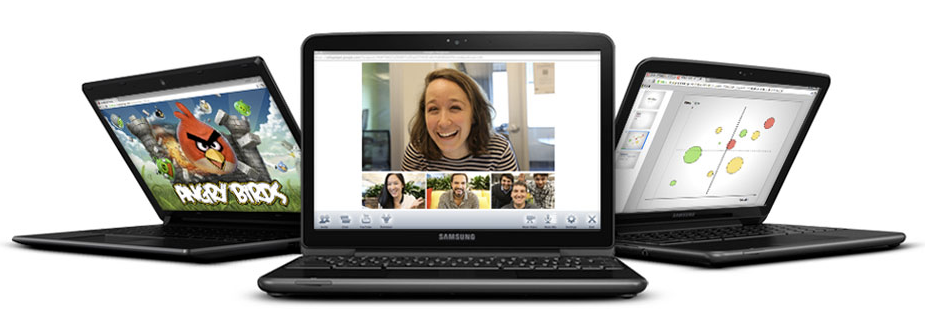
The new chromebooks

You can also checkout the summary of the other talks I gave in that amazing conference.

Standard
Chrome

Install ChromiumOS On Your (Old) Laptop

ChromeOS - new gift to your old laptop

ChromeOS – A new gift to your old laptop

In this post we will see how easy it is to take ChromiumOS (or ChromeOS as some call it by mistake) to a test drive on your old hardware and see if it’s working for your needs. I did it on some old laptops that I have forgot all about them and 3 out of 4 are working great with this powerful OS. I was surprise to see that even with old hardware (More tthan 3 years) the laptop is working nicely and much faster. All the builds here are thanks to Chromium.org and this powerful open-source project and Mr. hexxeh that hack the builds and allow to download them (thank you!).

What is ChromeOS/ChromiumOS?

Chromium OS is an open-source project that aims to build an operating system that provides a fast, simple, and more secure computing experience for people who spend most of their time on the web. It gives you the familiar environment of Chrome with HTML5 & Flash support.

Install ChromiumOS on Linux

  1. Extract the IMG file from the downloaded archive.
  2. At the shell, run the following (where sdX is your USB stick and ChromeOS-Lime.img is the path to the IMG file you extracted):
    dd if=ChromeOS-Lime.img of=/dev/sdX bs=4M
  3. Boot from the newly created Chromium OS USB stick!

Install ChromiumOS on Mac

  • Like almost anything on Mac it’s very easy, with just one step. You will need to download this ChromeOS mac builder and you are good to go.

Install ChromiumOS On Windows

  1. Begin downloading Chrome Image
  2. Download and extract the Windows Image Writer.
  3. Copy the Windows Image Writer directory to the ROOT of your C: drive.  (failure to copy this directory, and the .img file for Chrome to the ROOT of the C: drive can cause the dreaded and annoying “Error 8:”)
  4. Right-Click on the tar.gz image file, and use 7-zip to “extract here”.
  5. After that completes, again, right-click on the .tar image file and use 7-zip to “extract here”.
  6. This should leave you with a .img file.  Copy this file to the ROOT of your C: drive.  (failure to copy this file, and the directory for the Windows Image Writer, to the ROOT of the C: drive can cause the dreaded and annoying “Error 8:”)
  7. Insert your USB flash drive or SD Card.
  8. Enter the Windows Image Writer directory and execute the Win32DiskImageer.exe programme.
  9. Select the .img file in the “Image File” window, and ensure that the proper drive letter is selected in the “Device” window.
  10. Click on “Write”.
  11. Once complete, remove your flash drive or SD Card, and insert them into your powered-off laptop.
  12. Power on your laptop and TAP THE ESC KEY to select the boot order.  Don’t try to change the boot order in the CMOS/BIOS settings – it doesn’t seem to be able to detect a proper USB boot from there.
  13. Boot from the USB device, rather than the internal SSD.
  14. Enter “facepunch” as your username and “facepunch” as your password.
  15. Once Chrome OS is booted and appears, press Ctrl-Alt-T to go the terminal.
  16. Enter “sudo dd if=/dev/sdb of=/dev/sda bs=4m“.  Don’t bother with the “/usr/sbin/chromeos-install” advice that you see in places – it won’t work on a 2GB SSD.
  17. Remove your USB device, and reboot.

In case you wish to ‘test the water’ without all this you can also test this powerful OS in VirtualBox.
Here are the details to install ChromeOS in Virtual Box.

Btw, for more fresh built, checkout http://chromeos.hexxeh.net/

Enjoy and please let me know how it’s working for you and how we can make it better.

Standard
Chrome

Chromebook keyboard shortcuts

If you wish to work like a pro with any new software or tool you need to invest a bit of time to learn the ‘tricks’ and shortcuts that are making you more productive. Here is a nice short list you can memorize in 12-14min… Lots of shortcuts are ‘traivial’ (e.g. Ctrl-C and Ctrl-v) but It might be worth the time to have a look at see some of the ‘tricky’ one that you might not aware they are there. It will save you time (which is the most expensive resource you have, no?) I’ve put some of the ‘nice’ ones in bold. If you have other suggestions please feel free to let me know.

PAGE SHORTCUTS

  • Ctrl and +  –> Zoom in on the page
  • Ctrl and –  –> Zoom out on the page
  • Ctrl+0 –> Reset zoom level
  • Press Alt and up arrow – Page up
  • Press Alt and down arrow – Page down
  • Space bar – Scroll down the web page
  • Press Ctrl+Alt and up arrow – Home
  • Press Ctrl+Alt and down arrow – End
  • Ctrl+P – Print your current page
  • Ctrl+S – Save your current page
  • Ctrl+R – Reload your current page
  • Ctrl+Shift+R – Reload your current page without using cached content
  • Esc – Stop the loading of your current page
  • Press Alt and click a link – Open the link in a new tab in the background
  • Ctrl+D – Save your current webpage as a bookmark
  • Ctrl+Shift+D – Save all open pages in your current window as bookmarks in a new folder
  • Drag a link to bookmarks bar – Save the link as a bookmark
  • Ctrl+F – Open the find bar to search your current page
  • Ctrl+G or Enter – Go to the next match for your input in the find bar
  • Ctrl+Shift+G or Shift+Enter – Go to the previous match for your input in the find bar
  • Ctrl+K or Ctrl+E – Perform a search. Type a search term after the question mark in the address bar and press Enter.
  • Ctrl+Enter – Add www. and .com to your input in the address bar and open the resulting URL
  • Ctrl+ Take a screenshot of your current page
  • Ctrl+U – View page source
  • Ctrl+Shift+I – Toggle the display of the Developer Tools panel
  • Ctrl+Shift+J – Toggle the display of the DOM Inspector

TAB AND WINDOW NAVIGATION

  • Ctrl+N – Open a new window – But I find myself using the open tab shortcut much more (it’s the next one).
  • Ctrl+T – Open a new tab
  • Ctrl+Shift+N – Open a new window in incognito mode
  • Ctrl+O – Open a file in the browser
  • Ctrl+Shift+Q – Sign out of your Google Account on Chrome OS
  • Ctrl+W – Close the current tab
  • Ctrl+Shift+W – Close the current window
  • Ctrl+Shift+T – Reopen the last tab you’ve closed. Google Chrome remembers the last 10 tabs you’ve closed.
  • Ctrl+1 through Ctrl+8 – Go to the tab at the specified position in the window
  • Ctrl+9 – Go to the last tab in the window
  • Alt+1 through Alt+9 – Go to the window at the specified position
  • Alt+9 – Go to the last window open
  • Ctrl+Tab – Go to the next tab in the window
  • Ctrl+Shift+Tab- Go to the previous tab in the window
  • Alt+Tab – Go to the next window you have open
  • Alt+Shift+Tab – Go to the previous window you have open
  • Click and hold the Back or Forward arrow in the browser toolbar – See your browsing history for the tab
  • Go to previous page in your browsing history – Backspace, or press Alt and the left arrow.
  • Go to the next page in your browsing history – Shift+Backspace, or press Alt and the right arrow.
  • Press Ctrl and click a link – Open the link in a new tab in the background
  • Press Ctrl+Shift and click a link – Open the link in a new tab and switch to the newly opened tab
  • Press Shift and click a link – Open the link in a new window
  • Drag a link to a tab – Open the link in the tab
  • Drag a link to a blank area on the tab strip – Open the link in a new tab
  • Type a URL in the address bar, then press Alt+Enter – Open the URL in a new tab
  • Press Esc while dragging a tab – Return the tab to its original position

BROWSER SETTINGS AND NAVIGATION

  • Ctrl+Shift+B -Toggle the display of the bookmarks bar. Bookmarks appear on the New Tab page if the bar is hidden.
  • Ctrl+M – Open the file manager
  • Ctrl+H – Open the History page
  • Ctrl+J – Open the Downloads page
  • Shift+Esc – Open the Task Manager
  • Ctrl+Alt+/ – Open the list of available keyboard shortcuts
  • Ctrl+? – Go to the Help Center
  • Ctrl+ – Configure monitor display
  • Shift+Alt+S – Place focus on the status area in the top-right corner of the screen. Use the actions listed for Shift+Alt+T to move the focus.
  • Shift+Alt+T –
  • Place focus on the browser toolbar
    • – Press Tab or the right arrow to focus on the next item in the toolbar
    • – Press Shift+Tab or the left arrow to focus on the previous item in the toolbar
    • – Press Ctrl+Alt and the up arrow to focus on the first item in the toolbar
    • – Press Ctrl+Alt and the down arrow to focus on the last item in the toolbar
    • – Press Space or Enter to activate buttons, including page actions and browser
    • actions
    • – Press Shift + to open the context menu for the button (if available).
    • – Press Esc to return focus to the page
  • Alt+Shift+B -Place focus on the bookmarks bar. Use the actions listed for
  • Shift+Alt+T – to move the focus.
  • Alt+E or Alt+F – Open the wrench menu on the browser toolbar

TEXT EDITING SHORTCUTS

  • Ctrl+A Select everything on the page
  • Ctrl+L or Alt+D Select the content in the address bar
  • Press Ctrl+Shift and right arrow Select next word or letter
  • Press Ctrl+Shift and left arrow Select previous word or letter
  • Press Ctrl and right arrow – Move to the start of the next word
  • Press Ctrl and left arrow – Move to the start of the previous word
  • Press Alt and up arrow – Page up
  • Press Alt and down arrow – Page down
  • Press Ctrl+Alt and up arrow – Home
  • Press Ctrl+Alt and down arrow – End
  • Ctrl+C – Copy selected content to the clipboard
  • Ctrl+V – Paste content from the clipboard
  • Ctrl+Shift+V – Paste content from the clipboard as plain text
  • Ctrl+X – Cut
  • Ctrl+Backspace – Delete the previous word
  • Alt+Backspace – Delete the next letter (forward delete)
  • Ctrl+Z – Undo your last action
Here is the one for fix your Dad’s computer – The quick and easy way


For the full updated list of shortcuts try the official ChromeOS site

Standard
Chrome

How To Share Files/Photos From Chromebook

There are cases where you need to upload some photos from your Chromebook. Let’s take the classic case of a disk-on-key a friend just gave you and ask you to upload it to your Dropbox so you, him and all your friends can share this mountain bike trip photos (= true story). In other cases, it might be that you are on vacation and after 1275 photos you finally came to the conclusion, it make sense, to update your family and friends at home. You take the SD and insert it to the Chromebook (yes – we do have a slot for that). But how can you upload it? What are the best tool to share it?

Here are few good solutions:

  1. Flickr, Picasa and other photo sharing sites just got their web version of uploading photos – so that is the easy case.
  2. Google Docs – you can upload files and then share them with friends… It’s also works great with directories.
  3. We have some good extensions that works great on Chromebook.
    1. Cloud Save – add some right click functionality that will let you upload any image/file you click on,  to your favorite cloud storage: Dropbox, flickr, Box.net, Google Docs, Picasa, Facebook and more). It also got another extension that bind it with a nice integration to the file manager that we have on Chromebook – CrOS Save. This will let you choose files from the file manager and then to have a new button on the right side-bar that let you upload these files with one click.
    2. SMEStorage Cloud Dashboard – if you are using something from their services.
    3. Large Document – If you need to share BIG files. This is a secure file transfer and sharing service that does not require any login information. You can transfer files as large as 2 gigabytes in size and can store up to 15 gigabytes of data for up to 180 days for free.
  4. If you are ‘old school’ and you wish to use FTP – http://www.net2ftp.com just be careful when inserting user/password to ANY 3rd party site.

Know any other good tool I’m missing here? Please let me know…

Standard
Chrome, JavaScript

Chromebook and window.open()

I got few questions last week on #GDDDE (=Google Developers Day 2011 and #GDD11 which is the popular hash tag both in G+ and Twitter for these events) about window.open() in Chromebook. Here is a summary of the answers.

Few things you might didn’t know about window.open() in ChromeOS:

  • window.open() will open a new tab if the window size > 50% of the width or 60% of the height of the window. So it will be a bit different in Samsung and Acer due to the different screen sizes.
  • An app / extension can use the chrome.window API to call chrome.windows.create() which takes a “type” parameter which will always be obeyed. (Panel windows will be constrained to 80% of the screen width and height). Let’s have a look on how to use it.

First, let the browser ‘know’ what type of window you wish to have use this:

 chrome.windows.create(object createData, function callback) 

Creates (opens) a new browser with any optional sizing, position or default URL provided. You should use ‘type’ as part of the ‘createData’.

 type - ["normal", "popup", "panel"]  
This is the source of true about the window object API. Be strong.
Standard
Chrome

How To Get Things Done With Chromebook

Some short videos to put you up and running with the new Chromebook you got (or gave) for the holidays… In this short tutorials we will see how lots of complicated tasks can be done quickly. We will start with some easy tasks like: fixing your dad’s computer (and you can take it to other places like: helping mom with her 2 years old desktop etc’), how to set it up and even how to backup!

At the end, we will see how Chromebook helping both students and business be more productive and getting A+

Continue reading

Standard
Chrome, HTML5

Google Developers Days (Tel Aviv & Berlin) And One CloudCon

It was a busy week. Busy but with lots of fun. It’s so great to meet wonderful developers that push the web forward and know (and love) their profession. Last sunday, we had Google Developers Day in Tel Aviv (or Airport city if you want to be accurate) – it was well organized event with more then 1400 developers. In the keynote we had three demos:

  • Android – Ice cream sandwich new capabilities (maps, nfc, HD and other features. To dive deeper, go check Romain Guy’s blog).
  • Chrome/HTML5 amazing new features – I did the demos and I hope to post a list next week.
  • G+ – the new hangout APIs with a robot that eat falafel and drink beers.
Here you can check some coverage:
 The CloudCon was also impressive in terms of the audience (mainly, CIO/CTO dudes) – they liked the story of HTML5 and ChromeOS. I got some good questions on new features: offline, notifications, threads and even on web audio. It could be great to have the new Chromebooks in Israel, it seems that the market really want them. The one argument (or selling point if you want to push here) that conviense IT people is that the TCO (=Total cost of ownership) is 60%-70% cheaper. Yes – these are the numbers… so if your organization can work with web apps (and Citrix for the apps that you don’t want to move to the web) it might be a perfect solution for you.

I hope to get some photos soon (from our dear wonderful photographer) – so I’ll update this post with fresh photos of some great looking people.

Tomorrow we are going to rock Berlin – so keep up with us using G+ with #GDD11 tag  or this blog next week. Btw, for Berlin GDD you might want to search after #GDDDE

Be strong.

This slideshow requires JavaScript.

In case you want to follow the slides from my Talk in CloudCon – The ‘love’ story of HTML5 & ChromeOS.

From Google Developers Day in Berlin here are the talks:

Standard
Chrome

ChromeOS In VirtualBox – Test Drive It

In a lot of cases you wish to develop to the new Chromebook but don’t have the hardware or just want to be more productive while working on your 8-core linux box… In these cases, there is a good option to run the latest ChromeOS inside Virtualbox (or VMware if you have it). A quick reminder, Chromium OS (which is the open source version of ChromeOS) is a project that aims to build an operating system that provides a fast, simple and more secure computing experience for people who spend most of their time on the web. In our tutorial here we will use Chromium OS images.


The steps to follow

  1. Download VirtualBox.
  2. You can build your own OS if you wish, just go to: chromium-os and read the details.
    However, there is an easy way – just download an image of Chromium OS – I have one for you here or just type http://bit.ly/crOS-16.
    And this guy is creating lots of fresh images of Chromium OS every day. So if you want the real ‘development’ (=alpha) version of it – check it out.
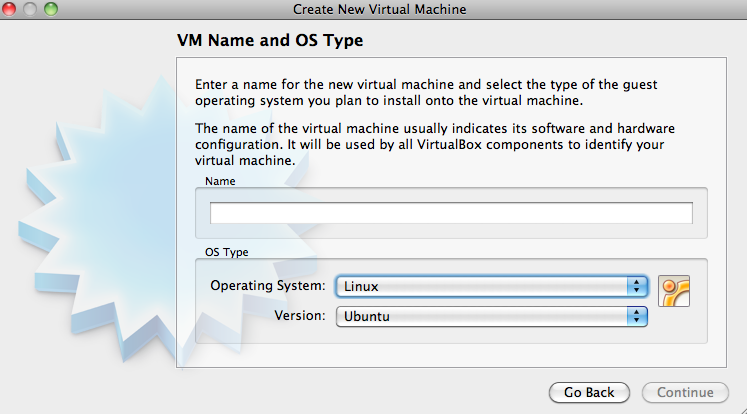
  3. Open the VirtualBox and click on ‘New’ button (upper left corner) – You will get this:

Choose Linux and Ubuntu and click ‘Continue’.

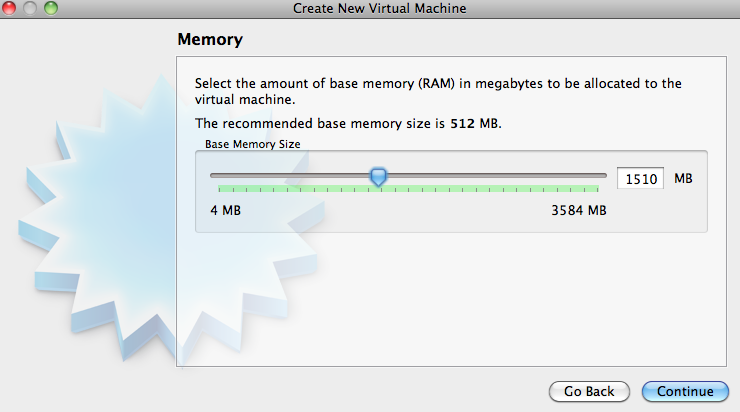
Next you need to set the memory – make sure to set an amount that you can devote to VirtualBox without killing your machine. Something around 1500MB should work. If you have more, even better.

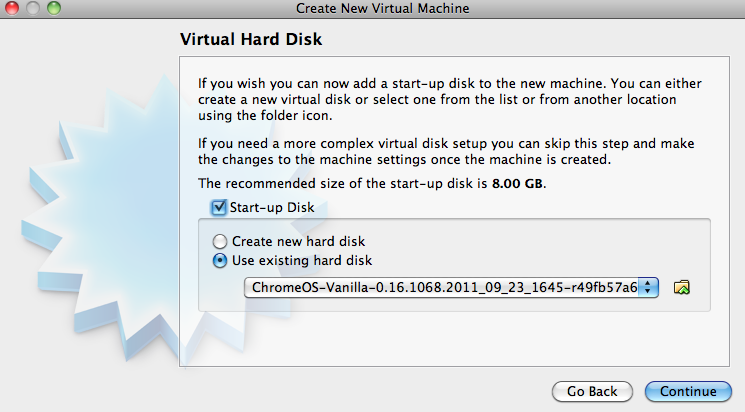
The last part of this wizard is to choose the image file. Click on the radiobox and point to the place you save the image file of ChromeOS.

Next dialog will show you a summary of all the details and after you will click ‘Create’ you are good to go!

Tips

  • Make sure to open ‘Setting’ of your new virtual machine and under ‘Processor’ click the PAE checkbox. If you won’t do that, you will get the ‘black screen of death’ and the machine won’t start.
  • If you getting errors while loading – sometimes it’s due to lack of memory. Try to close some applications and start the virtual box again.
  • Make sure you have something like 100mb of memory to the ‘video memory’ under the display section in the settings.


3 Minutes Video Tutorial

Standard