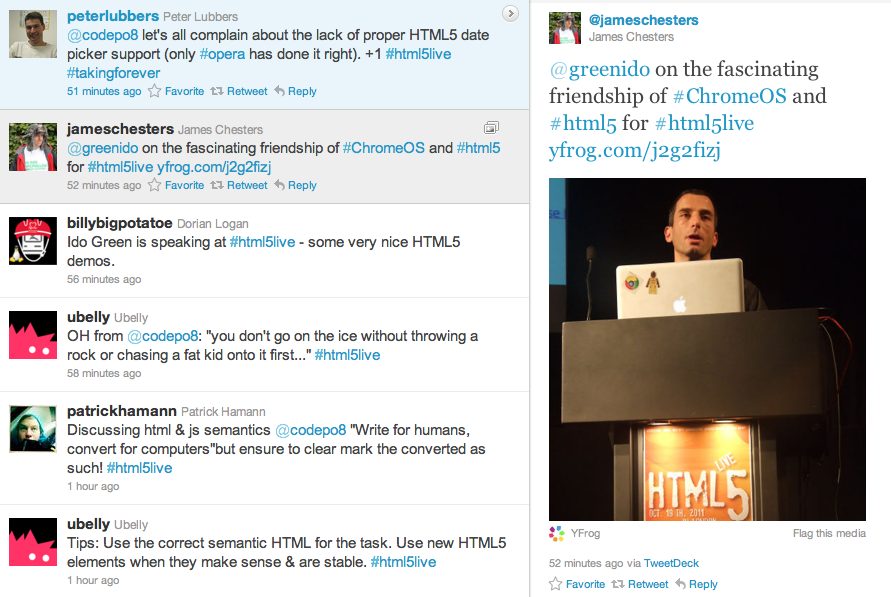
The conference took place on Oct, 19 2011 in the Barbican Conference Centre London. My two goals where to expose enterprise web developer to the new features that HTML5 provide today and to show them how they can leverage these features when they are building enterprises web apps. The other part was to talk with CIO/CTOs about Chrome OS and to ‘bind the dots’ on: how chrome OS harnessing business and developers with more power. Overall, it was a great event in terms of the quality of the audience. Lots of enterprise web developers from financial institution, health care and other big organizations. Some of them are still struggling with IE and the Chrome Frame was a big exciting news for them. Other points I’ve took with me:
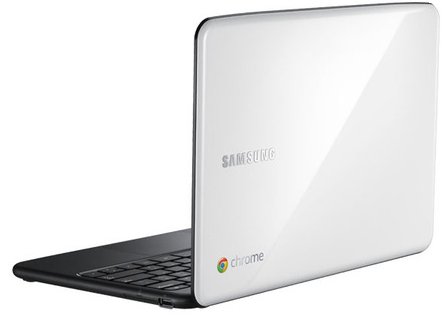
The Chromebooks were a big hit – everyone love them! I got lots of questions and the major points where around:
Security
Total cost of ownership (70% reduction)
Battery life (8.5h)
In the future, I should bring few Chromebook and have a table in the main show so people could ‘play’ with them between sessions.
Here are some of the presentations from the event:
Simple and short code to drop a stack trace to your console and/or page.
var e = new Error('dummy');

var stack = e.stack.replace(/^[^\(]+?[\n$]/gm, '')

  .replace(/^\s+at\s+/gm, '')

  .replace(/^Object.\s*\(/gm, '{anonymous}()@')

  .split('\n');

console.log(stack);
If you wish to read the first part of this series please go to Web Workers Part 1.
The Web Workers specification defines an API for spawning background scripts in your web application. Web Workers allow you to do things like fire up long-running scripts to handle computationally intensive tasks, but without blocking the UI or other scripts to handle user interactions. They’re going to help put and end to that nasty ‘unresponsive script’ dialog that we’ve all come to love:
or if you are (still) on windows:
you will get this common unresponsive script dialog.
Workers utilize thread-like message passing to achieve parallelism. They’re perfect for keeping your UI refresh, performant, and responsive for users.
Types of Web Workers And Some Code
It’s worth noting that the specification discusses two kinds of Web Workers:
Shared Workers – This will be covered in Part 3 of this series.
Restrictions with Local Access
Due to Google Chrome’s security restrictions, workers will not run locally (e.g. from file://) in the latest versions of the browser. Instead, they fail silently! To run your app from the file:// scheme, run Chrome with the --allow-file-access-from-files flag set. It is not recommended to run your primary browser with this flag set. It should only be used for testing purposes and not regular browsing.
(!) Debug: The other good thing to know is that you can debug works in the Chrome Developer Tools by clicking on the Scripts tab, and scrolling down in the column on the right to Workers and clicking on the debug checkbox.
Other browsers do not impose the same restriction.
Same Origin Considerations
Worker scripts must be external files with the same scheme as their calling page. Thus, you cannot load a script from a data: URL or javascript: URL, and an https: page cannot start worker scripts that begin with http: URLs.
The Code
<!DOCTYPE HTML>
<html>
  <head>
    <title>Web Worker: The highest prime number</title>
    <script src="http://ajax.googleapis.com/ajax/libs/jquery/1/jquery.min.js"></script>
    <meta charset=utf-8 />
  </head>
  <style>
    #actions {
      position: fixed;
      top: 10px;
      background: lightBlue;
      padding:8px;
    }
    h1 {
      position: relative;
      bottom: 10px;
      left: 280px;
    }
    #status {
      position: relative;
      font-size: 120%;
      background: lightyellow;
      margin:8px;
    }
    article {
      position: relative;
      color:red;
    }
    input {
      width: 80px;
      height: 35px;
      font-size: 120%;
    }
  </style>
  <body>
    <script>
      var myWorker;

      function start() {
        console.log("WebWorker: Starting");
        myWorker = new Worker("highPrime2.js");
        myWorker.addEventListener("message", primeHandler, false);
        var maxNum = $('#upto').val();
        myWorker.postMessage({'cmd': 'start', 'upto': maxNum});
      }

      function stop() {
        if (myWorker != undefined) {
          var msg = "<br/>WebWorker: Terminating " + new Date();
          console.log(msg);
          $('#status').append(msg);
          myWorker.terminate();
          myWorker = null;
        }
      }
      function primeHandler(event) {
        console.log ('got e:'+event.data);
        if (is_numeric(event.data)) {
          $('#result').append(event.data);
        }
        else {
          $('#status').append(JSON.stringify(event.data) );
        }
      }

      function is_numeric(input){
        return typeof(input)=='number';
      }
    </script>

    <h1>Web Worker: The highest prime number</h1>
    <article>The prime numbers:
      <output id="result"></output>
      <div id="status"></div>
    </article>
    <div id="actions">
      <input type="text" name="upto" id='upto'/>
      <button onclick="start()" title="Start the work">Start</button>
      <button onclick="stop()" title="Stop the work and go have a drink">Stop</button>
    </div>
  </body>
</html>

// And here is the worker code:
<script>
  //
  // A simple way to find prime numbers
  //
  self.addEventListener('message', function(e) {
    var data = e.data;
    var shouldRun = true;

    switch (data.cmd) {
      case 'stop':
        postMessage('Worker stopped the prime calculation (Al Gore is happy now) ' +
          data.msg );
        shouldRun = false;
        self.close(); // Terminates the worker.
        break;
      case 'start':
        postMessage("Worker start working upto: " + data.upto + " (" + new Date()+ ")<br/>");
        var numbers = isPrime(data.upto);
        postMessage("Got back these numbers: "+ numbers + "<br/>");
        break;
      default:
        postMessage('Dude, unknown cmd: ' + data.msg);
    };
  }, false);

  // simple calculation of primes (not the most efficiate - but works)
  function isPrime(number) {
    var numArray = "";
    var this_number,divisor,not_prime;
    var this_number = 3;
    while(this_number < number) {
      var divisor = parseInt( this_number / 2);
      var not_prime = 0;
      while(divisor > 1) {
        if(this_number % divisor == 0) {
          not_prime = 1;
          divisor = 0;
        }
        else {
          divisor = divisor - 1;
        }
      }
      if(not_prime == 0) {
        numArray += (this_number + " ");
      }
      this_number = this_number + 1;
    }
    return numArray;
  }
</script>
HTML5 features appcaching, a way to make your web sites and apps work offline, and to increase their performance as well.
I’m sure you know, browsers cache HTML, CSS, JavaScript files, images and other resources of the sites you visit, to speed up the subsequent loading of pages. However, you never know when the browser might discard cached files, and so this is not a reliable way for sites to work offline. But what if we could tell the browser what to cache? Well, with HTML5 application caches (also known as ‘appcache’) we can do just that.
An appcache manifest contain several lines in that order:
In the first line we declare “CACHE MANIFEST” (required)
Second line: “CACHE:” – which specifies the URLs of resources.
We can also optionally specify which resources should not be cached, in a section of the manifest file introduced by the string “NETWORK:”. These resources aren’t just not cached, but further, won’t be used when the user is offline, even if the browser has cached them in its own caches.
We can also optionally specify fallback resources to be used when the user is not connected, in a section of the file called “FALLBACK:”
You can add comments to the file with, simply by beginning a line with “#” – that’s an important feature to make the version readable for you as a developer. It’s also a nice way to let the browser ‘know’ that something changed in our app and it’s needed to fetch a new version of the app from the network.
Here is a simple example:
CACHE MANIFEST

#version 1.0
CACHE:
#images
/images/logo.png
/images/ido-header.png
#pages
/pages/index.html
/pages/main.html
#CSS
/style/main-style.css
#scripts
/js/main-logic.js
FALLBACK:
/ /offline.html
NETWORK:
sign-new-user.html
Creating a HTML5 cache manifest file the easy way:
manifested – cool tool to save you time and from what I’ve tried it works.
http://westciv.com/tools/manifestR/ – It is a bookmarklet, which you drag to your bookmarks bar. Then, when you visit any page, you can click the manifestR button, and it will create an HTML5 appcache manifest file for that page.
For teachers, you might want to check the section of ‘Education’ tools in the chrome web store. It’s full of powerful apps.
For students, Chromebooks are fast, simple, and secure, and these benefits can be quite powerful in the classroom. Chromebooks increase time spent learning with a super-fast bootup, protect against viruses with built-in security features, and provide seamless access to all the great educational apps on the web. Plus, regular updates from Google mean that Chromebooks actually get better over time, saving thousands of dollars on maintenance and software upgrades.
Here is a place with nightly builds for VMWare, VirtualBox and your USB. If you wish to see the magic on your netbook… why don’t you start with a USB build and see how it’s working for you?
Good luck & be strong.
P.S
(!) Important tip… go to the virtual box setting pane and under CPU make sure the ‘PAE’ is checked. This will save you a lot of white hair.
In modern web applications there are lots of cases when we need to do some stuff in the background. The only way to do it today in most of the modern browsers is by using Web Workers. Web Workers provide a standard way for browsers to run JavaScript in the background. It let you spawn multiple “threads” that all run at the same time. For more about multithreading this is a good place to start your reading.
Web Workers can do lots of things:
Complex mathematical calculations
Make network requests
Access local storage
all while the main web page responds to the user actions (e.g. scrolling, typing some text or clicking around your app).
What is a Worker?
A ‘worker’ is a script that will be loaded and executed in the background. Web Workers provide a way to do this seamlessly, for example: new Worker(“worker.js”);
The above will load the script, located at ‘worker.js’, and execute it in the background.
There are some big (very big) limitations (but please don’t worry, we will see how to solve them in the next post):
Workers don’t have access to the DOM: No document, getElementById, etc. However, you can use setTimeout, setInterval, and XMLHttpRequest.
Workers don’t have direct access to the ‘parent’ page.
Can We Use Web Workers?
In order to find out if we can use web workers we need to check if there is a Worker property on the global window object. If our browser doesn’t support the Web Worker API, the Worker property will be undefined.
isWorkersAvailable() {
  return !!window.Worker;
 }
Instead of writing this function yourself, you can use Modernizr to detect support for web workers (Pss… Modernizr is an open-source JavaScript library that helps you build the next generation of HTML5 and CSS3-powered websites by doing lots of work for you and saving you from reinventing the wheel again and again – Thank you @KuraFire @paul_irish and @SlexAxton )
if (Modernizr.webworkers) {
  // window.Worker is available!
} else {
  // no native support for web workers
}
Short Example
//
// A simple way to find prime numbers
//
var n = 1;
search: while (true) {
  n += 1;
  for (var i = 2; i <= Math.sqrt(n); i += 1)
    if (n % i == 0)
     continue search;
  // found a prime!
  postMessage(n);
}

<!DOCTYPE HTML>
<html>
 <head>
  <title>Web Worker: The highest prime number</title>
 </head>
 <body>

  <h1>Web Worker: The highest prime number</h1>
  <article>The highest prime number discovered so far is:
	  <output id="result"></output>
  </article>

   var worker = new Worker('highPrime.js');
   worker.onmessage = function (event) {
     document.getElementById('result').textContent = event.data;
   };

 </body>
</html>
In the next post I’ll dive deeper on more interesting stuff you can do with workers. We will see how to communicate with one dedicated worker and how we can share workers (just for fun).
Here you can continue reading the second part of this series.
Very easy and if you are a (happy) user of gmail your life will get better from the first minute you are logged in. If you have other email service it’s also cool. I’m using both yahoo and gmail on it and it’s working great with both of them.
The ability to run gmail in offline mode is also a doable on a Chromebook. It’s very useful, specially, to people the travel a lot and can’t count that their favorite airline will have wi-fi. I’m writing this post from a Chromebook… but since wordpress don’t have a good webapp with some offline capabilities – I’m using ‘Write Space’. Write Space is a customizable full-screen text-editor that lives in your web-browser. It is designed to minimize the distractions that come between you and your writing and the offline capabilities are really working.
If you are a new to Chromebook – check this one and a half minute demo:
HTML5 is the newest specification for HTML, the language that web browsers read to display web pages. HTML5 has many new features intended to make creating websites easier and people’s experience in using those websites better. Among those features are many enhancements to web forms. Here is a list of the major browsers that support these days the new features:
As a web developer these improvementscan save you lots of time and effort (psss… no java script is needed to validate your fields) in order to see them live I’ve created this ‘playground for HTML5 fields’ so it will be easy to ‘play’ and see what each field is giving you. Here is a basic set to kick things:

 The conference took place on Oct, 19 2011 in the Barbican Conference Centre London. My two goals where to expose enterprise web developer to the new features that HTML5 provide today and to show them how they can leverage these features when they are building enterprises web apps. The other part was to talk with CIO/CTOs about Chrome OS and to ‘bind the dots’ on: how chrome OS harnessing business and developers with more power. Overall, it was a great event in terms of the quality of the audience. Lots of enterprise web developers from financial institution, health care and other big organizations. Some of them are still struggling with IE and the Chrome Frame was a big exciting news for them. Other points I’ve took with me:
 I hope to see you there next year…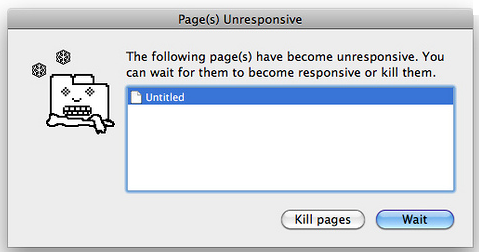




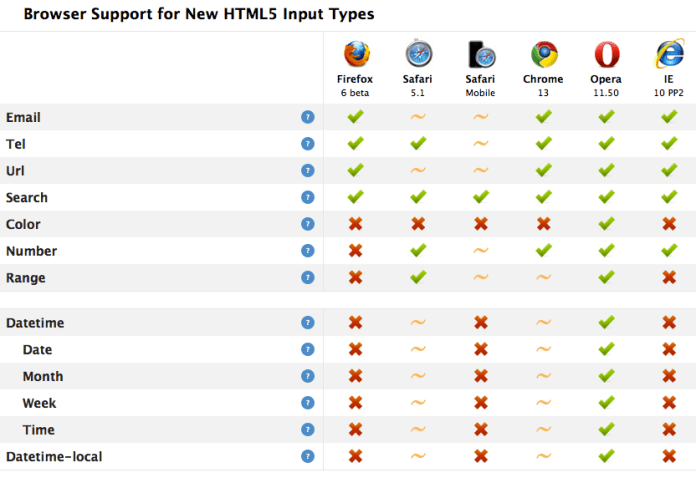 Another place to see which browser support what type of field is
  Ido Green