Chrome, webdev

Great Web Apps

This slideshow requires JavaScript.

It’s hard task to try and describe what is a great web application. but just like the old phrase that was famously used by United States Supreme Court Justice Potter Stewart to describe his threshold test for pornography in Jacobellis v. Ohio (1964) – “I know it when I see it”
So I took the freedom to put a quick list of some apps that IMHO are ‘good to great’.
First are the productivity/utility apps (you might call them even business apps):
  • Gmail
  • Docs and/or Zoho – let you have access to your files from everywhere plus the option to have version control and muti editing.
  • Picnik – Image editor that works great with Picasa, Flickr and others.
  • Aviary image editor with ‘fancy’ features for designers (and developers that think they are designers).
  • Todo.ly – Todo list with lots of features and great user interface.
  • box.net – save your files in the cloud. Similar to dropbox.
  • Mint – is the free and easy way to manage your finances online and see all your accounts in one place ― safely and securely.
  • Slide Rocket – defines the new way to create stunning presentations that deliver lasting impressions and measurable results.

Socail

Travel
  • Hipmunk – Sort of kayak but with great UI.
  • TripIt – Travel organizer.

On the ‘taking notes’ section we have three nice apps:

If you have other apps you think are worthy – please let me know…
For more resources on HOW to build a great web app:
Standard
Chrome

How To Detect If It Is A ChromeBook?

I’ve been developing some extensions and web apps that need to use the new Chromebook file API. But on the other hand, I don’t want to see the sad faces of all the users that will install this extension just to see that it’s not working for them on their Chrome browser. The quick and easy solution is to do something like this:

var ua = window.navigator.userAgent;
// Then check if the UA is something like: Mozilla/5.0 (X11; CrOS i686 0.12.433) AppleWebKit/534.30 (KHTML, like Gecko) Chrome/12.0.742.77 Safari/534.30

Now, if you got back in the user agent some string like: CrOS you are on ChromeOS device.
Btw, you can even tell the version of the chrome in the end of this string. So you can save a call to ‘about:version’ page. It’s useful because it won’t force you to add permissions to the extension. I found that some developers are using permissions that are making users uncomfortable… As always, think of you when you asking the user to approve some permissions.

While I was working on that, I developed this little chrome extension that give you all the shortcuts/utils in one click.

Be strong and let me know if it’s not working for you.

Standard
Chrome, HTML5, webdev

How To Use The New ChromeBook File API


Next week, on June 15, we are going to see a new animal in town. It’s a laptop that works perfectly for the web. It got one of the best/fast browsers out there and its security model is baked really deep. One of the cool things in ChromeOS is that it gives developers a new API to play with. I worked with it in the past few weeks and I must say, it’s great (=Simple and powerful).
Let’s see how we can use this powerful API to upload files from USB and/or our ChromeBook.

The ChromeOS (=ChromeBook) file browser comes up when the user either presses Ctrl+M or connects an external storage device, such as an SD card, USB key, external drive, or digital camera. Besides showing the files on external devices, the file browser can also display files that the user has previously saved to the system.
When the user selects one or more files, the file browser adds buttons representing the valid handlers for those files. For example, in the following screenshot, selecting a file with a “.jpg” suffix results in an “Upload to Picasa” button that the user can click. Few things to keep in mind:

  • You should declare the “fileBrowserHandler” permission in the extension manifest
  • You should use the “file_browser_handlers” field to register the extension as a handler of at least one file type.
  • Last but not least, you should also provide a 16×16 icon to be displayed on the button. For example let’s take Flickr:

{
  "name": "Flickr Uploader",
  ...
  "file_browser_handlers": [
    {
      "id": "upload",
      "default_title": "Save to Flickr", // What the button will display
      "file_filters": [
        "filesystem:*.jpg",
        "filesystem:*.jpeg",
        "filesystem:*.png"
      ]
    }
  ],
  "permissions" : [
    "fileBrowserHandler"
  ],
  "icons": { "16": "icon16.png",
             "48": "icon48.png",
            "128": "icon128.png" }
}
 

To use this API, you must implement a function that handles the onExecute event of chrome.fileBrowserHandler. Your function will be called whenever the user clicks the button that represents your file browser handler. In your function, use the HTML5 FileSystem API to get access to the file contents.
Here is our Flickr example inside the background.html:


chrome.fileBrowserHandler.onExecute.addListener(function(id, details) {
  if (id == 'upload') {
    var fileEntries = details.entries;
    for (var i = 0, entry; entry = fileEntries[i]; ++i) {
      entry.file(function(file) {
        // send file somewhere
      });
    }
  }
});

Your event handler is passed two arguments:
id – The “id” value from the manifest file. If your extension implements multiple handlers, you can check the id value to see which handler has been triggered.
details – An object describing the event. You can get the file or files that the user has selected from the entries field of this object, which is an array of FileSystem Entry objects.

Is that easy or what? Please let me know if you have any comments/questions.

Here is another little javascript code that will do the work if you want to let the user to choose a file from your extension popup.html file:


...
uploadFile: function(file) {
            var pro1 = document.querySelector('#pro1');
            var progressBar =  pro1.querySelector('progress');
            var formData = new FormData();
            formData.append('file', file);

            var xhr = new XMLHttpRequest();
            xhr.open('POST', this.uploadServer, true);

            xhr.onload = function(e) {
                if (this.status == 200) {
                    console.log(this.response);
                    alert("The image is safe in Flickr " + this.response);
                }
            };

            xhr.onerror = function(e) {
                console.log(this, this.status, this.responseText, 
			    this.getAllResponseHeaders())
            };

            xhr.send(formData);
        }
...

Resources

Want to learn more on Chrome Extensions? Here is a great starting point

Standard
Chrome, HTML5

HTML5 – Some Great Presentation To Keep You In The Loop


HTML5 is a rich development platform that let developers (and companies) target more users on different browsers, devices and tools. Here are few links I’ve collected in the past week. It’s more a short list of great presentations (mostly from Google I/O 2011) and some code sample to give you a hint of the power.

  • HTML5 Intro – learn what is all about. From Geo to Canvans, here are some short examples:
     
    //
    // Get the user location 
    //
    if (navigator.geolocation) {
      navigator.geolocation.watchPosition(function(position) {
        var latLng = new google.maps.LatLng(
            position.coords.latitude, position.coords.longitude);
        var marker = new google.maps.Marker({position: latLng, map: map});
        map.setCenter(latLng);
      }, errorHandler);
    }
    
    //
    // paint some stuff
    //
    var canvasContext = document.getElementById("canvas").getContext("2d");
    canvasContext.fillRect(250, 25, 150, 100);
    canvasContext.beginPath();
    canvasContext.arc(450, 110, 100, Math.PI * 1/2, Math.PI * 3/2);
    canvasContext.lineWidth = 15;
    canvasContext.lineCap = 'round';
    canvasContext.strokeStyle = 'rgba(255, 127, 0, 0.5)';
    canvasContext.stroke
    
    //
    // Use some really nice fonts on your site
    //
    @font-face {
      font-family: 'LeagueGothic';
      src: url(LeagueGothic.otf);
    }
    @font-face {
      font-family: 'Droid Sans';
      src: url(Droid_Sans.ttf);
    
    //
    // Notify your user - just like on other devices
    //
    function showNotification(pic, title, text) {
      if (hasNotificationPermission()) {
        var notificationWindow = window.webkitNotifications
          .createNotification(pic, title, text);
        
        notificationWindow.show();
        
        // close notification automatically after a timeout    
        setTimeout(function(popup) { 
          popup.cancel();
        }, notificationWindowTimeout, notificationWindow);
      }
    }


  • HTML5 Games  and of course the Bad Aliens game that we’ve built during this presentation.
  • HTML5 WOW and How – you got here some very nice code snippiest of Files, Graphics (CSS3, WebGL) and Audio/Video stuff.
  • High level view on the chrome web store, upload process and the new file API.
Last but not least, if you wish to keep track on all the rapid changes and improvements that is going on in the ‘Chrome arena’ – feel free to use this pipe in your apps/reader
Standard
Chrome, HTML5, JavaScript, webdev

Chrome Apps, Web Store and The New ChromeOS File API

Two days ago, I gave a talk at “Silicon Valley Chrome Meetup”. This cool event was sponsored by box.net and I presented a session on Chrome web store upload process and the new chromeOS File API. The goal of this talk was to highlight some of the new ChromeOS file APIs and to give a high level overview on the Chrome web store and the app upload process. One question I got about the store was ‘WHY?’ and for there are three good answers:
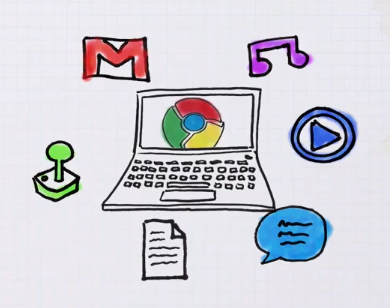
  1. Discovery
  2. Distribution
  3. Revenue (95% goes to the developer)

On top of that, on the revenue side, you get a peace of mind because Google handle the payments for you. Of course, there is an option to handle the payment on your own – if/when you wish to do it.

Another subject I’ve tried to clear was around ‘A Web App? what is it?’ It’s not easy definition, and you can see lots of examples out there to good/great/awful web apps. So just to give few directions:

  • Goal-orientated
  • Beautiful
  • Rich Experience
  • FAST

Last but not least, was the new file browser API that let developers write some nice java script code that will enable ChromeBooks’ users to upload their files to the cloud. In Google I/O Chrome keynote you could have seen a nice demo of it that let users upload photos to Picasa.

I hope that soon other interesting companies will take advantage of this API and we will see them integrating it with their clouds.

This little JS code will do the file upload for you:

uploadFile: function(file) {
var pro1 = document.querySelector('#pro1');
var progressBar = pro1.querySelector('progress');
var formData = new FormData();
formData.append('file', file);
var xhr = new XMLHttpRequest();
xhr.open('POST', this.uploadServer, true);

xhr.onload = function(e) {
if (this.status == 200) {
console.log(this.response);
alert(“The image is safe in Flickr ” + this.response);
}
};

xhr.onerror = function(e) {
console.log(this, this.status, this.responseText,
this.getAllResponseHeaders())
};

xhr.send(formData);
},

and all you need to declare is few lines of JSON of manifest file.

File API – Manifest Example

Declare the “fileBrowserHandler” permission in the extension manifest.

{
"name": "Upload to flickr",
...
"file_browser_handlers": [
{
"id": "upload",
"default_title": "Save to flickr", // What the button will display
"file_filters": [
"filesystem:*.jpg",
"filesystem:*.jpeg",
"filesystem:*.png"
]
}
],
"permissions" : [
"fileBrowserHandler"
],
"icons": { "16": "icon16.png",
"48": "icon48.png",
"128": "icon128.png" }
}

Standard
Chrome, HTML5

101 – Chrome OS, Web App and Chrome Extension

The power of the web is just starting to pick momentum. There are lots of signs that companies want to leverage HTML5 in order to by more productive and everywhere (desktop, laptop, tablet, mobile etc’). It’s not only Facebook, Netflix and others that got to understand that with HTML5 you can have web apps that will give the user a very close feeling to what they are getting today in native apps. He are three quick videos that explain what is a web app, what is Chrome Extension and why you want to have Chrome book…

What is Chrome OS? or why you (might) want to have one

What is a web app? Here is the short answer

What is a Chrome extension?

And last but not least, with more then 1.2M views… Chrome and Gaga video

So unleash your inner…

Standard
Chrome, HTML5

Chrome Is Pushing The Web (Faster Then You Think)

There are many technology improvements that are pushing the web forward.One of them is WebGL. Web what?
Well.. it’s a shortcut for: Web-based Graphics Library which is a software library that extends the capability of the JavaScript programming language to allow it to generate interactive 3D graphics within any compatible web browser. Most of the leading browsers today got ‘some’ support for it. This New (amazing) video clip that was design for Chrome is showing the power that artist, developers and users got today under their belt (or their chrome…)

Or just check the source at ROME (Pss… do it from Chrome and not other good browsers).

Standard