Chrome

Chromebook keyboard shortcuts

If you wish to work like a pro with any new software or tool you need to invest a bit of time to learn the ‘tricks’ and shortcuts that are making you more productive. Here is a nice short list you can memorize in 12-14min… Lots of shortcuts are ‘traivial’ (e.g. Ctrl-C and Ctrl-v) but It might be worth the time to have a look at see some of the ‘tricky’ one that you might not aware they are there. It will save you time (which is the most expensive resource you have, no?) I’ve put some of the ‘nice’ ones in bold. If you have other suggestions please feel free to let me know.

PAGE SHORTCUTS

  • Ctrl and +  –> Zoom in on the page
  • Ctrl and –  –> Zoom out on the page
  • Ctrl+0 –> Reset zoom level
  • Press Alt and up arrow – Page up
  • Press Alt and down arrow – Page down
  • Space bar – Scroll down the web page
  • Press Ctrl+Alt and up arrow – Home
  • Press Ctrl+Alt and down arrow – End
  • Ctrl+P – Print your current page
  • Ctrl+S – Save your current page
  • Ctrl+R – Reload your current page
  • Ctrl+Shift+R – Reload your current page without using cached content
  • Esc – Stop the loading of your current page
  • Press Alt and click a link – Open the link in a new tab in the background
  • Ctrl+D – Save your current webpage as a bookmark
  • Ctrl+Shift+D – Save all open pages in your current window as bookmarks in a new folder
  • Drag a link to bookmarks bar – Save the link as a bookmark
  • Ctrl+F – Open the find bar to search your current page
  • Ctrl+G or Enter – Go to the next match for your input in the find bar
  • Ctrl+Shift+G or Shift+Enter – Go to the previous match for your input in the find bar
  • Ctrl+K or Ctrl+E – Perform a search. Type a search term after the question mark in the address bar and press Enter.
  • Ctrl+Enter – Add www. and .com to your input in the address bar and open the resulting URL
  • Ctrl+ Take a screenshot of your current page
  • Ctrl+U – View page source
  • Ctrl+Shift+I – Toggle the display of the Developer Tools panel
  • Ctrl+Shift+J – Toggle the display of the DOM Inspector

TAB AND WINDOW NAVIGATION

  • Ctrl+N – Open a new window – But I find myself using the open tab shortcut much more (it’s the next one).
  • Ctrl+T – Open a new tab
  • Ctrl+Shift+N – Open a new window in incognito mode
  • Ctrl+O – Open a file in the browser
  • Ctrl+Shift+Q – Sign out of your Google Account on Chrome OS
  • Ctrl+W – Close the current tab
  • Ctrl+Shift+W – Close the current window
  • Ctrl+Shift+T – Reopen the last tab you’ve closed. Google Chrome remembers the last 10 tabs you’ve closed.
  • Ctrl+1 through Ctrl+8 – Go to the tab at the specified position in the window
  • Ctrl+9 – Go to the last tab in the window
  • Alt+1 through Alt+9 – Go to the window at the specified position
  • Alt+9 – Go to the last window open
  • Ctrl+Tab – Go to the next tab in the window
  • Ctrl+Shift+Tab- Go to the previous tab in the window
  • Alt+Tab – Go to the next window you have open
  • Alt+Shift+Tab – Go to the previous window you have open
  • Click and hold the Back or Forward arrow in the browser toolbar – See your browsing history for the tab
  • Go to previous page in your browsing history – Backspace, or press Alt and the left arrow.
  • Go to the next page in your browsing history – Shift+Backspace, or press Alt and the right arrow.
  • Press Ctrl and click a link – Open the link in a new tab in the background
  • Press Ctrl+Shift and click a link – Open the link in a new tab and switch to the newly opened tab
  • Press Shift and click a link – Open the link in a new window
  • Drag a link to a tab – Open the link in the tab
  • Drag a link to a blank area on the tab strip – Open the link in a new tab
  • Type a URL in the address bar, then press Alt+Enter – Open the URL in a new tab
  • Press Esc while dragging a tab – Return the tab to its original position

BROWSER SETTINGS AND NAVIGATION

  • Ctrl+Shift+B -Toggle the display of the bookmarks bar. Bookmarks appear on the New Tab page if the bar is hidden.
  • Ctrl+M – Open the file manager
  • Ctrl+H – Open the History page
  • Ctrl+J – Open the Downloads page
  • Shift+Esc – Open the Task Manager
  • Ctrl+Alt+/ – Open the list of available keyboard shortcuts
  • Ctrl+? – Go to the Help Center
  • Ctrl+ – Configure monitor display
  • Shift+Alt+S – Place focus on the status area in the top-right corner of the screen. Use the actions listed for Shift+Alt+T to move the focus.
  • Shift+Alt+T –
  • Place focus on the browser toolbar
    • – Press Tab or the right arrow to focus on the next item in the toolbar
    • – Press Shift+Tab or the left arrow to focus on the previous item in the toolbar
    • – Press Ctrl+Alt and the up arrow to focus on the first item in the toolbar
    • – Press Ctrl+Alt and the down arrow to focus on the last item in the toolbar
    • – Press Space or Enter to activate buttons, including page actions and browser
    • actions
    • – Press Shift + to open the context menu for the button (if available).
    • – Press Esc to return focus to the page
  • Alt+Shift+B -Place focus on the bookmarks bar. Use the actions listed for
  • Shift+Alt+T – to move the focus.
  • Alt+E or Alt+F – Open the wrench menu on the browser toolbar

TEXT EDITING SHORTCUTS

  • Ctrl+A Select everything on the page
  • Ctrl+L or Alt+D Select the content in the address bar
  • Press Ctrl+Shift and right arrow Select next word or letter
  • Press Ctrl+Shift and left arrow Select previous word or letter
  • Press Ctrl and right arrow – Move to the start of the next word
  • Press Ctrl and left arrow – Move to the start of the previous word
  • Press Alt and up arrow – Page up
  • Press Alt and down arrow – Page down
  • Press Ctrl+Alt and up arrow – Home
  • Press Ctrl+Alt and down arrow – End
  • Ctrl+C – Copy selected content to the clipboard
  • Ctrl+V – Paste content from the clipboard
  • Ctrl+Shift+V – Paste content from the clipboard as plain text
  • Ctrl+X – Cut
  • Ctrl+Backspace – Delete the previous word
  • Alt+Backspace – Delete the next letter (forward delete)
  • Ctrl+Z – Undo your last action
Here is the one for fix your Dad’s computer – The quick and easy way


For the full updated list of shortcuts try the official ChromeOS site

Standard
Chrome, HTML5

HTML5, ChromeOS And Chrome Web Store (Video)


Here is a talk I gave in Tel Aviv GTUG. The title of the talk was “Html 5, Chrome OS & Chrome Web Store” and it’s all in Hebrew this time. The event was very cool with two other talks that were very interesting. If you work with Google technologies I would recommend you check out the GTUG (=Google technology user group) near your home town. It’s a great way to meet other strong developers, product managers and anyone that love the open-web.

and our HTML5 dude:

Standard
Chrome, HTML5

HTML5 And Offline – Videos From Google Developer Day 2011

Demos in the keynote


The Chrome HTML5 demos are starting around 40:34…

Bleeding Edge HTML5

The GDD TLV Clip

I hope to get others as well… I’ll update this post with them.

If you wish, the full list of videos from this event is here on youtube.

Standard
Chrome, HTML5, webdev

HTML5 On Mobile Devices (iOS, Android & Windows)

More and more we see mobile devices with stronger browsers that implement a lot of HTML5 APIs. This is other factors are the root cause that mobile development has taken off. Many developers are choosing to go the mobile web route instead of writing the same application repeatedly for each different mobile platform. However, one of the things that you give up by “going web” is the application frameworks that make life easier for developers of native mobile applications. As a result, several web application frameworks are emerging. In this post I will look at some of the best frameworks: jQueryMobile and Sencha Touch. There are some other very good MVC frameworks that are worth look into: SproutCore, Cappuccino and backbone.js but that will be in another story (=post).

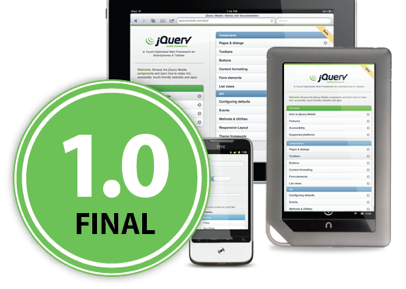
Let’s start with one of the most popular JavaScript library – jQueryMobile It’s now in version 1.0 and it’s a powerful HTML5-based user interface system for all popular mobile device platforms. They have a set of UI components that give the developers a lot of power. Its lightweight code is built with progressive enhancement, and has a flexible, easily themeable design. If you are developing apps for business (think components like grids) you might want to take a closer look at Sencha ExtJS and other products. They have a good integration with GWT (if you use it) and overall, they give the developer a lot of power: clean component model, powerful UI widgets etc’. There are some new capabilities that give more native look and feel to your web apps. The first is the Fixed position – Psss… its great for your menu at the top of the screen. I hope will see its adoption on other mobile browsers (and not just the safari 5+). Another cool aspect is the new ‘Path‘ button dynamics all in pure CSS and scroller live demo.

The wave of HTML5

The wave of HTML5 apps is here

Deployment

One of the ‘easy’ parts it the deployment. Once users added your web app as shortcut to their home screen it will be there and updated each time they starting it. You can also, use the Android, iOS stores with a webUI wrapper and tools like AppsGeyser or AppCelerator that will do the work of wrapping for you. I hope that in the future the webUI that we get in iOS/Android will be as good as the webkit we have in the browser on the same platform. Currently, it’s got some limitations. Lastly, in case you wish to check what HTML5 features will work on each device you are targeting: This is a good source: http://mobilehtml5.org/ and for more stats and development tips checkout my last post on html5 on mobile.

Be strong.

Standard
Chrome

How To Share Files/Photos From Chromebook

There are cases where you need to upload some photos from your Chromebook. Let’s take the classic case of a disk-on-key a friend just gave you and ask you to upload it to your Dropbox so you, him and all your friends can share this mountain bike trip photos (= true story). In other cases, it might be that you are on vacation and after 1275 photos you finally came to the conclusion, it make sense, to update your family and friends at home. You take the SD and insert it to the Chromebook (yes – we do have a slot for that). But how can you upload it? What are the best tool to share it?

Here are few good solutions:

  1. Flickr, Picasa and other photo sharing sites just got their web version of uploading photos – so that is the easy case.
  2. Google Docs – you can upload files and then share them with friends… It’s also works great with directories.
  3. We have some good extensions that works great on Chromebook.
    1. Cloud Save – add some right click functionality that will let you upload any image/file you click on,  to your favorite cloud storage: Dropbox, flickr, Box.net, Google Docs, Picasa, Facebook and more). It also got another extension that bind it with a nice integration to the file manager that we have on Chromebook – CrOS Save. This will let you choose files from the file manager and then to have a new button on the right side-bar that let you upload these files with one click.
    2. SMEStorage Cloud Dashboard – if you are using something from their services.
    3. Large Document – If you need to share BIG files. This is a secure file transfer and sharing service that does not require any login information. You can transfer files as large as 2 gigabytes in size and can store up to 15 gigabytes of data for up to 180 days for free.
  4. If you are ‘old school’ and you wish to use FTP – http://www.net2ftp.com just be careful when inserting user/password to ANY 3rd party site.

Know any other good tool I’m missing here? Please let me know…

Standard
Business, Chrome

CloudCon – Summary

First you might ask, what is CloudCon?
Well, this is what the organizers are saying: “…At the convention we will focus on the new possibilities opening before IT managers with the move to cloud computing services, listen to the new offers made by leading software providers and learn the ways of the cloud as presented by analysts, experienced infrastructure managers, developers, IT managers and other cloud experts.”
My main objective was to expose CIO/CTOs to ChromeOS, CWS and to educate them about the new capabilities that HTML5 is harnessing their IT departments. I also wanted to show IT Admins how easy and cost effective is to deploy Chromebooks in their organizations. Overall, there were 400+ attendees and among the invitees: IT managers, R&D Managers of Israeli ISV’s, Security Managers, infrastructure managers, storage managers and other IT pros.
This was my session “HTML5 & ChromeOS” and in case you miss the presentation.

This is a short summary from the organizers: pc.co.il/CloudCon
and for the ones that can read hebrew… here is another one:

Standard
Chrome, JavaScript

Chromebook and window.open()

I got few questions last week on #GDDDE (=Google Developers Day 2011 and #GDD11 which is the popular hash tag both in G+ and Twitter for these events) about window.open() in Chromebook. Here is a summary of the answers.

Few things you might didn’t know about window.open() in ChromeOS:

  • window.open() will open a new tab if the window size > 50% of the width or 60% of the height of the window. So it will be a bit different in Samsung and Acer due to the different screen sizes.
  • An app / extension can use the chrome.window API to call chrome.windows.create() which takes a “type” parameter which will always be obeyed. (Panel windows will be constrained to 80% of the screen width and height). Let’s have a look on how to use it.

First, let the browser ‘know’ what type of window you wish to have use this:

 chrome.windows.create(object createData, function callback) 

Creates (opens) a new browser with any optional sizing, position or default URL provided. You should use ‘type’ as part of the ‘createData’.

 type - ["normal", "popup", "panel"]  
This is the source of true about the window object API. Be strong.
Standard
Business, Chrome

If You Care About Security (And Privacy) – Chromebook Is Your Guardian

In today’s world, any website (even well-known ones), may be infected with malware. the problem is that when you go and visiting an infected web page, ordinary computers can get infected as well. This is not the case with Chromebooks. This new OS is changing a lot of things in the game and one of them is security. Let’s see what are the main features that harness your Chromebook with capabilities that other OS do not have (unless you invest in expensive software…).

Here are the main points to remember when you going to shop for a new ‘secure’ laptop:

All your data will be Encrypted

There are so many cases when you lost your laptop and then all your data is in the ‘wild’. On the Chromebook you are safe. When you use web apps on your Chromebook, all your documents are stored safely in the cloud. But certain kinds of files, like downloads, cookies, and browser cache files, may still be present on your computer. Your Chromebook encrypts all this data using tamper-resistant hardware, making it very difficult for anyone to access those files.

Verified boot – You can look at it as ‘self cure’ capability 

Even if malware manages to escape the sandbox, your Chromebook is still protected. Every time you boot the computer, it does a self check called Verified Boot. If it detects that your system has been tampered with, or corrupted in any way, typically it will repair itself without you lifting a finger. You will always be able to get back to an operating system that’s as good as new.

Automatic Updates – Most effective way to stay healthy

The most effective way to protect yourself from malware is to make sure all of the software on your computer is up to date and has the latest security fixes. Chromebooks manage updates for you automatically so you are always running the latest and most secure version. Ya, it’s like Chrome, where you get every 6 weeks a new update version with more features, speed improvements and security fixes.

Sandboxing – Sperate in order to gain control

On your Chromebook, each web page and application you visit runs in a restricted environment called a “sandbox.” So if you visit an infected page, it can’t affect the other tabs or apps on your computer, or anything else on your machine. The threat is contained.

These are the main features. Sounds good, no?

Standard
Chrome

How To Get Things Done With Chromebook

Some short videos to put you up and running with the new Chromebook you got (or gave) for the holidays… In this short tutorials we will see how lots of complicated tasks can be done quickly. We will start with some easy tasks like: fixing your dad’s computer (and you can take it to other places like: helping mom with her 2 years old desktop etc’), how to set it up and even how to backup!

At the end, we will see how Chromebook helping both students and business be more productive and getting A+

Continue reading

Standard
Chrome, HTML5

Google Developers Days (Tel Aviv & Berlin) And One CloudCon

It was a busy week. Busy but with lots of fun. It’s so great to meet wonderful developers that push the web forward and know (and love) their profession. Last sunday, we had Google Developers Day in Tel Aviv (or Airport city if you want to be accurate) – it was well organized event with more then 1400 developers. In the keynote we had three demos:

  • Android – Ice cream sandwich new capabilities (maps, nfc, HD and other features. To dive deeper, go check Romain Guy’s blog).
  • Chrome/HTML5 amazing new features – I did the demos and I hope to post a list next week.
  • G+ – the new hangout APIs with a robot that eat falafel and drink beers.
Here you can check some coverage:
 The CloudCon was also impressive in terms of the audience (mainly, CIO/CTO dudes) – they liked the story of HTML5 and ChromeOS. I got some good questions on new features: offline, notifications, threads and even on web audio. It could be great to have the new Chromebooks in Israel, it seems that the market really want them. The one argument (or selling point if you want to push here) that conviense IT people is that the TCO (=Total cost of ownership) is 60%-70% cheaper. Yes – these are the numbers… so if your organization can work with web apps (and Citrix for the apps that you don’t want to move to the web) it might be a perfect solution for you.

I hope to get some photos soon (from our dear wonderful photographer) – so I’ll update this post with fresh photos of some great looking people.

Tomorrow we are going to rock Berlin – so keep up with us using G+ with #GDD11 tag  or this blog next week. Btw, for Berlin GDD you might want to search after #GDDDE

Be strong.

This slideshow requires JavaScript.

In case you want to follow the slides from my Talk in CloudCon – The ‘love’ story of HTML5 & ChromeOS.

From Google Developers Day in Berlin here are the talks:

Standard