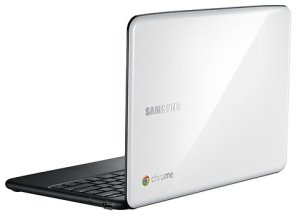
Business, Chrome

ChromeOS – Productive Apps and Extensions

All these web applications contain some very cool features that make them useful even (in the rare event) when you don’t have internet connection. Let’s say, you are 30,000 feet up the air (and not on a Virgin Atlantic plane) or 250 feet under the ground and there is no signal. Here are some apps that will make the business users (very) happy:
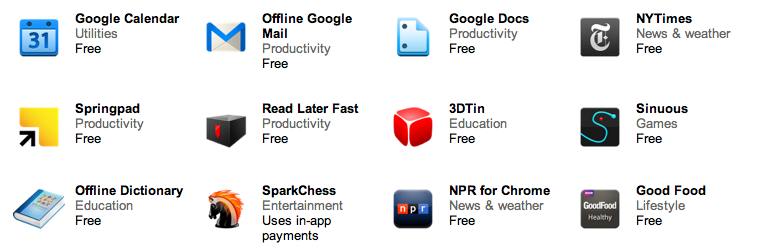
  • Citrix – If your company uses Citrix to host applications, you can use Citrix Receiver to check your email, review documents, tune into project dashboards, and approve expenses from your Chromebook.
  • Offline Gmail/Doc/Cal – I’ve blog about gmail offline support when it came out (the end of August) and the rest of the ‘office’ is also bring the Chromebook users the ability to keep working on long flights instead of watching a nice movie.
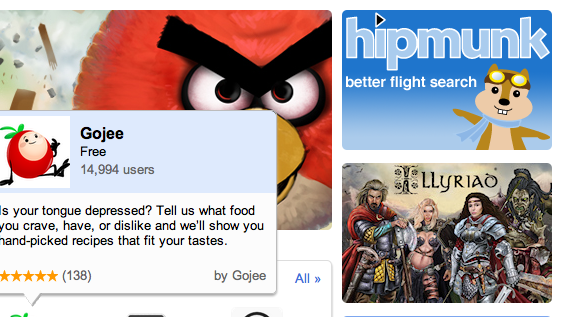
  • Angry birds – We can’t close a list of business apps without this little game that no office is complete without it. No words are needed here.
  • gojee – if you hungry this app is for you! great photos of beautiful dishes.
  • NYT – yep they got offline capabilities so you can keep reading Tomas Friedman under the sea.
Here is a nice list of other great apps that will work offline on your chromebook  – Be strong!
Standard
Chrome, HTML5, webdev

8 Good Web Apps To Start Your Week

Some great web apps to ‘close the summer’:

  • If you are into photos you might want to check out Cooliris – Cooliris transforms your browser into a full-screen 3D Wall for searching, viewing and sharing.
  • Need to find a good flight from SFO to JFK? this new travel search engine got some nice UI. Give Hipmunk a ride it will help you find the flight you want.
  • Flixster – Flixster Movies with Rotten Tomatoes. All you wish to know before you are going to watch a movie.
  • A 3D HTML5 Sky Chart viewer application NakshArt – The Art of Stars in HTML5.
  • Cargo Bridge – A new quality of bridge builder. Build a bridge and test your construction skills.
  • WikiInvest Portfolio – If you feel you need to be in the market these days… this app is for you. Great way to track your investments.
  • Speedtracer – For web developers that feel the need for speed. Get insight into the performance of your web applications.
  • Priceblink – Finds lower Prices, Coupons and Reviews while you shop. Checks for lower prices when you’re shopping or it stays hidden.
and let’s not forget you can now have Gmail, Docs and Calendar with offline!! good times.
Standard
Chrome, webdev

ChromeBook – Tips And Tricks

Customize It

  • First enable the sync option so you will get your passwords, bookmarks (and in the future) themes everywhere. You can do it from chrome://settings/personal and click on Sync.
  • Enable Tap to click – Go to: chrome://settings/system. Then click on the checkbox to set ‘tab as click’ – done.
  • Extension that give you shortcuts to all the ‘flags’ and settings – I’ve wrote it because I wanted to have all the shortcuts in one place… it’s very productive to have them in one click.
  • SSH client – Ctrl+Alt+t
  • Open an ssh connection to the given host Y as user X.
  • The parameter is optional and defaults to 22.
  • Log out – Ctrl+Shift+q
  • Lock screen – Ctrl+Alt+l (=L)
  • Shortcut keys
  • Press F8, then press Ctrl, Shift, Alt (once a key), press F8 again to exit

Better Browsing

  • Create a tab – Ctrl+T or click the ‘+’ on top of the window.
  • Create a new window – Ctrl+n
  • Create a new incognito window – Ctrl+Shift+n
  • Refresh current tab – Ctrl+r
  • The (one and only) File Manager – Ctrl+m  (On chromebook you got almost 16G of SSD).
  • Switch between different windows – Alt+Tab or press F12 and then use arrow key
  • Change Channel To Beta or Dev Version – Only if you are geeky enough to live on the bleeding edge, visit chrome://settings/about and click on “more info” to change channel.

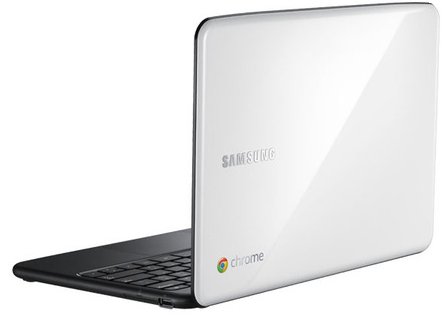
For the ones that don’t know what is chromebook

Standard
Chrome, HTML5, JavaScript, php, webdev

Web Developers And The Chromebook

Lots of developers that are looking at the Chromebook think for the first time: “what tool do I (=the developer) have on the chromebook that will let me write code?” There are many options of cloud IDEs and we see more and more a good integration between them and other cloud services: Google Drive, dropbox, github etc’.

[updated May 2013]

  • Neutron Drive seems like a good option with a close integration with Google drive and lots of languages its support.
  • ShiftEdit – which give you many options to develop in your language: PHP, Ruby, HTML, CSS and JavaScript and then by using (S)FTP you can save your work to  Dropbox or Google Drive.
  • Codenvy -Codenvy is a cloud IDE enables you to code, build, debug in the cloud, and deploy to your PaaS of choice. I’ve play with it and it got a nice collaboratively options. It’s support JavaScript, Java, Node.JS, Android, Spring, PHP, Ruby and Python. The environment let you do ‘pair programing’ with its screen shared capabilities.
  • Cloud9, an IDE for JavaScript, Python, PHP, and Ruby. Cloud9 uses the HTML5 FileSystem capability and AppCache to sync files, so you can even code offline. It got some really nice features that I find myself using a lot: github integration, chat, the ability to work and do reviews on your code without any pain of ‘new/other’ tools.
  • Kodingen is an Online Development Environment including Code Editor, Cloud Hosting, Database Administration, Collaboration (not yet in beta), Web based access to file-system and it sounds good. I haven’t play with it (yet) – but I’ve heard some friends that like it.
  • Codey – Easy to use code editor for HTML, PHP, CSS, JS. They are in Chrome web store.
  • Akshell – Server-side JavaScript development and hosting platform. They got some git integration built in their IDE.
  • eXo Cloud IDE – Full IDE that support: HTML/CSS/JS and PHP/JAVA/RUBY. The nice part of it is that it will let you develop in Java,PHP,JS and other technologies and to push your code to production on several cloud providers.
  • PHPAnywhere is a web based free Integrated Development Environment or IDE for the PHP, HTML and CSS, in other words it is an application that gives developers all the code editing capabilities they need to develop web sites and applications online.
  • On the other side of the scale – editpad.org give you a simple option to write in your browser and then save it. It’s a cool way to do stuff if you ‘just’ want to write something quickly without all the ‘IDE’ features flying around.
For just a quick demo or this new coding experiments, check out JSFiddle that will let you run your HTML/CSS and JS quickly and then share it on the fly with friends. In that region, you might want to see: JSLINT.com and JSHIT.com for your js coding and the fresh new ‘sister’ CSSLINT.net
Another option that is becoming more and more ‘like’ an IDE is the powerful Chrome DevTools.

Other JavaScript/CSS sources:

  • MDN Docs – One of the best sources for javascript (ref, doc and all the rest).
  • JQAPI – Excellent documentation for jQuery. Take a look at: http://jqapi.com/#p=jQuery.ajax and see its power.
  • Less CSS – LESS extends CSS with dynamic behavior such as variables, mixins, operations and functions. LESS runs on both the client-side (IE 6+, Webkit, Firefox) and server-side, with Node.js.
And for the ones that want a closer look to what the ‘cool kids’ on the block are doing with nodeJS – there is how to node.org and this free book on JavaScript.
Standard
Chrome

How To Detect If It Is A ChromeBook?

I’ve been developing some extensions and web apps that need to use the new Chromebook file API. But on the other hand, I don’t want to see the sad faces of all the users that will install this extension just to see that it’s not working for them on their Chrome browser. The quick and easy solution is to do something like this:

var ua = window.navigator.userAgent;
// Then check if the UA is something like: Mozilla/5.0 (X11; CrOS i686 0.12.433) AppleWebKit/534.30 (KHTML, like Gecko) Chrome/12.0.742.77 Safari/534.30

Now, if you got back in the user agent some string like: CrOS you are on ChromeOS device.
Btw, you can even tell the version of the chrome in the end of this string. So you can save a call to ‘about:version’ page. It’s useful because it won’t force you to add permissions to the extension. I found that some developers are using permissions that are making users uncomfortable… As always, think of you when you asking the user to approve some permissions.

While I was working on that, I developed this little chrome extension that give you all the shortcuts/utils in one click.

Be strong and let me know if it’s not working for you.

Standard
Chrome, HTML5, webdev

How To Use The New ChromeBook File API


Next week, on June 15, we are going to see a new animal in town. It’s a laptop that works perfectly for the web. It got one of the best/fast browsers out there and its security model is baked really deep. One of the cool things in ChromeOS is that it gives developers a new API to play with. I worked with it in the past few weeks and I must say, it’s great (=Simple and powerful).
Let’s see how we can use this powerful API to upload files from USB and/or our ChromeBook.

The ChromeOS (=ChromeBook) file browser comes up when the user either presses Ctrl+M or connects an external storage device, such as an SD card, USB key, external drive, or digital camera. Besides showing the files on external devices, the file browser can also display files that the user has previously saved to the system.
When the user selects one or more files, the file browser adds buttons representing the valid handlers for those files. For example, in the following screenshot, selecting a file with a “.jpg” suffix results in an “Upload to Picasa” button that the user can click. Few things to keep in mind:

  • You should declare the “fileBrowserHandler” permission in the extension manifest
  • You should use the “file_browser_handlers” field to register the extension as a handler of at least one file type.
  • Last but not least, you should also provide a 16×16 icon to be displayed on the button. For example let’s take Flickr:

{
  "name": "Flickr Uploader",
  ...
  "file_browser_handlers": [
    {
      "id": "upload",
      "default_title": "Save to Flickr", // What the button will display
      "file_filters": [
        "filesystem:*.jpg",
        "filesystem:*.jpeg",
        "filesystem:*.png"
      ]
    }
  ],
  "permissions" : [
    "fileBrowserHandler"
  ],
  "icons": { "16": "icon16.png",
             "48": "icon48.png",
            "128": "icon128.png" }
}
 

To use this API, you must implement a function that handles the onExecute event of chrome.fileBrowserHandler. Your function will be called whenever the user clicks the button that represents your file browser handler. In your function, use the HTML5 FileSystem API to get access to the file contents.
Here is our Flickr example inside the background.html:


chrome.fileBrowserHandler.onExecute.addListener(function(id, details) {
  if (id == 'upload') {
    var fileEntries = details.entries;
    for (var i = 0, entry; entry = fileEntries[i]; ++i) {
      entry.file(function(file) {
        // send file somewhere
      });
    }
  }
});

Your event handler is passed two arguments:
id – The “id” value from the manifest file. If your extension implements multiple handlers, you can check the id value to see which handler has been triggered.
details – An object describing the event. You can get the file or files that the user has selected from the entries field of this object, which is an array of FileSystem Entry objects.

Is that easy or what? Please let me know if you have any comments/questions.

Here is another little javascript code that will do the work if you want to let the user to choose a file from your extension popup.html file:


...
uploadFile: function(file) {
            var pro1 = document.querySelector('#pro1');
            var progressBar =  pro1.querySelector('progress');
            var formData = new FormData();
            formData.append('file', file);

            var xhr = new XMLHttpRequest();
            xhr.open('POST', this.uploadServer, true);

            xhr.onload = function(e) {
                if (this.status == 200) {
                    console.log(this.response);
                    alert("The image is safe in Flickr " + this.response);
                }
            };

            xhr.onerror = function(e) {
                console.log(this, this.status, this.responseText, 
			    this.getAllResponseHeaders())
            };

            xhr.send(formData);
        }
...

Resources

Want to learn more on Chrome Extensions? Here is a great starting point

Standard