Chrome

A New Release Of Chrome 15 For Chromebooks

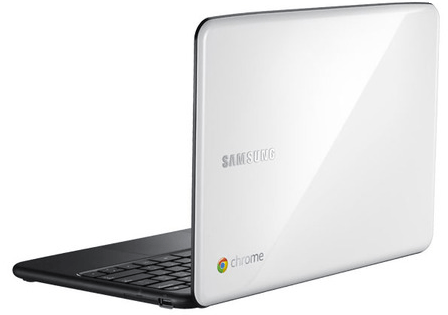
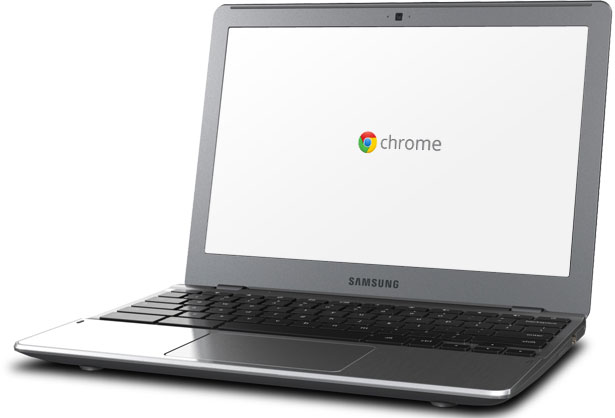
A new release of Chrome 15 (on the Stable Channel) is out there for Chromebooks: Acer AC700, Samsung Series 5 and Cr-48.

Release highlights:

  • New Chrome 15 functionality including the new tab page (which you can see a short introduction video in the bottom of this post).
  • New Web UI Login – IMHO, much simpler and nicer.
  • Support playback of key media codecs
  • Improve video decode performance
  • Add concept of preferred networks
  • New ‘Games’ and ‘Music’ apps by default
  • NTFS support
  • Add localized text for recovery
  • Networking improvements
  • Crash fixes & Security updates – because you must have them both in any good product today.
The current version is 15.0.874.117 (Platform version: 1011.118)
Standard
Chrome, life

Great Apps For Your Chromebook

Web-based applications are programs that are designed to be used entirely within the browser. Using apps, you can do anything (well, almost!).

These days, web apps are capable of dynamic functionality that you expect from desktop applications on your computer. If you use services like Gmail or Google Maps, you’re already using apps! Apps have the following advantages over desktop applications:

  • Apps install in seconds, with one click of a button. When you install a web app from the Chrome web store you get some nice new features like: unlimited offline storage, geo information, notifications etc’. So as a web developer, you might want to use this channel to make your users happy (or happier).
  • Apps are always up-to-date. Because apps are hosted on the web where they can be instantly updated, you can be sure you’re always using the latest version of the app that’s available.
  • Apps won’t crash your computer. If one app misbehaves, just close its tab in the browser. Your browser and computer won’t be affected.
Here are three lists with good (to great) web apps to make you (even more) productive.
If you have other suggestions, please let me know.

Apps For Everyday

If you want to… On a Chromebook, you could use…
Save a file Google Docs (which are working great in offline mode since June 2012) or Box or the Generic solution CrOS Save that will give you Dropbox and many other cloud solutions.
Read my email Gmail or other webmail services like: yahoo, hotmail etc’.
You can also try Offline Gmail to be productive on the times you don’t have an internet connection.
Organize my events on a calendar Google Calendar (which work offline!) or 1Calendar
Write a document Google Docs (which work offline!), Scratchpad or Quick Note
Chat with friends and family Google Talk or IMO
Watch a movie, clip, or tv show Netflix or YouTube
Edit a video or movie Stupeflix or YouTube Video Editor
Listen to music Pandora or MOG
Organize and save my music Google Music or mSpot
Edit or create music Aviary Audio Editor or Beatlab
Play a game Angry Birds, WGT Golf Challenge, or explore more games
Edit, organize, and store photos Picasa Uploader, Aviary or Picnik
Draw a picture Sketchpad or Sumo Paint

Apps At School

If you want to… On a Chromebook you could use…
Take notes or write a document Google Docs, Scratchpad or Quick Note
Create a presentation Google Docs, SlideRocket, or 280 Slides
Create a spreadsheet Google Docs or Zoho Sheet
Keep track of things to do Google Tasks or Springpad
Do research for my project Google Books or Academic Earth
Plan for a project Zoho Projects or SmartSheet
Do some calculations Calculator app or Scientific Calculator
Look up word definitions Google Dictionary
Keep track of time Alarm clock app

Apps At Work

If you want to… On a Chromebook you could use…
If your company uses Citrix to host applications and you wish to work on them in remote. Citrix Receiver
Do your tax (hopefully before April) Turbo Tax
Work on your mail while you don’t have connection (e.g. flight, train etc’) Offline Gmail
If you hungry and want to cook something tasty. Gojee
Write a document Google Docs or Zoho Writer
Create a presentation Google Docs, SlideRocket, or 280 Slides
Create a spreadsheet Google Docs or Zoho Sheet
Manage accounts and taxes Wave Accounting or Zoho Books
Organize personal finances Mint or CashBase
Develop or debug code Cloud9 or Koding
or just go deep with my post on the subject
Here is a good intro to ‘what is a web app’?
Standard
Chrome

How To Make Your Chromebook (Even) Faster?

Here are few tips to get your Chromebook to run (even) faster:

  • First, check if you don’t have too many tabs open – after all, if you open 217 tabs it might be ‘a bit’ too much for the memory. It’s like in any other computer, the memory got its limitations.
  • Go to: chrome://flags/ and disable all experimental flags – just to be on the safe side. Lots of them are not taking any ‘extra’ CPU cycles, but I like to keep things as trim and simple as possible.
  • Make sure you remove (or at least disable) unused extensions. You can go to chrome://extensions/ in order to remove them or just right click on their buttons.
    Of course, that some extensions like: LastPass and others here (on your browser) to stay. After all, there are some extensions that give certain users a lot of power that ‘worth’ the tiny bit of power they are consuming from the device.
  • Sometimes click on Shift-Esc to open the processes list. There you can remove/kill processes that are consuming too much CPU/memory.
If you got some other tips – please let me know with the comments here or on @greenido
chromebook 5
Standard
Chrome, HTML5, webdev

ChromeOS In 5min Video


In this short screencast I’ve touched on:

  • What is ChromeOS?
  • Why it’s great for users, business and developers.
  • How a good web apps look like.
Until next time, please be strong and happy.
Standard
Chrome, webdev

Want To Test Drive Chrome OS On Your Laptop?

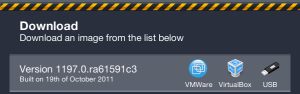
Here is a place with nightly builds for VMWare, VirtualBox and your USB. If you wish to see the magic on your netbook… why don’t you start with a USB build and see how it’s working for you?

Good luck & be strong.

P.S
(!) Important tip… go to the virtual box setting pane and under CPU make sure the ‘PAE’ is checked. This will save you a lot of white hair.

Standard
Chrome, HTML5

How Easy Is To Use A Chromebook?

Very easy and if you are a (happy) user of gmail your life will get better from the first minute you are logged in. If you have other email service it’s also cool. I’m using both yahoo and gmail on it and it’s working great with both of them.

The ability to run gmail in offline mode is also a doable on a Chromebook. It’s very useful, specially, to people the travel a lot and can’t count that their favorite airline will have wi-fi. I’m writing this post from a Chromebook… but since wordpress don’t have a good webapp with some offline capabilities – I’m using ‘Write Space’. Write Space is a customizable full-screen text-editor that lives in your web-browser. It is designed to minimize the distractions that come between you and your writing and the offline capabilities are really working.

If you are a new to Chromebook – check this one and a half minute demo:

Standard
Chrome

Activate Your Chromebook (While You Are On The Road)

  1. Plug in your Chromebook to a power outlet. Some Chromebooks come with a detached battery or with a battery that need some juice so insert the battery and plug it in.
  2. Start your Chromebook. Power up your Chromebook by pressing the power button on the top-right corner of the keyboard.
  3. Select your language settings. On the “Let’s get started” screen that appears, select the interface language you’d like to use by default. If prompted, select a keyboard input method, too.
  4. Connect to a network. Select a Wi-Fi network from the network menu.
    (!) Please make sure you’re not connected to a network that requires web-based authentication or security certificates, in other words, no ‘term & condition’ page you need to sign on before you get connection. If you are having trouble connecting? check out this Internet connection troubleshooter to diagnose your issue.
  5. Accept terms of service. Your Chromebook will then download any available system updates so you automatically get the latest features.
  6. Sign in with your Google Account. In the sign-in box that appears, enter your Google Account username and password and click Sign in. Make sure you sign in with your primary Google Account, because this account will be set as the owner account.

In case you wish to activate Verizon, first make sure you’re in an area that is covered by the Verizon Wireless Network before beginning the activation. To check if your location is supported, visit this site. Once you’ve verified that your location is supported, follow these steps to check your signal strength:

  1. Press Ctrl+Alt+T on your Chromebook to open a terminal window.
  2. Type the following command and press Enter to see information about your modem: modem status
  3. In the information that appears, check whether the signal_strength_dbm value is greater than -86 dbm.
    If it’s not, try moving to another location with better signal strength before continuing with the activation process.

==

Enjoy you new Chromebook and check out these powerful web apps to get you going. Here are some Tricks and Tips as well.
Standard
Chrome, HTML5, JavaScript, webdev

HTML5 Lastest Features

This slideshow requires JavaScript.

Here are some updates and new features you can use today…

  • Page Visibility API – know when your web app’s page is not visible and save CPU (and Al gore will love you! for helping us saving earth)
  • Web Audio API – Since < audio > had its limitations. Now you can have scheduling of your playback, real-time processing and analysis of the stream and even low-level audio manipulation. Go Have Fun… It’s all in Chrome 14 stable & ready.
  • Prerendering API – speed is the need and this API comes to help.
  • Offline support is going mainstream so first you wish to know when you are online (or not) and then use IndexedDB and other options to save time and data for your clients (on the client).
  • Web graphics enhancements: Beautiful image transitions and A 3D CSS shooter
  • Native Client launched in Chrome 14 – Now you can play some classics games on your Chromebook.
    • Secure cross-platform C/C++ environment for apps/extensions
    • Close to native performance in web applications
    • Extra security, with The Sandboxed inside NaCl and Chrome sandboxes (very far from ActiveX!)
Here are some short code snippts of what you can do today on morden browsers. If you wish to check the specific feature I’ll recommend canIuse.com

Page Visibility API

document.addEventListener('visibilitychange', function(e) {
  console.log('hidden:' + document.hidden, 'state:' + document.visibilityState)
}, false);

Prerendering API

< link rel="prerender" href="http://example.org/index.html" >

Online status

if (navigator.onLine) {
  console.log('ONLINE!');
}
else {
  console.log('Connection is not *good*');
}

Now it’s your turn… start leveraging them.

Standard
Business, Chrome

Chrome Remote Desktop – Work Like A Pro

What is it?

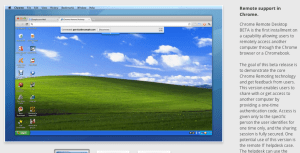
Chrome Remote Desktop BETA is the first installment on a capability allowing users to remotely access another computer through the Chrome browser or a Chromebook.
Yes! If you have install Chrome to your presents you can give them an extra support these days.

The goal of this release is to demonstrate the core Chrome Remoting technology. This version enables users to share with or get access to another computer by providing a one-time authentication code. Access is given only to the specific person the user identifies for one time only, and the sharing session is fully secured.

Chrome Remote Desktop BETA is fully cross-platform, so you can connect any two computers that have a Chrome browser, including Windows, Linux, Mac and Chromebooks.

How to share you computer? (please use with caution)

  1. Open a new tab in Google Chrome by clicking the open a new tab icon at the top of your browser window.
  2. Click the Chrome Remote Desktop icon in the Apps section to open the Chrome Remote Desktop app.
  3. Click Share this computer. The app will have permission to take the following actions:
    • See your email address
    • See your Chrome Remote Desktop computers
    • Receive and send chat messages
  4. A unique access code will be generated for each sharing session. Send this code to the person you’d like to share your computer with. For security reasons, we recommend reading this code aloud to him or her.

Once your friend enters the access code, the sharing session will begin and he or she will be able to see your computer screen.
You can click Stop sharing or press Ctrl+Alt+Esc (Mac: Shift-Esc) at anytime to end the session.

Access a macine that was shared with you

  1. Open a new tab in Google Chrome by clicking the open a new tab icon at the top of your browser window.
  2. Click the Chrome Remote Desktop icon in the Apps section to open the Chrome Remote Desktop app.
  3. Click Access a shared computer.
  4. Enter the access code provided by your friend.
  5. Click Connect.

When things are not working

I would check first the internet connection and then:
  1. Your firewall settings – Your computer’s firewall may be configured in a way that doesn’t allow Chrome Remote Desktop to work properly. Verify that your firewall permits outbound UDP traffic, permits inbound UDP responses, and allows traffic on TCP ports 443 (HTTPS) and 5222 (XMPP).
  2. Your network’s NAT Traversal policy – If your computer is on a corporate network, check whether your company’s network security policies prevent access to outside services that rely on peer-to-peer (P2P) connections (“NAT Traversal” policies). If so, you won’t be able to use the Chrome Remote Desktop app. This restriction applies when you and the other computer are not on the same corporate network.
For the ones that love to read code – This is the code that does this magic.
Standard
Business, Chrome

Re-Thinking Corporate IT Or How Chromebook Can Help

Few points on companies and their IT department in 2011.

  • In todays world, any CIO/CTO that want to ‘Avoid Getting In the Way’ must think on how to remove her department tag of ‘cost center’ and start pushing to be a business that save money and even produce incomes to the organization. In most of the cases the answer is ‘cloud’. But lets take a closer look what that buzzword means.
  • It’s easy to say and hard to do… However, where there are so many great clouds solutions (SAAS and PAAS) if you are still running you mail servers, your wiki or intranet site on some old hardware, something is not being done right.
  • I was lucky to be the CTO and co-founder of a great startup in the past four years (HighGearMedia) and from day one all the IT infrastructure was in the cloud. It can be Google, Rackspace, Amazon or any other provider you like and trust. The main point is saving money, time and most importantly – focus. You want to keep doing what you excel at and not spending time in supporting people with ’email’ issues or some ‘rare problems with the most important presentation. The money you save in startups is ‘nothing’ compare to the millions (or more) the large company will save.
  • One thing that the new Chromebook is doing great to the CIO and all the IT department is to allow them to mange all the organization Chromebooks from one central point. You can install apps (few clicks and ALL your users got a new chart app), remove apps and put some policy in place (e.g. no Angry birds in the middle of the day). In other words, Administrators can configure and manage Chromebooks and user accounts centrally through the web. Seamless updates directly from Google keep the operating system and software fresh (every 6 weeks you are getting a new version of chrome), eliminating the need to manually patch systems. And since only minimal data is stored on the device, you don’t need to do tedious backups or migrate data when changing hardware.
  • Last May, I’ve listened to Google CIO (Ben Fried) and his team of engineers describe how Google builds on App Engine. If you’re interested in building corp apps that run on Google’s cloud, this team has been doing exactly that. How these teams have been able to respond more quickly to business needs while reducing operational burden? Here are some answers
    If you are in NY later this month you might want to hear what Ben got to say about “Re-thinking IT: Supporting the Business Without Getting In the Way” for the upcoming Web 2.0 conference.
Standard