
Here are some of the rules that will help you build better forms. As we know, it’s a mobile world, so we wish our forms to be responsive and mobile first by nature. Let’s see how to do it right.
Use big font size and provide easily touch buttons
Here it’s simple, when you have doubt, make things bigger and check. In other words, you wish your fonts to look great both on mobile and desktop. For mobile, a rule of at least 16px will be a good start. Why? because it’s big enough in most cases for mobile. Plus, this minimum size will prevent all iPhones from zooming into the fields. For buttons and touch areas, start with at least a size of 32px for the input field height. This will ensure it’s not too small. However, check it both on mobile (few devices from 4″ to 6″) and on larger screens (=desktop or large tablets). Both Foundation and Bootstrap gives you a default size for such elements that is good for mobile.
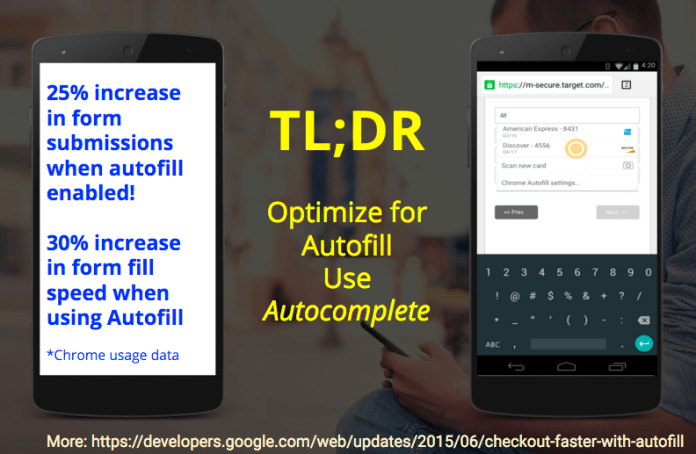
Take advantage of Autofill
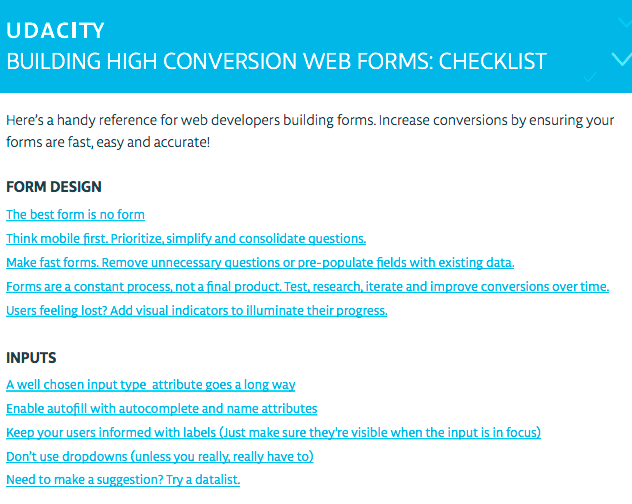
This will enable your users an easy way to complete forms with pre-populated data. Look for opportunities to pre-fill information you already know (e.g. Geolocation to fill the zip code), or may anticipated to save the user from having to provide it. For example, pre-populate the shipping address with the last shipping address supplied by the user. See it in action at: greenido.github.io/form-example.html Continue reading →
Share only with good friends:

 Ido Green