
Here are two slides that I’ve created for a talk I gave yesterday at The Junction meetup.
Enjoy… and if you have comments/feedback – please let me know.
Here are two slides that I’ve created for a talk I gave yesterday at The Junction meetup.
Enjoy… and if you have comments/feedback – please let me know.
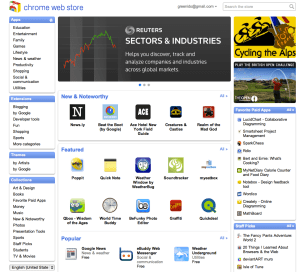 If you wish to develop an application (or should I say, a web app) or may be, you have a web app and you just didn’t think about the Chrome store as a distribution channel… Here are few places you might want to read. You will not believe how fast and easy is to put your web app in the store. The first place to check will be the ‘Chrom Web Store – Getting started Guide‘. The second place you will want to check is the option to have Hosted Apps. If you in the arena of ‘Angry birds’ – check out the new option to have Packaged Apps. Last but not least, it is always important to have an amazing ‘first impression’ on your users (and girls/boys in pubs) – so check out the best practices on your web app’s banners/images.
* Tip – a useful read is the ‘Debugging‘ it will introduces you to using Google Chrome’s built-in Developer Tools to interactively debug you web app (and/or your extension).
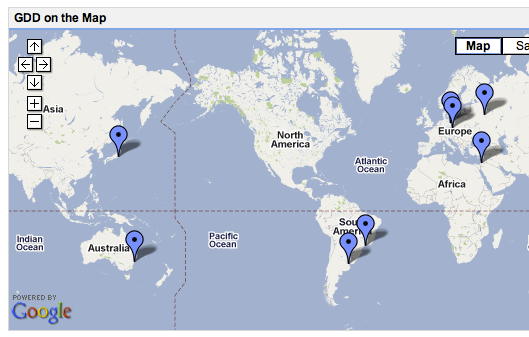 It’s going to be a hot summer all around block (=world). If you are a (really good) developer… this is a great opportunity to show the world what magic you can do. It’s all about APIs and how you master their usage with some ‘salt & paper’ that you bring from home. This year’s Open Call challenges will focus on the Android ADK and HTML5 platforms. No matter which challenge you choose, your submission must reflect the regional culture of the GDD that you will be attending, be this through music, creative imagery, lighting or colors… go with your heart.
Lots of developers that are looking at the Chromebook think for the first time: “what tool do I (=the developer) have on the chromebook that will let me write code?” There are many options of cloud IDEs and we see more and more a good integration between them and other cloud services: Google Drive, dropbox, github etc’.
 IndexedDB is an evolving web standard for the storage of significant amounts of structured data in the browser and for high performance searches on this data using indexes. IndexedDB leaves room for a third-party JavaScript library to straddle the underlying primitives with a BTree API, and I look forward to seeing initiatives like BrowserCouch built on top of IndexedDB. Intrepid web developers can even build a SQL API on top of IndexedDB.
I’ve work today to create this example in order to push it to MDC IndexDB page later… I found few things that didn’t work on Firefox 4 (but since we have Firefox 5 from last night) – I’ve just put them in the comments. Also, Chrome 12 (and above) works great.
You might want to check that the pages you developing on are served from a server and not a local file, because on firefox it won’t work…
You can go here and see a working example or browse the code below and get a beer.
Here is a code that will show you all the basic features:
To check the code with highlights you might want to check The code of this example on github
Here are some main snippets of code:
// Our local DB

var idb_;

// Our DB request obj

var idbRequest_;

//

// just a simple way to show what we are doing on the page

var idbLog_ = document.getElementById('idb-log');

var idResultsWrapper_ = document.getElementById('idb-results-wrapper');
// IndexedDB spec is still evolving - see: http://www.w3.org/TR/IndexedDB/
// various browsers keep it
// behind various flags and implementation varies.
if ('webkitIndexedDB' in window) {
window.indexedDB = window.webkitIndexedDB;
window.IDBTransaction = window.webkitIDBTransaction;
} else if ('mozIndexedDB' in window) {
window.indexedDB = window.mozIndexedDB;
}
// Open our IndexedDB if the browser supports it.
if (window.indexedDB) {
idbRequest_ = window.indexedDB.open("Test", "Our Amazing test object IndexDB");
idbRequest_.onerror = idbError_;
idbRequest_.addEventListener('success', function(e) {
// FF4 requires e.result. IDBRequest.request isn't set
// FF5/Chrome works fine.
idb_ = idbRequest_.result || e.result;
idbShow_(e);
}, false);
}
// on errors - show us what is going wrong
function idbError_(e) {
idbLog_.innerHTML += '
Error: ' + e.message + ' (' + e.code + ')
';
}
// In cases we add/remove objects - show the user what is changing in the DB
function idbShow_(e) {
if (!idb_.objectStoreNames.contains('myObjectStore')) {
idbLog_.innerHTML = "
Object store not yet created.
";
return;
}
var msgBoard = [];
// Ready is default - make sure NOT to pass empty array in the first param as it use to be something like: []
var transaction = idb_.transaction(idb_.objectStoreNames, IDBTransaction.READ_ONLY);
// Get all results.
var request = transaction.objectStore("myObjectStore").openCursor();
//
//
// This callback will continue to be called until we have no more results.
request.onsuccess = function(e) {
// FF4 requires e.result. IDBRequest.request isn't set
// FF5/Chrome works fine.
var cursor = request.result || e.result;
if (!cursor) {
idResultsWrapper_.innerHTML = '
';
return;
}
msgBoard.push('
');
cursor.continue();
}
request.onerror = idbError_;
}
// Simple example to show all our records in the DB
function showAll_() {
document.getElementById("ourList").innerHTML = "" ;
var request = window.indexedDB.open("Test",
"Our Test database");
request.onsuccess = function(event) {
// Enumerate the entire object store.
// request = event.currentTarget.result.objectStoreNames("myObjectStore").openCursor();
var transaction = idb_.transaction(idb_.objectStoreNames, IDBTransaction.READ_ONLY); // Ready is default.
var request = transaction.objectStore("myObjectStore").openCursor();
request.onsuccess = function(event) {
var cursor = request.result || event.result;
// If cursor is null then we've completed the enumeration.
if (!cursor) {
return;
}
var element = document.createElement("div");
element.textContent = "key: " + cursor.key + "=> Value: " + cursor.value;
document.getElementById("ourList").appendChild(element);
cursor.
continue ();
};
};
}
—-
Main Source: The IndexDB Spec on w3.org
It’s all about reading the map and see what other big gorillas are doing.
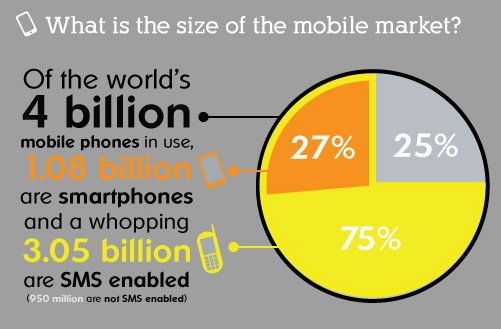
In the past few months, we saw that ‘web gorillas’ like Netflix, Facebook, Microsoft and others are putting their money on HTML5 for mobile. If you want to build an application that will run ‘everywhere’ – HTML5 is your best friend. Yesterday, jQuery Mobile moved to Beta, which is a great news for web developers. In a nutshell, jQuery Mobile is a touch optimized framework for smart phones (iPhone, Android, Palm, Windows phones and even Blackberry) & tablets (iPad, Android and others). It gives out of the box a unified user interface system across all popular mobile device platforms, built on jQuery and jQuery UI foundation. Since ‘Touch’ is the major way to interact with mobile web apps, here is a short summary of ‘the touch state of the union’:
touchstart touchmove touchendtouchenter touchleave touchcanceltouches targetTouches changedTouchestarget identifier x ySome pro tips for mobile web developers:
 <meta name="viewport"

content="width=device-width, height=device-height,

initial-scale=1.0, user-scalable=no">
mySelector {

-webkit-touch-callout: none;

}
setTimeout(function () {

window.scrollTo(0, 1);

}, 1000);
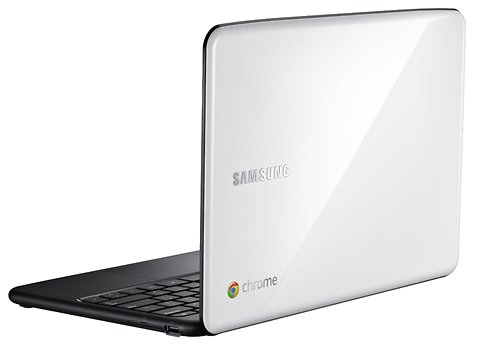
Next week, on June 15, we are going to see a new animal in town. It’s a laptop that works perfectly for the web. It got one of the best/fast browsers out there and its security model is baked really deep. One of the cool things in ChromeOS is that it gives developers a new API to play with. I worked with it in the past few weeks and I must say, it’s great (=Simple and powerful).
Let’s see how we can use this powerful API to upload files from USB and/or our ChromeBook.
The ChromeOS (=ChromeBook) file browser comes up when the user either presses Ctrl+M or connects an external storage device, such as an SD card, USB key, external drive, or digital camera. Besides showing the files on external devices, the file browser can also display files that the user has previously saved to the system.
When the user selects one or more files, the file browser adds buttons representing the valid handlers for those files. For example, in the following screenshot, selecting a file with a “.jpg” suffix results in an “Upload to Picasa” button that the user can click. Few things to keep in mind:
{
  "name": "Flickr Uploader",
  ...
  "file_browser_handlers": [
    {
      "id": "upload",
      "default_title": "Save to Flickr", // What the button will display
      "file_filters": [
        "filesystem:*.jpg",
        "filesystem:*.jpeg",
        "filesystem:*.png"
      ]
    }
  ],
  "permissions" : [
    "fileBrowserHandler"
  ],
  "icons": { "16": "icon16.png",
             "48": "icon48.png",
            "128": "icon128.png" }
}
To use this API, you must implement a function that handles the onExecute event of chrome.fileBrowserHandler. Your function will be called whenever the user clicks the button that represents your file browser handler. In your function, use the HTML5 FileSystem API to get access to the file contents.
Here is our Flickr example inside the background.html:
chrome.fileBrowserHandler.onExecute.addListener(function(id, details) {
  if (id == 'upload') {
    var fileEntries = details.entries;
    for (var i = 0, entry; entry = fileEntries[i]; ++i) {
      entry.file(function(file) {
        // send file somewhere
      });
    }
  }
});
Your event handler is passed two arguments:
id – The “id” value from the manifest file. If your extension implements multiple handlers, you can check the id value to see which handler has been triggered.
details – An object describing the event. You can get the file or files that the user has selected from the entries field of this object, which is an array of FileSystem Entry objects.
Is that easy or what? Please let me know if you have any comments/questions.
Here is another little javascript code that will do the work if you want to let the user to choose a file from your extension popup.html file:
...
uploadFile: function(file) {
            var pro1 = document.querySelector('#pro1');
            var progressBar =  pro1.querySelector('progress');
            var formData = new FormData();
            formData.append('file', file);

            var xhr = new XMLHttpRequest();
            xhr.open('POST', this.uploadServer, true);

            xhr.onload = function(e) {
                if (this.status == 200) {
                    console.log(this.response);
                    alert("The image is safe in Flickr " + this.response);
                }
            };

            xhr.onerror = function(e) {
                console.log(this, this.status, this.responseText,
			    this.getAllResponseHeaders())
            };

            xhr.send(formData);
        }
...
Resources
Want to learn more on Chrome Extensions? Here is a great starting point

HTML5 is a rich development platform that let developers (and companies) target more users on different browsers, devices and tools. Here are few links I’ve collected in the past week. It’s more a short list of great presentations (mostly from Google I/O 2011) and some code sample to give you a hint of the power.
//
// Get the user location
//
if (navigator.geolocation) {
  navigator.geolocation.watchPosition(function(position) {
    var latLng = new google.maps.LatLng(
        position.coords.latitude, position.coords.longitude);
    var marker = new google.maps.Marker({position: latLng, map: map});
    map.setCenter(latLng);
  }, errorHandler);
}

//
// paint some stuff
//
var canvasContext = document.getElementById("canvas").getContext("2d");
canvasContext.fillRect(250, 25, 150, 100);
canvasContext.beginPath();
canvasContext.arc(450, 110, 100, Math.PI * 1/2, Math.PI * 3/2);
canvasContext.lineWidth = 15;
canvasContext.lineCap = 'round';
canvasContext.strokeStyle = 'rgba(255, 127, 0, 0.5)';
canvasContext.stroke

//
// Use some really nice fonts on your site
//
@font-face {
  font-family: 'LeagueGothic';
  src: url(LeagueGothic.otf);
}
@font-face {
  font-family: 'Droid Sans';
  src: url(Droid_Sans.ttf);

//
// Notify your user - just like on other devices
//
function showNotification(pic, title, text) {
  if (hasNotificationPermission()) {
    var notificationWindow = window.webkitNotifications
      .createNotification(pic, title, text);

    notificationWindow.show();

    // close notification automatically after a timeout
    setTimeout(function(popup) {
      popup.cancel();
    }, notificationWindowTimeout, notificationWindow);
  }
}
 Two days ago, I gave a talk at “Silicon Valley Chrome Meetup”. This cool event was sponsored by box.net and I presented a session on Chrome web store upload process and the new chromeOS File API. The goal of this talk was to highlight some of the new ChromeOS file APIs and to give a high level overview on the Chrome web store and the app upload process. One question I got about the store was ‘WHY?’ and for there are three good answers:
On top of that, on the revenue side, you get a peace of mind because Google handle the payments for you. Of course, there is an option to handle the payment on your own – if/when you wish to do it.
Another subject I’ve tried to clear was around ‘A Web App? what is it?’ It’s not easy definition, and you can see lots of examples out there to good/great/awful web apps. So just to give few directions:
Last but not least, was the new file browser API that let developers write some nice java script code that will enable ChromeBooks’ users to upload their files to the cloud. In Google I/O Chrome keynote you could have seen a nice demo of it that let users upload photos to Picasa.
I hope that soon other interesting companies will take advantage of this API and we will see them integrating it with their clouds.
This little JS code will do the file upload for you:
 uploadFile: function(file) {
 var pro1 = document.querySelector('#pro1');
 var progressBar = pro1.querySelector('progress');
 var formData = new FormData();
 formData.append('file', file);
 var xhr = new XMLHttpRequest();
 xhr.open('POST', this.uploadServer, true);
xhr.onload = function(e) {
if (this.status == 200) {
console.log(this.response);
alert(“The image is safe in Flickr ” + this.response);
}
};
xhr.onerror = function(e) {
console.log(this, this.status, this.responseText,
this.getAllResponseHeaders())
};
xhr.send(formData);
},
…
and all you need to declare is few lines of JSON of manifest file.
Declare the “fileBrowserHandler” permission in the extension manifest.
 {
 "name": "Upload to flickr",
 ...
 "file_browser_handlers": [
 {
 "id": "upload",
 "default_title": "Save to flickr", // What the button will display
 "file_filters": [
 "filesystem:*.jpg",
 "filesystem:*.jpeg",
 "filesystem:*.png"
 ]
 }
 ],
 "permissions" : [
 "fileBrowserHandler"
 ],
 "icons": { "16": "icon16.png",
 "48": "icon48.png",
 "128": "icon128.png" }
 }
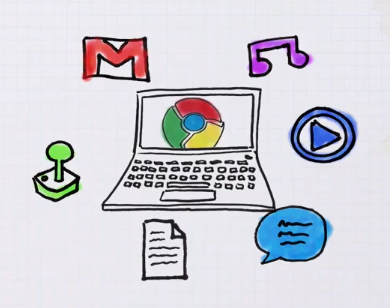
The power of the web is just starting to pick momentum. There are lots of signs that companies want to leverage HTML5 in order to by more productive and everywhere (desktop, laptop, tablet, mobile etc’). It’s not only Facebook, Netflix and others that got to understand that with HTML5 you can have web apps that will give the user a very close feeling to what they are getting today in native apps. He are three quick videos that explain what is a web app, what is Chrome Extension and why you want to have Chrome book…
And last but not least, with more then 1.2M views… Chrome and Gaga video
So unleash your inner…
 Ido Green