

Every developer has a moment mid-flow when they break concentration to look up a flag, debug an error, or Google that one awk trick they always forget. It’s death by context switching — and the browser is the grim reaper.
That’s where Gemini CLI comes in.
It’s not just another AI chatbot ported into a terminal.
It’s an embedded, context-aware development assistant that lives alongside your code, speaks your language, and remembers what you’ve worked on — locally.
No browser tabs, no copy-paste gymnastics, no handing your project to the cloud gods.
When choosing an AI coding assistant, developers have several strong options to consider.
Claude Code offers sophisticated reasoning and natural language understanding, excelling at complex problem-solving and architectural decisions through its command-line interface.
OpenAI Codex, which powers GitHub Copilot, integrates seamlessly into popular IDEs and has been widely adopted for its reliable code completion and suggestion capabilities.
Google’s Gemini stands out with its multimodal capabilities and strong performance across various coding tasks, while offering a particularly appealing advantage for developers just getting started: it’s available for free.
This makes Gemini an excellent entry point for newcomers who want to explore AI-assisted development without any initial investment, allowing them to experiment and learn before committing to paid tools as their needs grow.
Let’s unpack how Gemini CLI changes the game for developers, how to use it effectively, and where it still falls short.
Why the CLI Wins for Developers
The browser is fine for general queries, but your command line is where the real work happens.
The power of Gemini CLI is that it has local context — it can access files, understand project structure, and store information securely on your disk.
That means your prompts can reference actual code, logs, or configs — and Gemini responds based on your real environment, not just a text snippet you pasted.
This isn’t just convenient — it’s transformative.
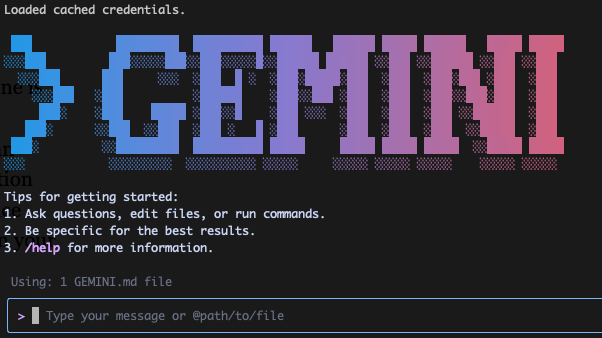
Plus, Google did an amazing job on the terminal art, no?
You’re not talking to an AI anymore; you’re collaborating with one that knows your project.
Btw, even if you’re not a developer, Gemini CLI can make your day-to-day work smoother by letting you interact directly with your own files — something that’s hard to do in a web chat interface.
For example, you can ask it to “summarize meeting_notes.txt”, “extract all action items from report.pdf”, or “rewrite my resume.docx in a more professional tone” — and it will process those local files instantly. You can even run commands like “compare budget_2024.xlsx with budget_2025.xlsx and highlight the differences” or “generate a product description using data.csv”.
This makes Gemini CLI incredibly useful for people who work with lots of documents, spreadsheets, or reports — giving you AI-level insights right where your files live, without having to upload anything or leave your workflow.
Top 8 Ways to Use Gemini CLI (and Why It Rocks)
Here’s how you can use Gemini CLI today to save time, stay focused, and level up your coding efficiency.
1. Code Generation & Refactoring
Need boilerplate or a refactor without bouncing to Stack Overflow? Gemini CLI can read your local files, understand their structure, and produce consistent code that fits your style.
Examples:
gemini "Generate a Python function to parse a CSV file into a list of dictionaries, handling headers"
gemini "Refactor src/utils/dataProcessor.js to use async/await instead of callbacks"
Pro: It learns your conventions by analyzing nearby files.
Con: Occasionally makes assumptions about dependencies — always review generated code.
2. Debugging & Troubleshooting
Copy-pasting stack traces into ChatGPT tabs is a pain.
With Gemini CLI, you can just pipe logs directly into it (or open it in the code directory so it will have the full context):
cat server.log | gemini "Find the cause of this NullPointerException"
or
gemini -p "Explain the architecture of this codebase" --output-format json
Or if you wish to get a new repo and understand the latest changes:
git clone https://github.com/google-gemini/gemini-cli
cd gemini-cli
gemini -p "Give me a summary of all of the changes that went in yesterday"
Pro: Faster root-cause identification with real log context.
Con: Won’t magically fix broken architecture.
It’s like having a senior DevOps engineer whispering suggestions — minus the snark.
3. Codebase Exploration & Analysis
Ever joined a new repo and spent hours just figuring out where things live?
Gemini CLI can summarize modules, trace dependencies, or surface key functions.
Examples:
gemini "Show all files related to user authentication in src/auth"
gemini "Summarize what the payment_gateway module does"
Pro: Perfect for onboarding and technical audits.
Con: Large monorepos can overwhelm it if not indexed smartly.
It’s like grep, but with brains — and no cryptic regex errors.
4. Automated Scripting & DevOps Tasks
From setting up pipelines to spinning up containers, Gemini CLI turns tedious shell work into one-liners.
Examples:
gemini "Write a bash script to back up all .sql files to an S3 bucket"
gemini "Generate a docker-compose.yml for a Node.js app with PostgreSQL"
You can even chain Gemini’s output into executable commands — it’s shell-native.
Pro: Huge time-saver for repetitive setup tasks.
Con: Always sanity-check before executing AI-generated shell commands.
5. Learning & Instant Knowledge Retrieval
Forget alt-tabbing to documentation. Gemini can teach concepts, explain APIs, or recall internal patterns without leaving your repo.
Examples:
gemini "Explain event delegation in JavaScript with an example"
gemini "What are common pitfalls when using React Hooks?"
Pro: Context-aware mentorship — instant, accurate, conversational.
Con: May oversimplify deep concepts; still read real docs when it matters.
It’s like pair programming with an endlessly patient senior engineer.
6. Documentation Generation & Summarization
Tired of writing READMEs or documenting endpoints? Gemini CLI can parse your project and generate structured documentation.
Examples:
gemini "Generate a README.md for this repo after you gain all the context from it"
gemini "Summarize the key functions of src/api and show me the most popular ones"
You can also feed it articles or changelogs and get summaries instantly.
Pro: Saves hours of drudgery.
Con: Needs clean comments or code structure to produce high-quality summaries.
7. System Administration & DevOps Assistance
Gemini can explain sysadmin commands, help you debug configuration files, or optimize performance settings.
Examples:
gemini "How do I configure Nginx to serve static files from /var/www/html?"
gemini "Explain this awk command: awk -F, '{print $3}' file.csv"
Pro: A quick sysadmin guide right in your terminal.
Con: Won’t visualize network diagrams or interactive dashboards (yet).
8. Brainstorming & Problem Solving
Beyond code, Gemini CLI is great for design thinking and architecture brainstorming.
Examples:
gemini "Design a microservice for real-time notifications with Kafka"
gemini "Suggest an efficient algorithm for finding the shortest path in a weighted graph"
Pro: Creative partner for early-stage ideation.
Con: Needs guidance; don’t let it design your infra alone.
The Big Advantage: Local Context & Secure Memory
Here’s what sets Gemini CLI apart: it can use your local files and store context securely on disk.
That means:
- It remembers previous commands, summaries, and local metadata.
- It learns your project’s directory structure, dependencies, and conventions.
- It works offline or privately — ideal for proprietary projects.
This is where browser-based tools fall short. While ChatGPT or Gemini Web are visually polished, they’re blind to your local environment. Gemini CLI, on the other hand, is your environment.
Pros and Cons: Gemini CLI vs. Browser-Based AI
| Feature | Gemini CLI | Browser AI (e.g. Gemini Web, ChatGPT) |
|---|---|---|
| Context | Reads local files and remembers sessions | No access to your codebase |
| Speed | Instant, terminal-native | Slower due to network and UI layers |
| Privacy | Stores data locally | Cloud-based storage |
| Automation | Shell-integrated scripting | Manual |
| Output Format | Text only | Rich visuals and formatting |
| Ease of Use | Dev-focused, requires setup | Plug-and-play |
| Best For | Coding, debugging, automation | Research, writing, design |
The Trade-Off
Gemini CLI is a power tool. It rewards developers who live in the terminal — the ones who prefer command-line precision over mouse clicks.
It’s not meant to replace browser tools entirely — you’ll still want the visual interface for diagramming, presentations, or long-form writing.
But for 80% of dev work — from refactors to debugging — it’s unbeatable.
Conclusion: The Future Is Local + Intelligent
Gemini CLI represents a shift in how we work with AI. It brings intelligence directly to the code, blending human intent with local context. No browser tabs, no noisy UI, no privacy anxiety.
It’s you, your code, and an assistant that learns your way — securely, privately, and efficiently.
(and no… Google is not paying me to say it :))
So next time you open your terminal, try asking:
gemini "what’s the fastest way to optimize this code?"
You might just find the answer — right where the code lives.
Be strong 💪🏼
Discover more from Ido Green
Subscribe to get the latest posts sent to your email.
 Ido Green